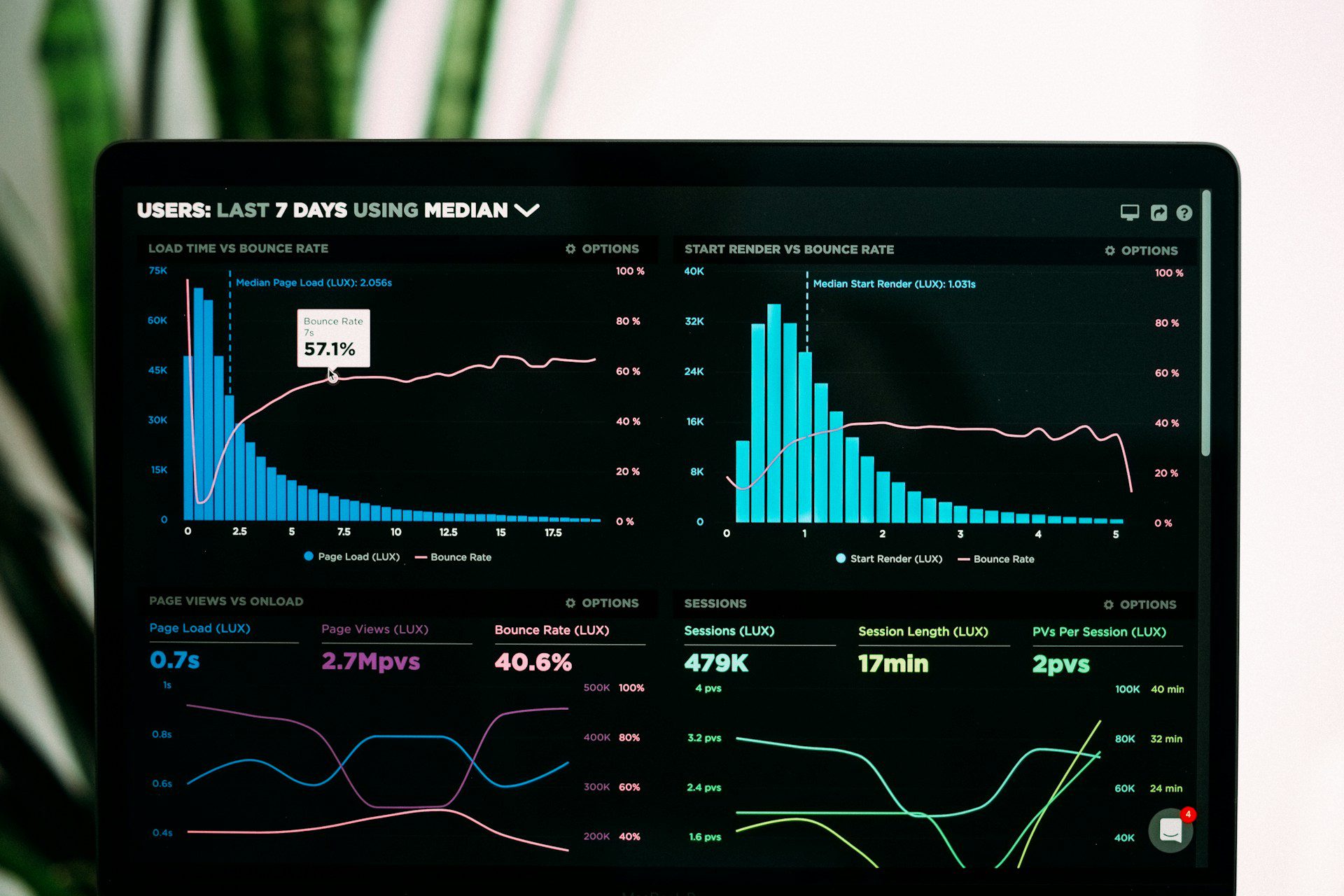
Your head of customer success opens the product dashboard every Monday, scrolls past twelve charts, then messages an analyst to ask which accounts are at risk this week. Your biggest customer’s operations manager sends your support team the same kind of question every month. When you ask why, the answer is polite but clear: the dashboard shows a lot of data, just not the answer to the question they came with.
Good dashboard design fixes that by starting with the decision a person needs to make, then showing only the metrics, comparisons and layout that support that decision. A dashboard is a decision tool, so its quality is measured by how quickly the right person reaches the right conclusion and acts on it. Charts, colors and widgets come after that.
Start With Roles and Decisions, Not Widgets
Most cluttered dashboards come from a backlog of widget requests. Sales wants a pipeline chart, finance wants revenue by month, support wants ticket volume, and every request gets a card. The result serves everyone a little and nobody well.
Before anyone opens Figma, write a short table for each role: who they are, how often they look, and the two or three decisions the dashboard should help them make. The table below shows how different the answers can be for the same product.
| Role | How often they look | Decisions they need to make | What they need first |
| Support team lead | Many times a day | Who to assign, what to escalate | Open queue, items breaching SLA, agent load |
| Customer success manager | Daily or weekly | Which accounts need a call this week | Accounts with falling usage, renewals in 90 days |
| VP or founder | Weekly or monthly | Is the plan on track, where to invest | Revenue and retention against target, trend lines |
| Analyst | When something changes | Why did a number move | Filters, segments, drilldowns, raw tables |
Two things usually come out of this exercise. First, you discover that one dashboard cannot serve all four rows. The support lead needs a live, exception-led screen; the VP needs a calm trend view; the analyst needs an exploration tool. Second, you discover permission rules early: which roles may see revenue, which may see other teams’ data, which see only their own region. Settling that during design saves engineering a painful retrofit.
Choosing Metrics That Earn a Place
Once you know the decisions, pick the numbers that inform them. This is where dashboard design gets hard, because every stakeholder has a favorite metric.
The “would anyone act?” test
For every proposed metric, ask: if this number moved sharply tomorrow, would someone on this role change what they do? If the answer is no, the metric belongs in a report or a deeper view, not on the first screen. Total registered users is the classic example. It only ever goes up, so it rarely prompts a decision. Weekly active accounts, or accounts whose usage dropped this month, usually do.
Give every number a comparison
A number on its own cannot tell anyone whether to worry. “Churn: 4.2%” leaves the reader asking: compared to what? Every primary metric needs at least one reference point. The previous period shows direction. A target or plan shows whether the gap matters. A benchmark inside your own data, such as the same cohort last year, shows whether the change is normal. And a link to the records behind the number lets people act without exporting.
Not every metric has a target or a meaningful benchmark, so show whichever comparisons apply. The rule is simple: a bare number with no reference point does not belong on the first screen.
Settle definitions before you design
Large organizations often discover that “active user” means three different things to three teams. If the dashboard shows one figure and the board deck shows another, people stop trusting both. Write a one-line definition for every metric (what counts, what time window, what is excluded), agree it with the data owner, and surface it in a tooltip. This is the same discipline behind data-driven product development: measurement only guides decisions when everyone reads the number the same way.
Dashboard Design Layout: Reading Order and Hierarchy
With roles and metrics settled, layout becomes a question of reading order. People scan a dashboard the way they scan a page, so place information in the order they need it.
Status, then explanation, then detail
A reliable pattern for most views has three bands:
- A top band with the handful of headline numbers that answer “are we OK?”
- A middle band with the trends and breakdowns that explain those numbers
- A lower band, or a separate drilldown, with tables and records people act on
Size and position should match importance. The headline number for a role deserves the largest type and the top left position. A chart nobody uses weekly does not deserve equal space just because someone asked for it.
Use color for meaning, not decoration
If every card has a colored border and every chart uses six bright hues, nothing stands out and red no longer means “act now”. Keep the base palette neutral and reserve strong color for status and exceptions. Use one consistent color per category across every chart, so “Enterprise” is the same blue everywhere. And never rely on color alone: pair status colors with icons, labels or text so people with color vision deficiencies read them correctly, as WCAG requires.
Group by question, not by data source
Teams often lay dashboards out by where the data comes from: a billing block, a product analytics block, a CRM block. People do not think that way. Group cards by the question they answer, such as “Are new customers getting started?”, even if the numbers come from three systems. Principles from Gestalt psychology in design, such as proximity and common region, explain why grouping changes how quickly people read a screen.
Picking the Right Chart for the Question
Chart choice should follow the question the viewer is asking. Most dashboard problems come from a small set of mismatches.
| Question the viewer is asking | Chart that usually works | Common mistake |
| How has this changed over time? | Line chart | Bar chart with dozens of thin bars |
| Which category is biggest or smallest? | Horizontal bar chart, sorted | Pie chart with many slices |
| How close are we to target? | Single number with target, or a bullet chart | Speedometer gauge that wastes space |
| How do two measures relate? | Scatter plot | Dual-axis chart that implies a link |
| What makes up the total? | Stacked bar, or a short sorted table | 3D pie or donut with tiny segments |
| Which specific records need attention? | Sortable table with status column | A chart that forces hover to find names |
A few rules sit behind that table. Start bar chart axes at zero, because a cropped axis exaggerates differences. Sort bars by value unless there is a natural order like months. Label axes in plain words with units. Limit a line chart to a few series and highlight the one that matters, with the rest in gray. And remember that a table is a perfectly good visualization when people need to find and act on specific rows.
A simple test for any chart: show it to someone for five seconds and ask what it says. If they cannot state the takeaway in one sentence, the chart type or its labeling needs work.
How Dense Should a Dashboard Be?
There is no single right density. A network operations team watching hundreds of services wants a packed screen they can read at a glance, because they look at it all day and know every element. A regional manager who opens the dashboard once a week wants space, labels and context.
Use three questions to set density for each view.
How often does this role look? Frequent users tolerate, and often prefer, more data per screen.
How expert are they with this data? Analysts can read small multiples and abbreviations. Executives and new users need full labels.
What screen will they use? A wall display, a laptop and a phone between meetings need different amounts of content.
Progressive disclosure lets you serve more than one level. Show the summary by default, then reveal breakdowns on expand, hover or drilldown, and let people return to the summary in one step. Keep filters and date ranges in one predictable place, show which ones are active, and carry them through drilldowns, since silently resetting a filter is one of the fastest ways to produce “the numbers don’t match” tickets. If you are building for complex, multi-team products, our guide to enterprise UX design covers how density, permissions and legacy workflows interact at scale.
If your current dashboards are being exported more than they are used, an M7 UX audit reviews them against real tasks through analytics, heuristic evaluation and user testing, then gives you prioritized recommendations with wireframes for the views that need to change.
Trust: The Part Users Notice Most
People act on a dashboard only when they believe it. Three details do most of the work.
Freshness. Show when each data source last updated, near the numbers it affects. A manager who makes a staffing call on yesterday’s figures without knowing it will not trust the screen again.
Traceability. Let people click from any number to the records behind it. If a card says 37 accounts are at risk, one click should list those 37 accounts.
Speed. If filters take several seconds to respond, people assume something is broken. Query performance, caching and pre-aggregation are design decisions as much as engineering ones, so plan them with your developers during design, not after launch.
AI-generated insights such as anomaly flags or plain-language summaries can save time, but they need the same treatment. Show which data the insight used, let people dismiss it, and keep the decision with the person. An unexplained “Revenue anomaly detected” alert erodes trust faster than no alert at all.
Testing a Dashboard Before and After Launch
Test with realistic tasks and real (or realistic) data, not sample data with round numbers and short names. Ask people to answer questions like “Which region missed target last month, and why?” and watch whether they find the answer, how long it takes and whether they read the chart correctly. Misreading a chart is worse than not finding it, because people act on the wrong conclusion.
After release, watch a few signals. Are target roles returning at the rhythm you expected? Is spreadsheet export volume falling? Are “where do I find” support questions dropping? A rise in exports is the clearest sign that the dashboard is not answering the real question. Setting baselines before launch, as described in our guide on how to measure user experience metrics, lets you show leadership whether the redesign worked.
Build the View Each Role Needs
The customer success lead from the opening did not need more charts. She needed one view that listed accounts with falling usage and upcoming renewals, sorted by risk, with a link to each account. Good dashboards come from that kind of specific thinking about who looks, how often and what they will do next.
M7 designs and builds dashboards as part of our UX design and custom software work, from role mapping and metric definitions through to React front ends and the data layer behind them, so the screens your users trust are the ones that ship. If you are planning a new analytics product or rebuilding one that people work around, talk to our team about your dashboard project.
Frequently Asked Questions
How many metrics should a dashboard show on the first screen?
As few as the role needs to answer its main question, which is usually a handful rather than dozens. Apply the “would anyone act?” test to each number and move the rest into drilldowns or reports. If people need to scroll to see whether things are on track, there are too many.
What is the difference between a dashboard and a report?
A dashboard is for monitoring and quick decisions, so it shows current status against a comparison and updates regularly. A report is for explanation and record keeping, so it can be longer, more detailed and fixed to a period. Trying to make one screen do both is a common cause of clutter.
Should customers be able to customize their dashboards?
Customization helps power users and analysts, but it should not replace good defaults. Most people never change the default view, so design that first for each role. Then add saved filters, rearrangeable cards or custom views for the people who need them.
Is a dashboard template good enough for a SaaS product?
A template or component library can speed up internal tools and early versions. Once you have several roles, row-level permissions, large data volumes or a design system to match, you will usually need custom views built on shared components, because the template’s assumptions stop matching your data and users.