Shopify Plus Design and Development: Your Guide to Custom Stores and Conversion Optimization

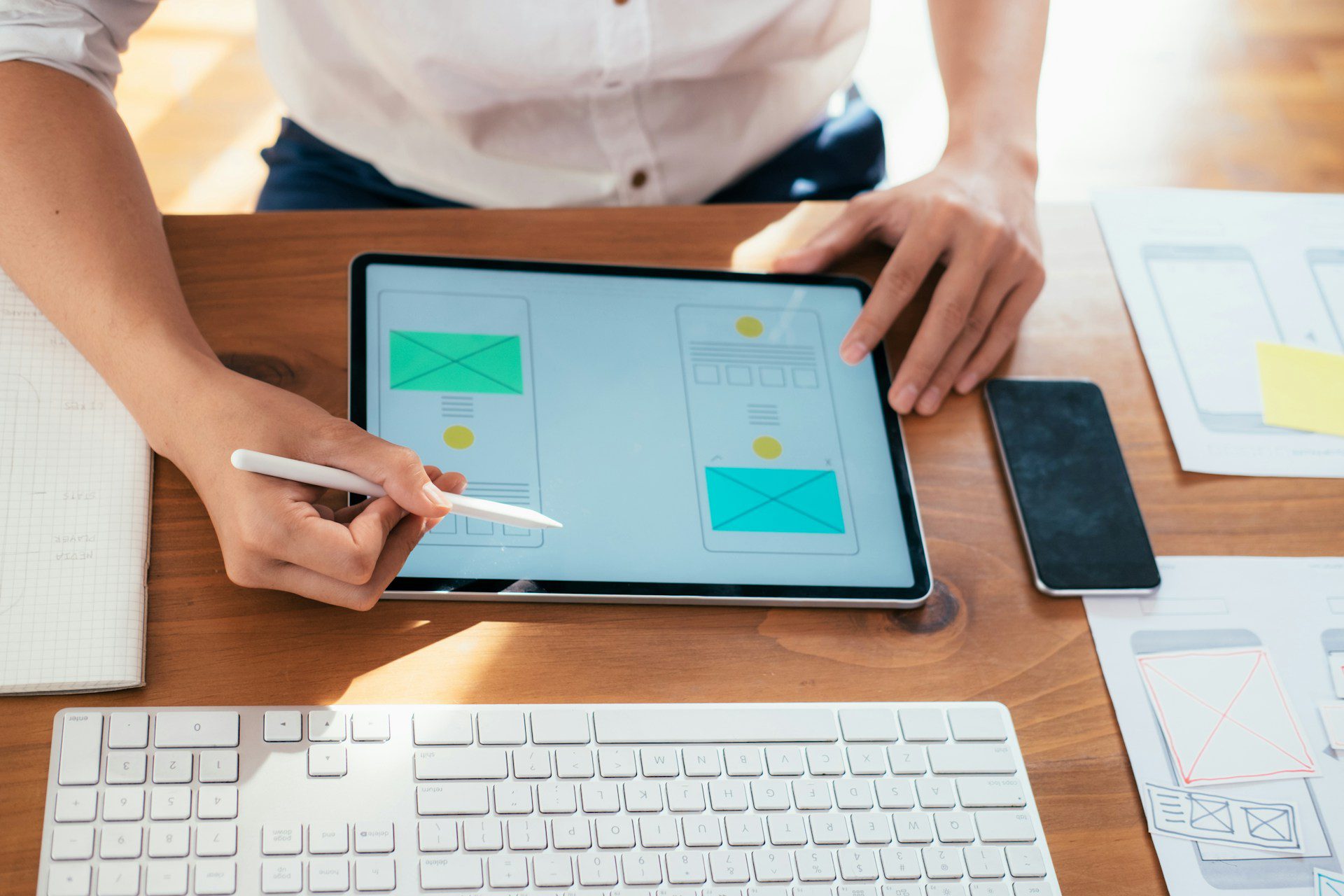
A person writing on a paper

Your ecommerce store should do more than look good. It should load fast, convert consistently, and scale with your growth.

Shopify Plus gives you the foundation. The real impact comes from how design and development work together. When UX is intentional and the build is clean, your storefront becomes faster, easier to use, and more resilient under heavy traffic.

At millermedia7, Shopify Plus projects are approached as performance systems. Design decisions are tied to conversion. Development is built for speed and scalability. Every element is aligned to drive measurable results.

In this guide, you will learn what sets Shopify Plus apart, which design choices actually improve conversions, and how technical decisions affect performance and security. From UX patterns and theme structure to integrations and testing, we break down what matters.

If you are building or optimizing a Shopify Plus store, this is how you turn design and development into real growth.

Shopify Plus

Shopify Plus is the enterprise version of Shopify, built for brands that move fast and sell a lot. You get advanced customization, better performance, and direct access to tools built for scaling around the world.

Shopify Plus cuts down manual work and speeds up launches. You get the Shopify Plus Admin, which lets you handle multiple stores and international markets from one spot. The platform offers advanced APIs and a Script Editor, so you can tweak checkout logic, shipping, and discounts without deep backend work.

You also get a dedicated Launch Engineer and merchant support, plus built-in automation with Shopify Flow for order routing, tagging, and inventory tasks. Payment and fraud controls are more flexible, and the platform supports headless commerce setups using storefront APIs. These features let you tailor the experience and keep your site running fast.

What’s The Difference Between Shopify and Shopify Plus?

Shopify Plus stands out from standard Shopify in scale, control, and support. With Plus, you can run multiple stores, manage global storefronts, and set per-store currencies and domains. Higher API rate limits matter if you sync a ton of SKUs or push live inventory feeds.

Checkout customization is a big one: Plus lets you change checkout with Scripts and the Checkout Extensibility model. Regular Shopify doesn’t give you that kind of access. Plus also comes with enterprise SLAs, a Launch Engineer, and priority support—stuff you won’t find on lower plans. These differences help you avoid bottlenecks as your store, SKUs, and integrations grow.

Benefits for Enterprise Businesses

Shopify Plus lets you scale without tearing everything down and starting over. You can centralize operations across regions, cut out third-party middleware with native automations, and speed up integrations using robust APIs. That means you can launch campaigns and enter new markets faster.

For design and development, Plus supports headless approaches and custom apps, so you can deliver fast, on-brand experiences. Security and reliability scale with you, since Shopify handles PCI compliance and platform performance. If you’re facing a complex build or migration, millermedia7 can help guide your design, development, and strategy to make the platform fit your business.

Shopify Plus Design Fundamentals

Let’s talk about how design choices shape branding, site speed, and conversions. You’ll see how custom themes, responsive layouts, and UX tweaks come together to build a fast, trustworthy storefront.

Custom Themes and Branding

Go for a custom Shopify Plus theme that matches your brand and business rules. Pick a theme built for Shopify’s Online Store 2.0 architecture. That way, you get sections, flexible blocks, and app integrations without a ton of code. Set a clear visual system—logo rules, color palette, typography, and icon style. Keep those rules in a style guide or JSON template so everyone stays consistent.

Limit third-party apps and heavy scripts in your theme. That keeps page weight down and avoids headaches. Use theme settings for stuff like hero images, product grids, and banners, so non-devs can update the site safely.

Technique checklist:

  • Storefront settings in theme.json or theme app blocks
  • SVGs for logos and icons that scale cleanly
  • Web-safe font fallbacks and font-display swap
  • Image optimization and responsive srcset

Responsive Design Principles

Start designing for the smallest screens first, then scale up. Mobile buyers often convert the most, so focus on fast load times and easy tap targets. Use a fluid grid and breakpoints that fit your product images and content, not every possible device.

Keep navigation simple—a tight menu, visible search on mobile, and a sticky cart icon. Make sure product images, descriptions, and CTAs stack logically for quick scanning. Test on real devices and slow networks to catch what drags.

Key technical rules:

  • Flexible images with srcset and lazy-loading
  • CSS container queries or smart breakpoints
  • At least 44px tap targets for buttons
  • Reserve image aspect ratios to avoid layout shifts

User Experience Best Practices

Trust, speed, and clarity win the sale. Show product availability, clear pricing, and shipping info right away. Structure product pages with short benefits, specs, and crisp images that zoom and swap.

Keep checkout steps simple. Let guests check out, prefill fields when you can, and validate inputs in real time. Use clear CTAs like “Add to cart” and “Continue to checkout.” If you upsell, do it on the cart page—not mid-product flow.

UX checklist for conversions:

  • Trust signals (reviews, secure payment badges)
  • Progress bars in checkout
  • Forms that work with keyboard navigation
  • A/B test headlines, images, and CTAs

millermedia7 leans on these principles to help teams build Shopify Plus stores that look great, load fast, and convert.

Where Design Meets Performance

A high-performing Shopify Plus store is not built in isolation. It comes from aligning design, development, and data into one system.

At millermedia7, every Shopify Plus project starts with how users actually shop. Not assumptions. Real behavior, real friction points, and real opportunities to improve conversion.

From there, design and development move together. UX decisions are backed by data. Themes are built for speed, flexibility, and scale. Every component is intentional, from product pages to checkout flows.

This approach goes beyond launch. Performance is continuously measured, tested, and refined. Small improvements compound over time, turning good stores into high-performing revenue engines.

The result is a storefront that does more than look sharp. It works. It scales. And it delivers measurable growth.

Shopify Plus Development Essentials

You’ll need strong integrations, tight checkout control, and a plan for managing multiple storefronts. Here’s what matters most when you’re building on Shopify Plus.

API Integrations

Use Shopify’s Admin REST and GraphQL APIs for product sync, inventory, and order management. GraphQL works best for bulk data; REST is good for simple endpoints. Authenticate with OAuth or private app keys on older stacks, but move to Shopify Apps with scoped tokens for better security.

Plan for rate limits. Add backoff and retry logic, and queue non-urgent jobs with a worker (Sidekiq, Bull, etc). For real-time needs, set up webhooks for order.created, products.updated, and inventory changes, and always validate webhook HMACs.

Map your data fields early. Keep a single data model for SKUs, variants, and collections. Use idempotent operations so you don’t get duplicates. Centralize logs and failures, and give support staff simple admin tools to re-sync items without calling a dev.

Advanced Checkout Customization

Shopify Plus gives you Checkout Extensibility and Checkout UI Extensions to tweak the checkout flow safely. Use the Checkout UI for visual tweaks and new fields like subscription options or tax IDs. Mirror client checks with server-side validation to block bad orders.

For payment and fraud, integrate with Shopify’s payment session APIs. Test payment gateway redirects and webhooks for charge.success and disputes. Need custom shipping rates? Use CarrierService APIs and cache quotes to keep checkout quick.

Keep checkout lean. Skip heavy client scripts and minimize third-party pixels. Run A/B tests on small changes and watch checkout conversion, payment failures, and drop-off rates in real time.

Multi-Store Architecture

Decide if you need multiple stores for regions, brands, or currencies. Use separate stores when legal, tax, or catalog rules differ a lot. For shared catalogs, build a headless catalog service or central PIM that pushes products with region-specific tweaks.

Plan content and translation early. Use localized themes or theme variants, and store locale files separately. Automate theme deployments with CI/CD and Shopify Theme Kit or CLI. Sync pricing and promos via a central pricing engine to keep discounts in line.

Monitor all your stores with shared logs and dashboards so you catch issues fast. Document your deployment steps and rollback plans to keep releases safe when you’re juggling lots of storefronts.

millermedia7 can help design these systems to scale while keeping UX and performance at the top.

Optimizing for Conversion at Scale

Conversion is not improved by chance. It is engineered.

At millermedia7, Shopify Plus optimization is treated as a continuous system. Performance, UX, and personalization are not separate efforts. They work together to remove friction and increase revenue across the entire customer journey.

Performance That Drives Results

Speed is one of the biggest conversion levers.

We build storefronts that prioritize fast load times from the start. Clean code. Optimized assets. Minimal reliance on unnecessary scripts. Every technical decision is made to improve performance and protect it as the site scales.

Instead of layering on tools, we simplify. Reducing bloat, streamlining templates, and ensuring that critical content loads first.

Performance is then monitored continuously. Real user data highlights where improvements matter most, and updates are made with measurable impact in mind.

Mobile-First, Always

Most ecommerce traffic is mobile. That is where conversion is won or lost.

We design for real behavior. One-handed navigation. Clear, immediate calls to action. Product pages that are easy to scan and quick to load.

Checkout flows are simplified to reduce friction. Fewer steps. Smarter inputs. Faster payment options.

Every interaction is tested in real conditions, not just ideal ones. Slower networks, smaller screens, and real user habits all shape the final experience.

Personalization That Performs

Personalization should feel helpful, not intrusive.

We use behavioral data to surface the right products, content, and offers at the right time. Returning users see relevant recommendations. New visitors get clear entry points based on intent.

The focus is on subtle, effective changes. Not overwhelming the user, but guiding them.

Every personalization layer is measured. If it does not improve engagement or conversion, it is refined or removed.

Continuous Optimization

Launch is the starting point.

We test. Measure. Iterate.

A/B testing, user behavior analysis, and performance tracking all feed into ongoing improvements. Small changes are validated, scaled, and built into the system.

Over time, these improvements compound.

The result is not just a better storefront. It is a high-performing ecommerce experience that continues to evolve and grow.

Our Approach to Shopify Plus Design and Development

Building a high-performing Shopify Plus store takes more than a checklist. It requires a connected process where strategy, design, and development move together from day one.

At millermedia7, every project is structured to reduce risk, move fast, and deliver measurable results.

Strategy First, Always

We start with clarity.

Business goals. Key metrics. User behavior. These define the direction before any design or development begins.

From there, we map real customer journeys and identify where friction exists. Product discovery. Cart flow. Checkout. Every step is analyzed and prioritized based on impact.

This creates a focused roadmap. Not a long list of ideas, but a clear plan tied to revenue and performance.

Collaborative, Not Siloed

Design and development are never separated.

Teams work together throughout the process, sharing insights, validating ideas, and solving problems in real time. This reduces rework and keeps momentum high.

We build reusable systems early. Design components, development patterns, and shared standards that scale across the storefront. This ensures consistency while speeding up delivery.

Communication stays simple and direct. Clear priorities. Defined ownership. Fast decisions.

Built With Quality in Mind

Quality is not a final step. It is built into every phase.

Testing happens continuously. Not just before launch, but throughout development. Performance, usability, and edge cases are all validated early and often.

We focus on what matters most. Core user flows. Product interactions. Checkout reliability. These are tested and refined to ensure they perform under real conditions.

After launch, monitoring continues. Performance is tracked. User behavior is analyzed. Improvements are rolled out based on real data, not assumptions.

This approach keeps projects focused, efficient, and aligned with business outcomes.

Because the goal is not just to launch a Shopify Plus store.

It is to build one that performs from day one and keeps improving over time.

Measuring Success with Shopify Plus

You’ve got to track real signals to know if your store is hitting revenue, UX, and growth goals. Focus on metrics tied to conversions, speed, and retention so you can act fast and with confidence.

Analytics and Reporting

Use Shopify Plus reports and outside tools for a complete picture. Watch these core metrics: conversion rate, average order value (AOV), customer acquisition cost (CAC), repeat purchase rate, checkout abandonment. Break it down by traffic source, device, and region to see where changes matter.

Set up event tracking for key actions—product clicks, add-to-cart, promo code use, checkout steps—so you can map user journeys and spot where people drop off. Combine Shopify’s built-in reports with Google Analytics/GA4 and a tag manager for both ecommerce and behavioral data.

Automate weekly dashboards and set up alerts for big jumps or drops in revenue or traffic. Use cohort reports to check lifetime value (LTV) by channel. Keep your raw data organized for A/B tests and audits.

Continuous Improvement Strategies

Run structured tests and pick fixes using the ICE (Impact, Confidence, Effort) method. Start with high-impact stuff: mobile checkout, image compression, faster load times, simpler navigation. Measure every change against your main metrics.

Set a steady pace for experiments—plan, build, launch, measure, decide—usually 2–4 weeks for most front-end updates. Use feature flags or staged rollouts on Shopify Plus so you’re not risking the whole site. Make your test hypotheses specific: “Cutting checkout fields from 7 to 4 will drop abandonment by 15%.”

Don’t just trust the numbers—use session replays, surveys, and usability tests to explain what’s happening. Log wins and failures in a playbook so your team can repeat what works. 

Build for Performance. Scale With Confidence.

Shopify Plus gives you the tools to grow. How you use them determines your results.

The difference between an average store and a high-performing one comes down to execution. Clear UX. Clean development. Continuous optimization. When these elements work together, your storefront becomes faster, easier to use, and more effective at converting.

Growth does not come from one big change. It comes from consistent, intentional improvements across the entire experience.

That is the opportunity.

Not just to launch a better store, but to build a system that evolves with your business, supports your team, and delivers measurable results over time.

Frequently Asked Questions

Here are practical answers about building and growing a Shopify Plus store. You’ll get a sense of what agencies do, how to pick a partner, costs and timelines, fees to expect, when to hire designers vs developers, and ways to boost conversions and speed.

What does a Shopify Plus development agency typically do for a growing brand?

A Shopify Plus agency sets up your store architecture, builds custom themes, and connects third-party systems like ERP, PIM, and subscription platforms.

They handle checkout tweaks, multi-store or international setups, and launch support, so you can scale up without breaking things.

Agencies also take care of performance tuning, security, and ongoing maintenance to keep your store running smoothly.

How do I choose the right partner for a Shopify Plus build or redesign?

Look for case studies that match your business size and complexity.

Check their technical chops (Liquid, headless, APIs), UX design quality, and experience with the integrations you need.

Ask for a clear project plan, regular updates, and references. If you want a creative, data-driven partner, millermedia7 brings UX, development, and marketing together.

What’s the typical cost and timeline for designing and developing a Shopify Plus store?

Small-to-mid builds with some customization usually start around $30k–$80k and take 8–12 weeks.

Complex builds—headless, custom apps, multi-country—can run $100k+ and take 3–6 months.

Ongoing costs for retainers, hosting apps, and optimization are extra and depend on scope.

What platform fees and transaction costs should I expect when selling online?

Shopify Plus charges a monthly fee, usually from several hundred to a few thousand dollars, depending on your contract.

You’ll also pay payment processing fees (which vary by gateway) and possibly app subscription costs.

If you use outside payment gateways or third-party apps for subscriptions, expect more transaction or monthly fees.

When should I hire a Shopify designer versus a Shopify developer?

Bring in a Shopify designer for UX, wireframes, and visual brand work—product pages, navigation, conversion-focused layouts.

Hire a Shopify developer for custom theme code, API integrations, custom apps, or performance and deployment work.

For most Plus projects, get both involved early so design and development stay in sync from the start.

How can I make sure my new store design improves conversions and performance?

Start by digging into user research and analytics—see where people drop off, which pages matter most, and what’s slowing things down.

Try out A/B tests for layout tweaks, copy changes, or checkout flows, then keep an eye on metrics like revenue per visitor, conversion rate, and load times.

Compress images, write lean code, and use a content delivery network (CDN) to speed things up. Honestly, it’s usually worth teaming up with folks who know both UX and tech—like millermedia7—so you can actually connect design changes to measurable results.


Mobile-First UX Strategy: Designing Intuitive Experiences for Small Screens

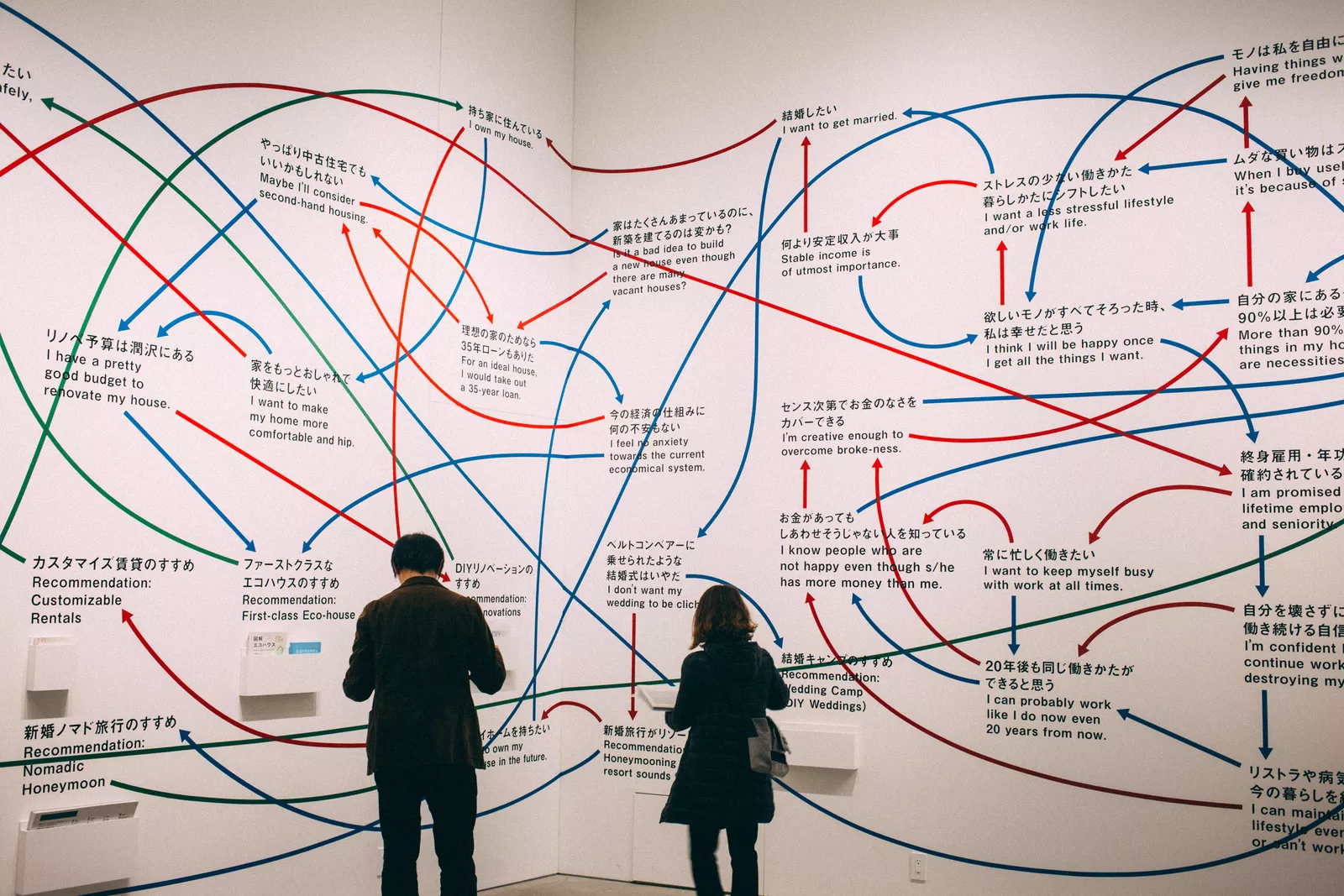
A person writing on a paper

Most users experience your product on a phone first. Your UX should reflect that.

A mobile-first approach puts real usage at the center. Small screens. Fast interactions. Clear priorities. When done right, it makes your product easier to use, faster to navigate, and more effective at converting.

It is not about shrinking a desktop experience. It is about designing for what matters most, then scaling up.

At millermedia7, mobile-first UX is built around real behavior. Research, testing, and performance all work together to create experiences that feel natural on mobile and scale seamlessly across devices.

In this guide, you will learn how to plan and build mobile experiences that actually work. From user research and content prioritization to performance, accessibility, and testing, we break down what matters.

If you want your product to feel intuitive on mobile and perform across every screen, this is where to start.

Mobile-First UX Strategy

A mobile-first UX strategy means you start by designing for small screens, then scale up. It’s about core tasks, fast performance, and clear navigation so users get things done quickly on phones and tablets.

Mobile-first design assumes limited screen space, touch controls, and spotty network speeds. You start with the most important user tasks—sign-up, search, checkout—and put them front and center. Keep layouts simple, targets big, and copy short so people can act without thinking too much.

A few key principles:

  • Content prioritization: Show just the essentials first.
  • Performance focus: Optimize images, trim scripts, and keep load times quick.
  • Touch-friendly controls: Buttons should be at least 44×44 pixels, spaced well.
  • Responsive scaling: Components should adapt smoothly up to tablet and desktop.

These rules cut friction and force choices that help all devices, not just mobile.

Why A Mobile-First Approach?

Designing mobile-first speeds up development and avoids rework by nailing the core experience early. You end up with a lean UI that works well even on slow networks and grows naturally for bigger screens.

What you’ll notice:

  • Higher conversion: Focused flows mean fewer people bail on key tasks.
  • Lower engineering cost: Less backtracking when it’s time to scale up.
  • Better accessibility: Big text and controls help all sorts of users.
  • Improved SEO and performance: Faster pages rank higher and keep users happy.

Use this approach to prioritize user goals, measure outcomes, and iterate based on what people actually do.

Mobile-First UX Design: What We Focus On

You’ll want clear navigation, a smart visual hierarchy that adapts to small screens, and touch controls that feel right. These things help users move fast and avoid mistakes on mobile.

Mobile-Friendly Navigation

Put primary actions where thumbs reach them. Try a bottom navigation bar or a floating action button for your main tasks. Don’t go overboard with options—stick to 3–5 top-level items.

Write labels in plain language and use familiar icons. Hide secondary stuff in a hamburger or overflow menu, but don’t bury anything important. Search and account actions should be obvious. Use progressive disclosure for less-used features and fewer nested menus. Tap targets need to be at least 44px square—nobody likes fat-finger mistakes.

Responsive Visual Hierarchy

Keep the most important content high and center. Use size, contrast, and spacing to make calls to action pop, but don’t crowd the screen. Shorten headings and keep microcopy tight.

Use a grid that stacks content vertically on narrow screens. Scale images and text so people don’t have to scroll sideways. Stick to three font sizes—heading, subhead, body—for clarity.

Meet accessibility contrast standards so text is readable, even in sunlight. Show just the essentials first, then let users expand for more. That keeps things fast and focused.

Touch Interactions and Gestures

Design for fingers, not mice. Make buttons big, spaced, and clearly labeled. Keep interactive stuff away from screen edges if system gestures are nearby.

Use standard gestures like swipe to delete or pull-to-refresh, but don’t overdo it. Always give a visible alternative. Show feedback for taps—a highlight, ripple, or quick animation—so users know something happened.

Test gestures on different devices and orientations. Add confirmations for destructive actions to avoid accidents. Stick to familiar patterns; inventing new gestures usually isn’t worth the confusion.

User Research for Mobile Experiences

Find out how people really use mobile devices and test your prototypes with real users. Focus on behaviors, context, and quick validation to shape designs that work in short bursts and on small screens.

Mobile User Behavior Insights

Mobile users act fast and want instant results. Watch for single-handed taps, quick scrolls, and short attention spans—like checking an app while waiting in line. See where users pause, which gestures they like, and how often they jump between tasks.

Pull data from analytics, session recordings, and short surveys. Check tap heatmaps, time on task, and where people drop off in flows like sign-up or checkout. Focus on features that cut steps and make actions thumb-friendly.

Keep network and battery limits in mind. Design for spotty connections by caching content and showing offline states. Test font sizes and contrast for readability in bright light and one-handed use.

Conducting Mobile Usability Testing

Find users who match your audience and watch them in real settings if you can. Try remote moderated tests for context and unmoderated ones for scale. Give people specific tasks—like finding a product or checking out.

Keep tests short—10 to 20 minutes—and use simple prototypes on real devices. Record sessions and look for friction points: missed taps, unclear labels, confusing gestures. Track task success, time on task, and what users say to spot the biggest issues.

Move fast. Run small batches of tests, fix the top few problems, and test again. Share findings with your team so fixes land quickly and actually improve things.

Designing for Performance and Accessibility

Focus on fast load times, efficient assets, and solid accessibility practices so your app or site works for everyone—on mobile networks and with assistive tech.

Optimizing Page Load Speed

Put critical content first and push nonessential stuff back so users don’t wait. Load above-the-fold HTML and CSS right away; lazy-load images, videos, and offscreen pieces. Use modern formats (WebP, AVIF) and size images for each device.

Minify and compress with gzip or Brotli. Bundle JavaScript carefully and split code to keep the first load small. Cache static resources with long TTLs and use cache-busting for updates. A CDN can really help global users.

Watch user metrics like First Contentful Paint (FCP) and Largest Contentful Paint (LCP). Set performance budgets (like JS < 150 KB to start) and audit regularly.

Ensuring Accessibility for All Users

Follow WCAG basics and test with real assistive tools. Use semantic HTML, good alt text, and clear form labels. Make sure keyboard focus order is logical and visible—try navigating without a mouse.

Design color contrast to hit AA or AAA thresholds. Don’t rely on color alone; add icons or text as backup. Use ARIA only to boost native elements, not replace them. Test screen reader flows for key tasks like sign-up, purchase, or menu navigation.

Size touch targets at least 44×44 CSS pixels and avoid gestures that block simple taps. Document accessibility choices in your design system so teams reuse what works.

Content Strategy in Mobile-First UX

Keep content focused on what users need right now: quick answers, clear actions, and as little friction as possible. Use short headings, prioritized info, and microcopy that nudges choices and builds trust.

Prioritizing Essential Content

Figure out which tasks users must finish on mobile and put those first. List main actions—search, checkout, contact—at the top. Hide secondary stuff behind progressive disclosure so screens stay clean.

Use a clear hierarchy: bold headings, quick summaries, and short paragraphs. Show only the must-have data in lists or cards; tuck details into expandable sections or a “more info” link. Test with real users to see what actually gets tapped.

Balance content length with context. For signups or checkout, only show required fields. For product pages, lead with price, key specs, and one good image; put the long description lower down.

Effective Use of Microcopy

Write microcopy that cuts confusion and helps decisions. Use action-focused button labels like “Buy now” or “Save address.” Keep error messages plain: say what’s wrong and what to do next.

Put help where users need it—small hints under fields, tooltips on icons, confirmations after actions. Make confirmations short and specific, like “Saved — billing address updated.”

Test tone and clarity with quick A/B tests. Tiny wording tweaks can bump conversions and cut support tickets. Keep microcopy consistent so users learn patterns and move faster.

Where Performance, Accessibility, and Content Come Together

This is where a lot of teams struggle. Performance, accessibility, and content are often treated as separate efforts.

At millermedia7, they are built as one system.

A Unified Approach to Mobile UX

We don’t optimize speed in isolation or bolt on accessibility at the end. Every decision connects back to how real users interact on mobile.

  • Performance is engineered from the start
    Clean builds, optimized assets, and minimal overhead ensure fast load times on real networks—not just ideal conditions.
  • Accessibility is built into the foundation
    Semantic structure, keyboard support, and contrast are part of every component, not post-launch fixes.
  • Content is structured for action
    Clear hierarchy, focused messaging, and microcopy guide users toward completion without friction.

Built for Real-World Conditions

Mobile users are not always on fast connections or perfect devices. That is the baseline we design for.

We test across:

  • Slower networks
  • Smaller screens
  • Assistive technologies
  • Real user flows like checkout and form completion

This ensures the experience holds up where it actually matters.

Systems That Scale

What works once needs to work repeatedly.

We turn these practices into reusable systems:

  • Performance budgets tied to real metrics
  • Accessible component libraries
  • Content patterns that teams can reuse confidently

This keeps experiences consistent as products grow, without re-solving the same problems.

Measurable Impact

Everything ties back to outcomes.

Faster pages reduce drop-off.
Accessible flows increase completion rates.
Clear content improves conversions.

The result is not just a better mobile experience—it is a product that performs, scales, and delivers measurable results.

Prototyping and Testing Mobile-First Designs

Move from idea to test as fast as you can. Use low-friction tools, real-user feedback, and metrics that track task completion and speed.

Rapid Prototyping Methods

Start with sketches or low-fidelity wireframes—paper or whiteboard is fine. These let you try layouts and flows in minutes. Use simple digital tools to turn sketches into clickable prototypes you can test on a phone. Focus on core tasks like signup, search, and checkout.

Test on real devices early. Emulators miss touch feel and performance quirks. Run a handful of moderated sessions to spot big usability issues, then try unmoderated tests for more data.

Keep prototypes lean. Limit screens to essential flows and use realistic data. Iterate fast: prototype → test → tweak. Track time-on-task, completion rate, and where people tap wrong. That’ll show you what to fix next.

A/B Testing for Mobile Interfaces

Pick one clear hypothesis for each A/B test—like “fewer form fields boosts conversions.” Change just one thing at a time: button label, CTA position, image size. Otherwise, you won’t know what worked.

Segment users by device, OS, and network speed. Mobile behavior isn’t the same on iOS vs Android, or 3G vs Wi‑Fi. Run tests long enough to get solid data.

Measure what matters: completion rate, time to finish, drop-off spots, and micro-conversions (like tap-to-expand). Use event tracking to see where people get stuck. If a variant wins, roll it out slowly and watch for changes in retention or error rates.

Implementing and Iterating on Mobile-First Solutions

Start with clear handoffs, realistic timelines, and measurable goals. Keep tight collaboration with engineers and use fast, regular feedback loops to improve the product after every release.

Collaboration With Developers

Set priorities together in a shared backlog so developers know which mobile-first features hit production first. Write user stories with clear acceptance criteria—cover device breakpoints, touch targets, and performance budgets. Share clickable prototypes and CSS/UX tokens to cut down on guesswork.

Keep syncs short and regular. Daily standups help surface blockers, while twice-weekly design-dev reviews get into UI details. Use the same tool to track issues—tie ticket IDs to designs so nothing falls through the cracks. Decide on metrics upfront: first contentful paint, time-to-interactive, crash rate. If you run into performance or scope conflicts, call out trade-offs openly.

Document patterns in a living component library. Automate visual regression tests and run device lab checks. This pays off in fewer headaches and more consistent, fast experiences on the phones your users actually own.

Continuous Improvement Through Feedback

After every release, gather both numbers and stories. Short in-app surveys measure task success, while analytics funnels reveal where users drop off. Pair session recordings with heatmaps to catch touch behavior on those tiny screens.

Set a steady rhythm for experiments—maybe one A/B test or tweak per sprint. Measure the impact for at least a full user cycle, then stop or double down based on what the data says. Fixes that boost conversion or knock out major pain points should get top priority, especially if they cross your ROI bar.

Keep a lightweight roadmap of winning experiments, planned optimizations, and technical debt. Share results with stakeholders and devs so your next sprint actually targets real user pain. The goal? Keep the mobile experience fast, clear, and useful. If you need a partner who gets how to align design, dev, and data around mobile-first, millermedia7 is worth a mention.

Turning Prototypes Into Real Performance

This is where ideas either prove themselves—or fall apart.

At millermedia7, prototyping, testing, and iteration are not separate phases. They are part of one continuous loop focused on real outcomes.

From Assumptions to Evidence

We do not rely on opinions or internal preferences. Every design decision is tested.

  • Rapid prototypes are used to validate direction early
  • Real users interact with flows on actual devices
  • Data replaces guesswork before development scales

This reduces risk and prevents teams from investing in features that do not perform.

Testing That Reflects Reality

Not all testing is equal. What works in a lab or on perfect Wi-Fi often breaks in the real world.

We test across:

  • Different devices and operating systems
  • Varying connection speeds
  • Real user journeys, not isolated screens

This ensures designs hold up under actual usage conditions—not just ideal scenarios.

Tight Feedback Loops

Speed matters, but only when paired with learning.

We run short cycles:

  • Prototype
  • Test
  • Analyze
  • Refine

Each cycle produces clear insights. What works gets scaled. What does not gets removed quickly.

Collaboration That Drives Execution

Design and development move together, not in silos.

  • Shared backlogs keep priorities aligned
  • Clear acceptance criteria reduce rework
  • Component systems ensure consistency across builds

This keeps delivery efficient and avoids disconnects between design intent and final output.

Continuous Optimization, Not One-Time Launches

Launch is just the starting point.

We track:

  • Task completion rates
  • Drop-off points
  • Interaction patterns

Then we iterate based on what users actually do.

Over time, small improvements compound into meaningful gains in conversion, usability, and performance.

The result is a mobile experience that is not just designed well—but proven to work.

Measuring Success in Mobile-First UX Strategy

Watch for outcomes like faster task completion, fewer errors, higher engagement, and visible business impact. Mix hard numbers with real user feedback to show mobile-first design delivers better user journeys and conversion.

Key Performance Indicators

Zero in on KPIs that actually matter for users and the business. Start with task completion rate and time on task to check if folks can finish core actions—signup, checkout, search—quickly on small screens. Track error rate and drop-off points to spot where layout or input issues are tripping people up.

Compare mobile conversion rates to desktop. Check retention and session frequency—do mobile-first changes keep users coming back? Watch performance KPIs like first contentful paint and interaction latency, since slow loads kill conversions. Use A/B tests to tie UI tweaks to KPI jumps, and set targets that matter (like cutting checkout abandonment by 15% in three months).

Analyzing User Metrics

Collect both event-level analytics and what users actually say or do. Track taps, form submits, scroll depth, and back-nav usage. Break it down by device, OS, screen size—sometimes small screens have their own weird problems. Funnels help you spot which step loses the most people.

Mix analytics with quick usability tests and session recordings to get the “why” behind the numbers. Watch for patterns—repeated taps, form corrections, cut-off labels. Fix the stuff that trips up users on high-traffic paths first. When you share findings, include screenshots, metrics, and a clear success target so your team can actually act on it. And if you need help setting up tracking or running experiments, millermedia7 can jump in.

Build Mobile Experiences That Actually Perform

Mobile-first is not just a design approach. It is a product strategy.

When you prioritize real user behavior, speed, and clarity from the start, everything else improves. Navigation becomes simpler. Content becomes more focused. Performance becomes a competitive advantage instead of a problem to fix later.

At millermedia7, mobile-first UX is built as a continuous system. Research informs design. Design is validated through testing. Performance and accessibility are engineered into every release. And everything is measured against real outcomes.

This is what separates good-looking products from high-performing ones.

The goal is not just to make something that works on mobile. It is to create experiences that feel natural, load fast, and guide users toward action without friction.

Because when mobile works, everything else scales better.

And when your product is built around how people actually use it, growth becomes a lot more predictable.

Frequently Asked Questions

Here are some practical steps for planning, designing, and testing mobile-first user experiences. You’ll find concrete methods for feature prioritization, a planning template, and Figma tips you can run with right away.

How do I create a mobile-first UX strategy for a new product?

Start by figuring out the primary task your users need to finish on mobile. Quick user interviews or surveys help confirm that task—write down the top three user goals.

Map user journeys for the smallest screen first. Design flows with one clear call to action per screen and ditch anything nonessential.

Set outcomes you can measure, like completion rate, time on task, and first-time success. Let those KPIs guide what features make the cut and how you iterate.

What are the key principles to follow when designing mobile-first experiences?

Put important content and actions up front. Hide secondary stuff behind progressive disclosure. Keep touch targets at least 44px—makes a difference for thumbs.

Design for speed: optimize images, cut requests, and skip heavy animations that block interaction. Layouts should work with one hand and fit common thumb zones.

Test early and often on real devices. Use simple prototypes and A/B tests to see what actually helps users.

How can I prioritize features and content for small screens without losing value?

Rank features by user impact and effort. A basic 2×2 matrix works: high impact/low effort features go first.

Use progressive disclosure to show advanced features only when users need them. Shortcuts and settings are great for power users, but don’t crowd the main flow.

Keep business goals in mind. If a feature drives revenue or retention, design a lean version for mobile that keeps the core value.

What’s a practical template or framework I can use to plan a mobile-first approach?

Try this three-layer template: Core, Context, Enhancements. Core = must-have tasks and content. Context = useful extras. Enhancements = desktop-level perks and animations.

For each, jot down the user need, a success metric, and the simplest design that works. Assign an owner and target sprint.

Review weekly and cut anything that doesn’t meet KPIs or slows down the core flow.

How do I adapt a desktop-first website into a mobile-first experience successfully?

Audit your desktop pages and pick out the main user task for each. Strip pages down to that core task for mobile.

Rework navigation into simpler patterns—hamburger menus or bottom tabs, and turn sidebars into collapsible sections. Swap big blocks of copy for concise headings and tappable summaries.

Test the new flows on real devices. Check if mobile KPIs (task completion, load time) actually improve before rolling out to everyone.

How can I use Figma to design and validate mobile-first layouts and components?

Start by setting up mobile frames at common sizes like 360×800 or 375×812. Build out a component system with tokens—spacing, type, color, all that jazz. I’d recommend using auto-layout for responsive resizing; it saves a ton of time and headaches.

For prototyping, make things interactive. Add tap and swipe gestures so it actually feels like a mobile app. Then, just share the prototype link for quick user feedback. You can even grab timestamps to see how long tasks take—super handy for spotting friction.

If you want to experiment, use versioning and branches to try out different ideas without messing up your main file. Track what works, tweak your components, and keep your library tidy so you can scale designs across screens later.

If you get stuck or need a hand, millermedia7 can help with setting up mobile-first systems or running those fast validation loops.

Microinteractions in User Experience Design: Pairing Usability with Delightful Details

Two person pointing on a paper using a pen

It’s the little things users notice most.

A button that responds instantly. A subtle animation that confirms an action. A smooth transition that makes navigation feel effortless. These small moments—microinteractions—shape how your product feels in ways users rarely articulate but always experience.

Done right, microinteractions do more than add polish. They guide attention, reduce uncertainty, and make interactions feel intuitive. They answer the silent question every user has: “Did that work?”

At millermedia7, microinteractions are designed with purpose. Not decoration, but function. Every animation, cue, and response is tied to usability, clarity, and measurable impact on engagement and conversion.

In this guide, you’ll learn how to design microinteractions that actually improve UX. When to keep them simple, when to add personality, and how to measure whether they’re helping or hurting performance.

If you want your product to feel smoother, clearer, and more engaging—this is where the details start to matter.

What Are Microinteractions?

Microinteractions are those small, focused moments in a product that help you finish a single task or get instant feedback. They use motion, sound, and timing to guide you, cut down on mistakes, and just make interfaces feel more alive.

Microinteractions are those tiny interface details that do one clear job for you. Maybe it’s toggling a switch, revealing a password, or seeing a heart fill when you tap it. Each one kicks off with a trigger, responds to your action, and ends in a new state.

You count on them for instant feedback. A spinner means content’s loading. A quick vibration confirms you did something on your phone. These little moments help you get what’s happening and what’s next.

Designing them well means making them noticeable, but not in-your-face. They should be quick, clear, and consistent so you can get things done without thinking too much about the interface itself.

What’s It All About?

Microinteractions usually break down into four parts: trigger, rules, feedback, and loops/modes.

  • Trigger: what starts things off—a tap, a timer, or some system event.
  • Rules: what the microinteraction should do and when. Like, “send an email after confirmation.”
  • Feedback: how the system shows you the results. Visual changes, sounds, or haptics that tell you what happened.
  • Loops and modes: how the microinteraction behaves over time or in different states. Think of a progress bar that fills up across retries.

Good microinteractions have clear goals. They cut confusion, speed things up, and help users trust the product. At millermedia7, data and testing help tune these details so they actually work for real people.

Everyday User Experiences

Microinteractions pop up everywhere in daily tasks. Some examples:

  • Form validation showing a checkmark when you get it right.
  • A “like” animation that pops when you tap a heart.
  • Pull-to-refresh revealing new content.
  • A toggle sliding and changing color for on/off.

Each one gives you a quick sense of what just happened. A little sound or vibration can reinforce success without slowing you down. Designers use these moments to guide behavior, cut down on errors, and keep things friendly and efficient.

Microinteractions in User Experience Design

Microinteractions guide small tasks, confirm actions, and make interfaces feel responsive and, honestly, a bit more human. They help users move faster, avoid mistakes, and decide how they feel about your product.

Enhancing User Engagement

Microinteractions grab attention and reward small actions, so users stick around longer. A quick animation when you like a post or a soft sound after finishing a task gives that instant feedback. That reward loop encourages people to keep using your product, even if nothing major changes.

Design these moments to be snappy and meaningful. Try to keep animations under 300 ms, and make sure they’re tied to real user actions. Consistent motion and timing across your product help users learn what each microinteraction means. You can track click-through rates and task completion to see which ones actually boost engagement.

Improving Usability

Microinteractions clarify state and help people avoid mistakes by showing exactly what’s going on. A progress bar during file upload keeps things clear, while inline validation points out a single wrong field. These cues cut down on support requests and help users finish tasks faster.

Make sure each microinteraction solves a real problem. Use clear labels, simple icons, and predictable transitions. Test with real users on common flows like sign-up, checkout, and settings. If you see fewer abandoned forms and fewer errors, you’re on the right track.

Shaping Emotional Connections

Microinteractions add a bit of personality and warmth, making users feel like the product “gets” them. A playful success animation or a friendly status message can turn a boring task into a nice moment. Well-timed touches like these help your product feel more human and trustworthy.

But don’t go overboard. Avoid long or flashy effects that slow users down. Match your tone to your brand and audience—confident, friendly language and visuals work well if you want a professional but approachable vibe. Keep an eye on user sentiment and retention to see how these moments affect people over time.

Designing Microinteractions That Actually Matter

A lot of products use microinteractions. Not all of them use them well.

At millermedia7, microinteractions are not added for flair. They are designed to solve specific problems—guiding behavior, reducing friction, and reinforcing key actions.

Purpose Over Decoration

Every microinteraction should answer a question or remove doubt.

  • Did my action work?
  • What happens next?
  • Where should I focus?

We design interactions that make these answers obvious, without slowing the user down or adding noise.

If it doesn’t improve clarity or usability, it doesn’t make it in.

Built Into the Product System

Microinteractions are not one-off animations. They are part of a larger system.

We define:

  • Motion guidelines (timing, easing, consistency)
  • Interaction patterns (feedback, transitions, states)
  • Component-level behaviors that scale across the product

This keeps experiences consistent and predictable, even as features grow.

Tested With Real Behavior

What feels good in design tools does not always perform in reality.

We test microinteractions in context:

  • Real user flows (forms, onboarding, checkout)
  • Different devices and performance conditions
  • Measurable outcomes like completion rate and error reduction

This ensures interactions are not just smooth—but effective.

Subtle, Fast, and Intentional

The best microinteractions are often barely noticed.

They are:

  • Fast enough to never block progress
  • Clear enough to remove confusion
  • Consistent enough to build trust over time

We aim for interactions that feel natural, not forced.

Measured Impact

Microinteractions should move real metrics.

We track:

  • Task completion rates
  • Error reduction
  • Engagement and retention signals

Over time, these small improvements compound into smoother experiences and better-performing products.

Because in UX, the smallest details often make the biggest difference.

Designing for Effective Microinteractions

Microinteractions should make tasks obvious, quick, and predictable while giving you helpful feedback. Focus on clear cues, timely responses, and patterns that feel familiar across screens so users don’t have to relearn things.

Clarity and Simplicity

Stick to one goal per microinteraction, like confirming a save or flagging an error. Use plain labels and icons that line up with what people expect—a filled heart for “liked,” a trash can for delete. That way, users don’t hesitate.

Keep visuals and motion simple. Short animations (under 300 ms) usually feel best; longer ones drag. Don’t add extra steps or options inside a microinteraction. If the action is destructive, use a clear, simple confirmation—skip the complicated dialogs.

Make it obvious what you can do. Buttons should look tappable, toggles should show their state, and disabled controls should look, well, disabled. Clear microinteractions mean fewer mistakes and a smoother flow.

Timely Feedback

Respond to user input right away. Even a subtle visual change within 100 ms lets people know the system heard them. Use progress indicators for network actions and quick success states for simple tasks.

Match your feedback’s tone to the situation. Positive color and a short message for success, neutral for waiting, and clear instructions for errors. “Saved” with a checkmark works; for failures, show one short line on what went wrong and how to fix it.

Don’t block users with long modal messages. Let confirmations fade out after a couple seconds, but keep error messages visible until users deal with them. Good timing keeps things moving and cuts down on frustration.

Consistency Across Interfaces

Reuse microinteraction patterns everywhere so people don’t have to guess. If toggles slide right for “on” in one spot, make sure they do everywhere. Stick to the same icons, sounds, and motion rules to keep things predictable.

Document your microinteraction rules in a component library. Include timing, easing, colors, and copy examples. This helps designers and developers build things the same way across web, mobile, and widgets.

Test your patterns in real tasks to catch weird edge cases. Consistency builds trust and makes your interface feel polished—something millermedia7 always pushes for when syncing design and engineering.

Types of Microinteractions

Microinteractions help users finish small tasks, get clear feedback, and learn your product faster. They show up when users act, when the system responds, or during onboarding. Each type has its own purpose and design focus.

Trigger-Based Microinteractions

Trigger-based microinteractions start when you do something, like tapping a button or flipping a switch. They should feel instant and predictable so you know your action worked. A button ripple or color change is enough to confirm a tap. Animation timing matters—100–300 ms usually feels right.

Make the trigger area big enough for touch, and match visuals to what’s happening. Use short labels (“Save” vs. “Submit”) to set clear expectations. For repeat actions, add a little motion to show state changes, like an icon switching from outline to filled. And keep effects lightweight for mobile performance.

System Feedback

System feedback microinteractions show you what’s happening after you act. Think loaders, checkmarks, error messages, and progress bars. Use clear visuals and short text so users get the status right away. “Uploading 40%” with a spinner beats a blank loader every time.

Prioritize meaningful feedback: show estimated times for long tasks, and let users cancel or retry if something fails. Keep your tone friendly and direct. Use color and icons to separate success (green check), errors (red cross), and warnings (orange triangle). Animations should be brief—nobody likes to wait.

Onboarding Cues

Onboarding cues help new users learn the ropes without getting in their way. Use short tooltips, highlight overlays, and gradually reveal features. Focus on actions that deliver value fast—skip anything that feels optional.

Make cues easy to dismiss and revisit. For complex flows, combine text with simple animations that show the steps. Track which cues users ignore, and don’t repeat them. Use clear language and step counts like “Step 1 of 3” to set expectations and help users stick with it.

(mentioned: millermedia7)

How We Measure the Impact of Microinteractions

You want to gather clear user signals and track system data that actually shows which microinteractions help. Focus on feedback you can act on and lean numbers that tie back to user tasks and business goals.

User Feedback Analysis

Ask targeted questions about the specific microinteraction you changed. Use quick, event-triggered surveys (like “Was this confirmation clear?”) and collect answers right after the user acts. That gets you sharp, task-level insight instead of fuzzy opinions.

Mix up qualitative notes from usability sessions with hard numbers from event tracking. Tag feedback by user goal and device type—sometimes a success animation helps on mobile but throws off desktop folks. Tackle recurring comments and high-impact tasks first.

Label sentiment (positive, neutral, negative) and use short codes for themes (clarity, timing, distraction). This makes it easier to share results and decide whether to iterate, roll back, or A/B test.

Performance Metrics

Pick metrics that match the point of the interaction. For a submit button, track completion rate, time-to-complete, error rate, and post-action drop-off. For a tooltip, look at hover-to-click conversion and time-to-first-action.

Name your events with context (page, component, event) and grab timestamps so you can check latency and order. Make sure your sample size is big enough before you pivot.

Keep an eye out for side effects: higher CPU or more frame drops can ruin the experience. Add front-end metrics like interaction latency (ms), frame drops, and bundle size to your dashboard alongside business stats. You want to balance delight with speed.

Small Details, Real Results

Microinteractions might be small, but their impact is not.

They shape how users understand your product. How quickly they move through it. And how confident they feel while using it. When done right, they remove hesitation, reduce errors, and make every interaction feel intentional.

At millermedia7, microinteractions are treated as part of a larger system—one that connects usability, performance, and measurable outcomes. Every detail is designed to support real user behavior, not just visual polish.

The goal is simple.

Make interactions clear.
Make feedback immediate.
Make experiences feel effortless.

Because when the smallest moments work better, the entire product performs better.

And over time, those small improvements add up to stronger engagement, higher conversion, and a product people actually enjoy using.

Frequently Asked Questions

Here are some practical questions about microinteractions: what types are most common, simple examples you can use, how they deliver feedback and show system status, design tips to keep them from annoying users, ways to add them without bogging down performance, and a bit of recommended reading.

What are the most common types of microinteractions people use in digital products?

You’ll see feedback (toasts, snackbars), state changes (toggles, checkboxes), and transitions (loading spinners, progress bars).
Other common ones: affordances (hover cues, tooltips), confirmations (undo, success messages), and input helpers (auto-formatting, inline validation).

Can you share a few simple examples of microinteractions that improve usability?

A save confirmation toast after saving a draft helps prevent duplicate saves.
Inline form validation that flags mistakes as you type cuts down on submission errors and user frustration.

A toggle that animates when you switch modes makes state changes clear.
A subtle progress bar during file uploads keeps users in the loop and a bit more patient.

How do microinteractions make feedback and system status feel clearer to users?

Microinteractions connect user actions to results instantly.
They show success, failure, or progress right where users are looking.

Visual cues and a few words reduce uncertainty.
That clarity drops error rates and builds user trust in the interface.

What’s the best way to design microinteractions without distracting or annoying users?

Keep them short, consistent, and relevant.
Skip long animations and harsh sounds—go for subtle motion and soft tones when needed.

Let users dismiss them or turn them off when it makes sense.
Test with real people to make sure they help, not hinder.

How can I add effective microinteractions to a website without slowing performance?

Lean on CSS animations and keep JavaScript handlers light.
Lazy-load assets and reuse shared animation styles to keep things fast.

Measure frame rate and bundle size before and after adding interactions.
Optimize images and split heavy scripts so your site stays snappy.

Which books or PDFs are worth reading to learn microinteraction design fundamentals?

If you’re diving into microinteraction design, check out books on interaction design, UX patterns, and the basics of human-computer interaction.
Try to find resources that talk about motion, feedback, and affordances—and if they toss in real examples or code snippets, even better.

Millermedia7 tends to point folks toward materials that mix design thinking with some hands-on testing. Makes sense, right? Theory’s great, but you really learn by doing.

How to Measure User Experience: Metrics and Simple Methods You Can Action Now

A person writing on a paper

User experience is only valuable if you can measure it, understand it, and improve it.

The goal is simple. Know how easily people complete tasks, how often they come back, and how they feel while using your product. That means focusing on metrics that matter. Task success rates, time on task, satisfaction scores, and conversion or retention all give you a clear picture of performance.

At millermedia7, measurement is not just about dashboards. It is about turning data into decisions. Numbers show what is happening. User insight explains why.

In this article, you will learn practical ways to measure user experience without overcomplicating the process. From quantitative testing to qualitative feedback, we break down how to gather the right data, interpret it with confidence, and use it to make smarter product decisions.

If you want to improve usability, prove impact, and build better digital experiences, this is where to start.

Understanding User Experience

User experience is how your product actually feels to use. Not in theory. In real moments, during real tasks, under real conditions.

It is the difference between something that works and something people want to use.

What’s It All About?

Great UX is built on four fundamentals. Each one plays a role in whether your product succeeds or gets ignored.

Usefulness
Does your product solve a real problem? If it does not, nothing else matters.

Usability
Can users complete tasks quickly and without confusion? Every extra step, delay, or error adds friction.

Desirability
Does your product feel polished and trustworthy? Visual design, tone, and consistency shape how users perceive your brand in seconds.

Accessibility
Can everyone use it? Inclusive design expands your reach and ensures no user is left behind.

Performance sits underneath all of this. Slow load times and laggy interactions break otherwise strong experiences. Speed is not a feature. It is an expectation.

Why You Need To Measure User Experience

If you are not measuring UX, you are guessing.

Measurement turns opinions into direction. It shows where users struggle, where they succeed, and where your product is creating real value.

Start with the metrics that matter. Task success rate. Time on task. Conversion. Retention. These tell you what is working and what is not.

Then layer in user insight. Interviews and usability testing reveal the reasons behind the numbers. This is where real clarity comes from.

When you combine both, decisions get easier. You fix what matters first, reduce wasted effort, and improve outcomes faster.

Keep it simple when sharing results. Clear dashboards. Focused reports. No noise. Just the insights your team needs to act.

The Issues With Evaluation

Measuring UX sounds straightforward. In practice, it is not.

Data can be noisy. Metrics can point to problems without explaining them. A drop in conversion tells you something is wrong, not why.

That is where qualitative insight matters. Testing and user conversations fill the gaps and uncover the real issues.

Small sample sizes can also mislead. One test is not enough. Patterns matter more than isolated results. Validate findings with multiple data sources before making big decisions.

Alignment is another challenge. Not every metric matters equally. Tie your measurements back to business goals so your work stays focused and relevant.

And then there is internal resistance. Change takes buy-in. The best way to get it is simple. Clear insights. Strong evidence. Recommendations that connect directly to impact.

Measure with purpose. Act with confidence.

Quantitative Methods for Measuring User Experience

Numbers bring clarity to UX.

They show you what is happening at scale. Where users move quickly. Where they slow down. Where they drop off. And where your product is quietly creating friction.

But metrics on their own are not the goal. The goal is to turn those numbers into better decisions.

At millermedia7, quantitative UX is used to remove guesswork. Every metric ties back to real user behavior and real business outcomes. If it cannot inform a decision, it does not belong in your dashboard.

Usability Testing Metrics

Usability testing is where performance becomes visible.

You are not asking users what they think. You are watching what they do.

Start with the fundamentals:

  • Task success rate shows whether users can actually complete what they came to do
  • Time on task reveals efficiency and friction
  • Error rate highlights where confusion or breakdowns happen

These three metrics alone will uncover most usability issues.

Then add context. A simple post-task satisfaction score, even on a 1 to 5 scale, gives you insight into how the experience felt. This is where things get interesting. A task completed quickly but rated poorly often signals hidden frustration. Something worked, but not well.

Keep your testing structured. Use consistent tasks. Define what success looks like before the test begins. That way your results are comparable and reliable.

For early concepts, small groups of users are enough to spot patterns. As your product matures, expand your sample size to validate changes with confidence.

Record sessions. Watch where users hesitate. Where they backtrack. Where they pause longer than expected. These moments tell you more than any summary metric.

Once collected, analyze your data properly. Look beyond averages. Outliers often reveal your biggest opportunities.

Net Promoter Score (NPS)

NPS measures perception at a high level.

One question. How likely are users to recommend your product?

It is simple, but powerful.

  • Promoters drive growth
  • Passives sit in the middle
  • Detractors highlight risk

Your score is the difference between promoters and detractors. That number gives you a quick snapshot of loyalty and sentiment.

But on its own, NPS is incomplete.

The real value comes from the follow-up. Why did users give that score? What made them hesitate? What made them confident?

Track NPS over time, not as a one-off metric. Trends matter more than snapshots. Break it down by user type, product area, or channel to uncover deeper insights.

Used correctly, NPS becomes a signal. Not just of satisfaction, but of where your experience is strengthening or breaking down.

System Usability Scale (SUS)

SUS gives you a fast, reliable benchmark for usability.

It is a structured 10-question survey that produces a score from 0 to 100. Simple to run. Easy to compare.

A score above 68 is considered solid. Below that, and usability issues are likely affecting performance.

What makes SUS valuable is consistency. You can track it across releases, features, and user groups to see how usability evolves over time.

It works best when paired with real behavior data. A strong SUS score alongside high task success rates confirms your experience is working. If those metrics conflict, that is where deeper investigation is needed.

Break results down further. Look at specific user segments or workflows. Enterprise users, for example, may experience the same product very differently depending on their role.

SUS is not just a score. It is a way to validate progress and show the impact of design decisions in a language stakeholders understand.

When you combine these methods, patterns start to emerge. Not just what users are doing, but where your product is helping or holding them back.

That is where measurement becomes powerful. Not as reporting, but as a tool for continuous improvement.

Qualitative Techniques for Evaluation

Numbers tell you what is happening.

Qualitative insight tells you why.

This is where user experience becomes real. You hear how people think, see where they struggle, and understand what they expect but are not getting.

At millermedia7, qualitative research is where the most valuable insights come from. It connects behavior to context and turns surface-level metrics into actionable direction.

User Interviews

User interviews give you direct access to how people think about your product.

Not just what they do, but what they expect, what frustrates them, and what they value most.

The key is to keep it open and focused. Ask questions that invite real answers:

  • What are you trying to achieve?
  • What slowed you down?
  • What felt unclear or unnecessary?

Then go deeper. Follow up on interesting moments. The best insights often come from a single unexpected comment.

Sessions should be long enough to go beyond surface-level feedback. Around 30 to 60 minutes is ideal. That gives users time to reflect and reveal patterns in their behavior.

Recruit carefully. Include a mix of new users and experienced ones. Their perspectives will differ, and that contrast is where clarity emerges.

Record sessions with permission. Afterward, tag key moments and group responses into themes. Navigation issues. Missing features. Confusing language. These patterns become your roadmap.

Strong insights should lead somewhere. Turn them into clear hypotheses and prioritized improvements. Use real quotes in your reports to keep findings grounded and persuasive.

Diary Studies

Not all insights happen in a single session.

Diary studies capture behavior over time. They show how your product fits into daily routines, not just isolated tasks.

Ask participants to log their interactions over days or weeks. What they did. Where they were. What they felt. What worked. What did not.

Keep it simple so people stay engaged. Short daily prompts. Quick forms. Messaging tools. Even voice notes or screenshots can add valuable context.

The goal is consistency, not perfection.

Over time, patterns start to appear. Repeated frustrations. Common triggers. Moments of satisfaction. You begin to see how habits form and where your product supports or interrupts them.

This kind of insight is hard to capture any other way. It reveals long-term experience, not just first impressions.

Field Observations

What users say and what they do are not always the same.

Field observations close that gap.

By watching users in their real environment, you see how context shapes behavior. Distractions. Time pressure. Device limitations. These factors often explain why something that works in testing fails in reality.

Observe without interrupting. Let users move naturally. Use light prompts if needed, but avoid steering their behavior.

Focus on actions, not opinions. What steps do they take? Where do they pause? Where do they improvise or work around the system?

Document everything. Sequences, patterns, and breakdowns in workflows. These details reveal where design needs to adapt to real-world use.

Sharing findings visually makes a difference. Short clips. Annotated screenshots. Clear examples your team can understand quickly and act on.

Qualitative research adds depth to your data.

It turns metrics into meaning. Observations into direction. And assumptions into informed decisions.

When you combine it with quantitative insight, you are no longer guessing. You are building experiences based on how people actually think, feel, and behave.

Turning Insight Into Action

Tools do not improve user experience. Decisions do.

Analytics platforms, session recordings, dashboards. They all generate data. But without the right strategy, they create noise instead of clarity.

At millermedia7, UX measurement is built as a connected system. Every tool, every metric, and every insight is tied back to one goal. Better user experiences that drive measurable business results.

Connected Data, Not Isolated Metrics

We do not look at metrics in isolation.

User behavior, conversion data, and product interactions are mapped together to show the full picture. Where users enter. Where they move. Where they hesitate. Where they drop off.

This approach turns scattered data into clear signals.

Instead of tracking everything, we focus on what matters. Key actions. Critical flows. High-impact touchpoints. Every metric is chosen because it answers a specific question.

Real Behavior, Real Context

Numbers highlight problems. Behavior explains them.

We analyze real user sessions to understand how people interact with your product in practice. Where they click. Where they pause. Where they struggle.

These insights uncover friction that traditional reporting misses. Not just that something is broken, but exactly where and how it breaks down.

From there, issues are not just identified. They are prioritized based on impact.

Built for Continuous Improvement

Measurement is not a one-time exercise. It is an ongoing system.

We track how changes affect performance over time. Before and after comparisons. Iteration cycles. Continuous validation.

This ensures that every design decision is tested, refined, and improved. Not based on opinion, but on evidence.

From Insight to Impact

The real value of measurement is what happens next.

Insights are translated into clear, actionable recommendations. No overcomplicated reports. No unnecessary data. Just focused direction your team can execute.

Because the goal is not to collect more data.

It is to build better experiences, faster.

Frequently Asked Questions

What UX metrics actually matter?

Focus on what drives decisions.
Task success. Time on task. Conversion. Retention.
If a metric does not lead to action, it is noise.

How do you balance data and user feedback?

Data shows patterns.
User insight explains them.
You need both to make confident decisions.

How often should UX be measured?

Continuously.
Before changes, after releases, and during iteration.
UX is not a one-time check. It is an ongoing system.

What is the biggest mistake in UX measurement?

Tracking too much.
More data does not mean more clarity.
Focus on key flows and high-impact interactions.

How do you prove UX impact to stakeholders?

Tie metrics to outcomes.
Faster workflows. Higher conversion. Better retention.
Show before and after. Keep it simple and measurable.

Can small teams measure UX effectively?

Yes.
Start with a few core metrics and simple user testing.
Clarity beats complexity every time.

What does a strong UX measurement process look like?

Clear goals.
Focused metrics.
Continuous testing.
Insights that lead directly to action.

Headless CMS for Ecommerce: Your Guide to Faster, Flexible Online Stores

A person pointing using a pen

Modern ecommerce demands speed, flexibility, and control. Your storefront needs to load fast, adapt to new channels, and deliver seamless, personalized experiences every time.

A headless CMS makes that possible. By separating content from presentation, it allows your product pages, marketing content, and checkout flows to evolve independently. Developers can ship updates faster. Marketers can manage content without bottlenecks. The result is a storefront that performs better and scales with your business.

At millermedia7, headless architecture is not just about flexibility. It is about building systems that connect UX, performance, and growth. Faster load times, easier experimentation, and consistent experiences across web, mobile, and apps all contribute directly to conversion.

In this article, we break down what to look for in a headless CMS for ecommerce. From API performance and editorial workflows to integrations and scalability, you will learn how to choose a solution that supports both your technical team and your day-to-day operations.

If you want a faster, more adaptable ecommerce experience without sacrificing control, this is where to start.

What Is a Headless CMS?

A headless CMS stores and delivers content through APIs so you control how product pages, banners, and content appear across channels. It separates content management from the storefront, letting you reuse product descriptions, images, and promos in web, mobile, and kiosk apps.

A headless CMS keeps content (text, images, metadata) in a central repository and serves it through APIs like REST or GraphQL. You manage product descriptions, category copy, and media in a backend editor, then fetch that content from any frontend.

Key concepts:

  • Content as data: product titles, specs, and images are stored independently of layout.
  • API delivery: your storefront requests content when needed, which improves speed and consistency.
  • Content models: you define fields for SKUs, variants, and SEO data so editors enter structured information.
  • Decoupling: developers build frontends in React, Vue, or native apps without CMS UI constraints.

This model works for teams where developers, marketers, and product owners need to work separately but share the same content.

Traditional CMS vs. Headless CMS

Traditional CMS ties content and presentation together. Editors create pages in templates; the CMS renders HTML. That’s fine for single websites but limits reuse and frontend freedom.

Headless CMS removes rendering from the CMS. You edit content once and deliver it to multiple frontends. That lets you:

  • Use modern frameworks for better performance.
  • Deploy A/B tests or personalization on the storefront without changing the CMS.
  • Reuse product content in mobile apps, marketplaces, and email campaigns.

But there are trade-offs:

  • Headless needs more developer work to build frontends.
  • Traditional CMS can be faster to launch if you just need one simple site.

If you want omnichannel reach and developer-driven experiences, headless usually wins out.

Online Retail

Speed and flexibility are huge in ecommerce. A headless CMS helps you deliver fast pages by serving only the content your frontend requests. That reduces payloads and improves load times, which helps conversions.

Other benefits:

  • Omnichannel consistency: reuse product data across web, mobile, POS, and marketplaces.
  • Faster experiments: swap frontends or run personalization tests without changing content workflows.
  • Better developer experience: build with your preferred frameworks and deploy independently of content editors.
  • Scalability: separate services let you scale content delivery and storefront independently during peak traffic.

If you work with an agency like millermedia7, you can combine headless content models with scalable frontends to speed time-to-market while keeping editorial workflows simple.

What’s It All About?

A headless CMS gives you fast, flexible content control, decoupled from the storefront. You get consistent product info, tailored experiences, and APIs that plug into any channel or service.

Omnichannel Content Delivery

A headless CMS pushes the same product data, images, and marketing copy to web, mobile, kiosks, and IoT through APIs. You maintain one source of truth so prices, specs, and promotions stay consistent across touchpoints.

Use content variants and locale-specific entries to serve regional pricing, tax rules, and translations without duplicating data. That cuts errors and speeds up global launches.

You’ll typically deliver through REST or GraphQL endpoints and cache with a CDN. CDNs reduce latency for media-heavy product pages and help with Core Web Vitals. You can schedule content releases so promotions go live at the same time on multiple channels.

API-First Architecture

An API-first CMS exposes content through well-documented endpoints you can query from any frontend. Developers can build React, Vue, native mobile, or server-rendered storefronts without running the CMS backend on the client.

GraphQL gives you precise queries to fetch only the fields you need, which cuts payload size and improves page speed. REST works well for simpler integrations and webhook-driven workflows.

APIs also let you integrate payments, inventory, and third-party services. Use webhooks to trigger builds, update caches, or sync order confirmations in real time. This pattern lets you scale and replace parts of the stack without major rework.

Content Modeling for Product Catalogs

Design structured content models for SKUs, bundles, variants, and attributes like color, size, and material. Create separate content types for products, categories, and promotions so editors can update each piece independently.

Include rich fields for images, technical specs, and downloadable assets. Link related products and accessories to enable upsell and cross-sell experiences.

Use taxonomies and filters to support faceted search and dynamic collections. Store price tiers and regional overrides as fields, not hard-coded into templates. This makes merchandising, A/B tests, and automated feeds to marketplaces way easier.

Personalization Capabilities

A headless CMS can serve personalized product lists, recommendations, and banners by combining content with user data. Feed customer segments, browsing history, or purchase data to a personalization service, then render tailored content via API.

Support for content fragments and component-based pages lets you swap modules per user. For example, show loyalty offers to repeat buyers or alternative product images for mobile shoppers.

Keep privacy and performance in mind by limiting PII in the CMS. Use tokenized APIs and server-side personalization where possible. This keeps pages fast and compliant while delivering targeted experiences you can measure and tweak.

millermedia7 can help map these features to your stack and build patterns for scale and speed.

Integration with Ecommerce Platforms

You need reliable connections to your storefront, inventory, and marketing tools so product pages load fast and orders flow without gaps. The right integrations keep product data consistent, cut manual work, and let you present rich shopping experiences across channels.

Connecting to Shopify, Magento, and Others

You can connect a headless CMS to Shopify, Magento, and similar platforms using APIs and webhooks. For Shopify, use the Storefront or Admin GraphQL APIs to fetch products, collections, and customer data, and push content updates. With Magento, use its REST or GraphQL endpoints to sync catalog data and custom attributes.

Authentication matters: use OAuth or API keys and store secrets securely. Map CMS content fields to platform product fields (title, description, images, metafields) to avoid mismatches. Test syncs for edge cases like variant SKUs, localized content, and large product catalogs. If you use multiple platforms, build an abstraction layer to normalize data from each API so your front end always receives the same structure.

Seamless Inventory and Order Management

Keep inventory and orders consistent by syncing stock levels in near real time. Use webhooks for events—inventory change, new order, or fulfillment update—so the CMS can update product availability and display accurate information to buyers.

Design reconciliation routines for race conditions and partial failures. For example:

  • Queue updates and retry failed API calls.
  • Implement idempotent endpoints to avoid duplicate orders.
  • Periodically run full-data syncs to catch missed changes.

Make sure returns and cancellations update both the e-commerce platform and any downstream systems like ERP or shipping. Monitor sync latency and error rates with alerts so you can fix issues before customers see incorrect stock or delayed shipments.

Third-Party Tools and Plugins

You’ll rely on analytics, payment gateways, search, and personalization tools. Integrate these via SDKs, REST/GraphQL APIs, or server-side middleware. For search, connect tools like Algolia or Elastic via index pipelines that pull product and content records from the CMS.

For payments and fraud detection, keep sensitive workflows on the commerce platform or a secure server to meet compliance needs. Use tag managers and analytics connectors to capture events (product view, add-to-cart, purchase) and feed them to marketing tools.

Use a plugin pattern where possible: modular adapters let you swap providers without rewriting your front end. Maintain a list of supported connectors and document required fields, rate limits, and expected data shapes so integrations stay predictable and easy to manage.

millermedia7 can help design and implement these integrations to match your scale and UX goals.

Improving Storefront Performance

Fast, responsive pages with clear SEO signals turn visitors into buyers. Focus on load time, smooth mobile layouts, and clean metadata to raise conversions and reduce bounce rates.

Faster Page Loads

Speed matters for conversions. Use a headless CMS to serve content via APIs so the storefront fetches only what it needs. Cache API responses at the edge (CDN) and set short revalidation times for frequently updated product data.

Compress images with modern formats like WebP or AVIF and deliver them with responsive srcsets. Lazy-load below-the-fold media and prefetch critical product images for the first viewport. Minify and bundle your JS and CSS, but split code so the checkout and product pages load only their required scripts.

Measure load with Real User Monitoring (RUM) and optimize the top offenders. Try to hit a First Contentful Paint under 1.5s on typical mobile networks. These steps lower cart abandonment and improve buyer trust.

Mobile Responsiveness

Most shoppers browse on phones. Design your headless storefront with mobile-first components and adaptive image sizes so you only load what a small screen needs. Use responsive grids and touch-friendly spacing for product lists and filters.

Keep the checkout flow single-column and minimize form fields. Use client-side validation and inline autosave to avoid losing carts on slow connections. Test on low-end devices and 3G/4G networks to catch performance and layout issues early.

A headless setup lets you deliver different templates or components per device without duplicating content in the CMS. That reduces payloads and keeps branding consistent and interactions quick on any device.

SEO Advantages

Headless CMS can improve SEO when you control how content is rendered and indexed. Server-side render product pages or use pre-rendering for key landing pages so crawlers see full content and structured data without relying on client-side JS.

Implement semantic HTML, clear title tags, and unique meta descriptions per product. Add schema.org product markup with price, availability, and reviews to boost rich result eligibility. Maintain clean canonical tags and XML sitemaps generated from your CMS content API.

Use server-side redirects and consistent URL paths to preserve link equity during site changes. Monitor indexing with Google Search Console and fix crawl errors quickly. These moves help your products appear in search and improve click-through rates.

millermedia7 can help apply these tactics in your headless stack to balance speed, mobile UX, and search visibility.

Customizing Customer Experiences

You can tailor each shopper’s path using data, content, and localization to boost relevance and conversion. Focus on behavior-driven content, page-level personalization, and language or region-specific adjustments that reduce friction and increase trust.

Dynamic Content Personalization

Use customer signals—past purchases, browsing history, cart behavior, and referral source—to show the most relevant products and messages. For example, display a “Recently viewed” row, dynamic cross-sells on product pages, and time-limited offers based on cart value. Start simple: rules plus basic machine learning for recommendations, then add real-time scoring as you grow.

Personalize at multiple layers:

  • Page templates that accept modular content blocks.
  • API-driven components that fetch personalized items.
  • Edge caching rules that vary by user segment.

Measure lift with A/B tests on headline, product order, and CTA placement. Track conversion rate, average order value, and repeat purchase rate. Use the results to refine your targeting and content mix.

Localization and Multilingual Support

Serve users in their language, currency, and local formats to lower friction. Localize product descriptions, size charts, taxes, and shipping options. Prioritize translation for high-traffic pages, checkout labels, and error messages to avoid lost sales.

Structure content so translations live separately from templates:

  • Use locale-aware endpoints that return language, currency, and regional settings.
  • Store translated strings and region-specific assets in the CMS.
  • Route users by geolocation, browser language, or explicit preference.

Test each locale for legal and cultural accuracy. Monitor local performance metrics and customer support tickets to catch issues fast. If you work with an agency like millermedia7, ask for a rollout plan that phases locales and measures ROI per market.

Steps to Implementing a Headless CMS for Ecommerce

You’ll plan technical and content needs, migrate content and integrations with minimal downtime, and set up ongoing monitoring and updates to keep your store fast and secure.

Planning and Strategy

Start by mapping your customer journeys and content types. List every content piece you need: product pages, collections, blog posts, banners, emails, and localized versions. Note which teams will edit content and how often. Pick a headless CMS that supports your needs—API-first publishing, role-based access, localization, and webhooks for real-time updates.

Decide on your front-end stack (React, Next.js, Vue, etc.), hosting (CDN + edge functions), and commerce backend (Shopify, custom API). Estimate your performance budgets for Time to First Byte and Largest Contentful Paint. Plan integrations for search, payments, personalization, and analytics. Set milestones: prototype, migration dry run, beta, full launch. Assign owners for content, engineering, and QA.

Migration Best Practices

Export content and media in structured formats (JSON, CSV), keeping original IDs to preserve links and SEO. Use a staging environment to import and preview. Write scripts to transform legacy templates into the CMS schema. Double-check product data: SKUs, prices, variants, SEO metadata, canonical URLs.

Protect SEO by mapping old URLs to new ones and testing redirects before launch. Test webhooks, API rate limits, and caching under load. Do a soft launch for internal users to catch missing fields or broken integrations. Keep a rollback plan ready and watch search indexing and traffic after the cutover. Communicate with marketing and support about content freeze windows.

Ongoing Maintenance

Set a release cadence for content model updates and frontend deployments. Use version control for content schemas and migration scripts. Monitor site performance with real-user metrics and set alerts for API errors or high latency. Review API usage and scale rate limits or caching as traffic grows.

Schedule security scans, dependency updates, and CDN/cache invalidation checks. Train editors on the headless editor and provide templates for common tasks to avoid content drift. Track content ownership and run quarterly audits on product data, localization, and broken links. Need help? millermedia7 can assist with implementation and optimization.

What’s The Pattern in Headless Ecommerce

Headless ecommerce keeps gaining ground because it lets you separate content from how it’s shown. That gives you freedom to deliver fast, tailored shopping experiences across web, mobile, and even IoT devices.

API-first setups let you mix and match the best tools. You can use different frontends for cart, search, and product pages while keeping the backend steady. This speeds up development and lowers risk when swapping out components.

Personalization at scale uses real-time data to change product recommendations, pricing, and content on the fly. You can combine CRM and analytics to serve tailored offers without slowing the site down.

Progressive Web Apps (PWAs) and edge rendering cut load times and boost reliability. Customers get near-native speed and offline support, which helps conversions—especially on mobile.

Composable commerce lets you build with modular services for payments, search, and inventory. You get flexibility and can iterate faster, which supports rapid growth and global expansion.

Headless also works well with serverless and edge functions for on-demand scaling. You save money during slow times and handle spikes during promotions.

Security and governance tools matter more as architectures get more complex. Look for centralized access control, audit logs, and unified data models across APIs.

millermedia7 helps brands adopt these patterns by aligning UX, data, and engineering. You’ll move faster, keep options open, and focus on experiences that actually convert.

Build for Flexibility. Optimize for Growth.

A headless CMS is not just a technical upgrade. It is a shift in how your ecommerce experience is built, managed, and scaled.

When content and frontend are decoupled, your team moves faster. Developers ship without bottlenecks. Marketers launch campaigns without waiting. And your customers get faster, more consistent experiences across every channel.

That flexibility turns into real impact. Better performance. Easier experimentation. Stronger conversion.

The key is not just choosing a headless setup. It is implementing it in a way that connects UX, content, and technology into one cohesive system.

Build with intention. Scale with confidence. And create an ecommerce experience that is ready for what comes next.

Frequently Asked Questions

This section covers common questions about using a headless CMS with an online store—platform picks, technical trade-offs, free options, integration effort, key content features, and Strapi’s fit for eCommerce.

Which platforms are best for managing an online store with a headless setup?

Pick a headless CMS that supports structured content, strong APIs, and webhooks. The best ones let you model products, collections, and promotions, and serve content to web, mobile, and POS.

Pair it with a dedicated eCommerce backend (commerce platform or API-first order/inventory service). This keeps inventory, pricing, and checkout logic in one place, while the CMS handles product descriptions, landing pages, and marketing content.

If editors need to preview content before publishing, look for platforms with visual editing. Also, make sure your tech fits your stack—JavaScript frameworks, hosting, CDN.

What’s the difference between a traditional eCommerce platform and a headless approach?

Traditional platforms combine storefront, CMS, and checkout in one place. You edit product pages and run checkout from the same admin.

Headless splits content delivery from backend services. The CMS delivers content via APIs, and a separate storefront app handles rendering and UX. This gives you more flexibility for custom experiences and faster front-end performance, but takes more integration work.

Traditional setups launch faster. Headless shines when you want omnichannel delivery or custom front-end frameworks.

Are there any free or open-source options that work well for eCommerce content and product management?

Absolutely. Open-source headless CMSs like Strapi let you model products, categories, and content without license costs. They offer REST or GraphQL APIs you can connect to your storefront.

For product and order management, open-source commerce engines exist, but many teams combine a free headless CMS with a paid commerce API for inventory and checkout. This hybrid approach keeps upfront costs low while ensuring reliable payments and orders.

How hard is it to connect a CMS to my storefront, checkout, and inventory tools?

Honestly, it depends on your setup and who’s on your team. If your CMS and storefront both support modern APIs, you’re in luck—it’s usually a pretty smooth ride. You just pull in product content, keep everything in sync with webhooks, and make calls to the commerce API when someone checks out or checks inventory.

But let’s be real, you’ll still have to wrangle authentication, map data between systems, and make sure your product records actually line up. There’s some upfront work with wiring up APIs, running tests, and handling weird edge cases—like when you’ve got tricky promotions or product variants, or inventory changes faster than you’d expect.

Some folks go with middleware or integration services to speed things up and keep everything talking nicely. That can save you a headache or two.

What features should I look for to manage product pages, categories, and promotions effectively?

You want a CMS that lets you define product fields, variants, and all those relationships without a hassle. Structured content modeling is a must. Reusable content blocks? They’ll make your life easier when you’re building out marketing pages.

Localization, preview, and role-based permissions really help if you’ve got an editorial team. Webhooks and scheduling are handy for automating updates or rolling out promotions right on time.

Don’t forget about APIs and solid image/CDN support—nobody likes slow product pages. And hey, flexible taxonomies and tagging are huge if you want to build custom collections or let shoppers filter and search with ease.

Is Strapi a good choice for powering an online store, and what are its common limitations?

Strapi works pretty well for handling product content and marketing pages. You get a lot of freedom to shape your content models, plus access to REST or GraphQL APIs, and you can self-host if that’s your thing.

But here’s the catch: Strapi doesn’t come with built-in commerce features. You’ll have to build or bring in your own checkout, payments, or detailed inventory logic. And unless you spring for a managed service, you’re on the hook for hosting, backups, and scaling.

Looking for visual, in-context editing or an all-in-one commerce engine? You’ll probably need extra tools or some custom work. If that sounds overwhelming, Millermedia7 can help design the integration and set up a scalable headless eCommerce stack if you want someone in your corner.

Design Systems for Scaling Digital Products: A Guide to Consistent Growth

A person holding a pen

Growth without structure leads to inconsistency. A design system fixes that.

It gives your team a shared foundation. Clear rules, reusable components, and aligned design and code. The result is faster delivery, better collaboration, and a consistent user experience across every platform.

A strong design system does more than organize UI. It reduces duplication, improves quality, and makes scaling your product predictable instead of chaotic.

At millermedia7, design systems are built as living systems. Not static libraries, but evolving frameworks that connect design thinking, development, and real product usage.

In this guide, you will learn how to define core components, set up governance, and measure impact so your system stays effective as your product grows.

If you want to move faster without losing consistency, this is where to start.

Design Systems

A design system is a set of rules, assets, and tools that lets your team build consistent interfaces faster. It covers visual style, written voice, and code components so designers and developers can work from the same playbook.

Building Design Systems

Most design systems have four core parts: a visual style, component library, documentation, and code assets. The visual style sets color palettes, typography, spacing, and iconography—basically, how your product looks and feels.

The component library holds UI pieces like buttons, forms, cards, and navigation. Each one comes with states (hover, active, disabled) and accessibility guidance, so they always behave the same way.

Documentation lays out how and when to use components, covering design tokens, interaction patterns, and code snippets. This helps keep everyone—designers, engineers, writers—on the same page.

Code assets connect design to real implementation. Components ship as reusable code (React, Vue, or web components), with tests and versioning. That cuts down on rework and helps teams build features faster.

Benefits for Digital Product Growth

A design system speeds up development by eliminating repetitive decisions. When you reuse components, you launch features quicker and cut down on bugs from inconsistent UI.

It smooths out team handoffs. Designers hand off documented components to engineers, who then build with the same behavior and style. That means less rework and shorter sprint cycles.

The system keeps brand consistency across platforms. Users see the same interactions and tone from web to mobile, which helps build trust and reduces support headaches.

Design systems also help teams grow. New hires get up to speed faster by following a single source of truth. Over time, your team can focus more on solving user problems and less on redoing UI.

Types of Design Systems

Atomic design systems break UI down into small pieces: atoms, molecules, organisms, templates, and pages. It’s a smart way to think about reusability and testing at each level.

Pattern libraries group solutions by common problems—forms, authentication flows, things like that. They’re handy if you want targeted guidance without needing full component code. Pattern libraries often sit alongside style guides.

Component-driven systems offer ready-to-use, versioned code components. These work best when engineering teams need production-ready elements and automated builds. They pair nicely with design tools that export tokens.

Some teams go for hybrid systems that mix tokens, visual styles, and production components. Pick the type that fits your team size, tech stack, and growth plans. Honestly, millermedia7 usually suggests starting with tokens and a basic component set, then expanding as you go.

Why Design Systems Matter for Scaling Digital Products

Design systems save you time on decisions, keep your product consistent no matter who’s building it, and help teams move faster while dodging bugs and rework.

Enabling Consistency at Scale

A design system gives you one source of truth for colors, type, spacing, components, and code snippets. Your product will look and act the same across web, mobile, and embedded experiences because everyone uses the same tokens and components.

Use a component library with clear props, accessibility rules, and versioning. Engineers can reuse tested pieces instead of rebuilding UI patterns from scratch. This helps prevent visual drift and avoids those tiny differences that confuse users or bump up support costs.

Document interaction rules—like when to use modals, toast messages, or inline validation—so designers and developers make the same choices. Over time, these patterns help build user trust and lighten your product’s maintenance load.

Accelerating Product Development

A mature design system speeds up delivery by letting teams assemble interfaces from prebuilt components. Designers prototype faster with real components, and developers integrate features quickly since the UI bits already exist in code.

Automation helps a lot: include storybook stories, automated visual tests, and CI checks that run when a component changes. These tools catch regressions early and cut QA time.

You’ll ship smaller, safer releases. Teams can focus on new features and metrics instead of rebuilding buttons, forms, or layouts for every page.

Improving Collaboration Across Teams

A shared design system creates a common language between design, engineering, product, and QA. You’ll cut down on back-and-forth by linking design files to coded components and tickets.

Use clear contribution guides and governance—who can update tokens, how to propose a component change, and when to bump versions. This keeps things moving and avoids bottlenecks, especially with distributed teams.

When everyone follows the same rules, handoffs get cleaner, onboarding is quicker, and cross-functional teams can scale without losing product quality. millermedia7 sees this work well for aligning design and engineering on tricky projects.

Effective Design Systems

A strong design system gives you consistent UI parts, clear rules for visual style and code, and a searchable set of repeatable patterns. These three elements cut down on rework, speed up delivery, and help teams build features that match your product’s behavior and brand.

Reusable UI Components

Build components that work both in isolation and in real interfaces. Each should include a clear API (props, variants, states), accessibility notes, and example usage. Keep components small—buttons, inputs, cards—so you can piece together bigger screens from them.

Version components and keep changelogs. This helps avoid nasty surprises when someone updates a shared element. Add code snippets for common frameworks and a plain-HTML example for teams not using the main stack.

Test components in real pages, not just a sandbox. Check visual states, responsiveness, and keyboard/assistive-tech support. Track performance and tweak heavy components so they don’t slow your app down.

Design Tokens and Guidelines

Store colors, spacing, typography, and motion as design tokens that map right to code variables. Name tokens by purpose (like “surface-bg” or “action-primary”) instead of by color, so you can update them later without breaking things.

Lay out clear rules for using tokens: when to use each color scale, spacing step, and type scale. Include contrast targets and accessible examples to help your team build UI that works for everyone.

Publish tokens in multiple formats (JSON, SCSS, CSS custom properties) so designers and developers can use them without copying by hand. Keep versioning simple so teams can upgrade tokens easily.

Pattern Libraries

Group common interactions into patterns: navigation, forms, alerts, onboarding flows. For each pattern, explain its purpose, when to use it, and what to watch out for. Show both good and bad examples to help teams make better choices.

Add flow diagrams and real page examples that combine components and tokens into working UI. Make patterns easy to find with search, tags, and a quick “copy example” button.

Assign owners and set a review schedule for patterns. A living library with maintainers keeps patterns fresh as your product grows and helps teams stay consistent across releases.

How We Build Scalable Design Systems

A design system only works if it is adopted, maintained, and tied to real product needs.

At millermedia7, design systems are built as operational tools. Not just UI libraries, but systems that connect teams, speed up delivery, and keep products consistent as they scale.

Strategy and Alignment First

We start with clarity.

What does the system need to solve? Faster releases. Consistent branding. Reduced development overhead.

From there, we define success metrics. Component reuse. Time to ship. Reduction in UI inconsistencies. Every decision is tied back to measurable outcomes.

Stakeholders are aligned early. Product, design, engineering. Everyone understands the scope, priorities, and how the system will be used.

This creates a focused roadmap. Foundations first. Then core components. Then scalable patterns that support real workflows.

Design and Development, Built Together

Design systems fail when design and code drift apart.

We avoid that from the start.

Visual foundations are translated directly into code. Design tokens, spacing systems, typography. Everything is structured to scale and integrate cleanly into development environments.

Components are built with real use cases in mind. Not just static elements, but fully functional patterns that support product flows.

Every component includes states, accessibility considerations, and clear usage rules. Nothing is left open to interpretation.

This ensures what is designed is exactly what gets built.

Documentation That Teams Actually Use

Documentation is not an afterthought. It is part of the product.

We create clear, structured systems that teams can navigate quickly. Components, guidelines, code references, and real examples all in one place.

Everything is designed to be practical. Short, scannable, and easy to apply.

Updates are tracked and versioned so teams always know what changed and what to do next. Contributions are structured, so the system grows without losing consistency.

The result is a design system that teams rely on daily.

Not just something that looks good on paper, but something that improves how products are built, scaled, and maintained over time.

Integrating Design Systems With Product Workflows

A well-integrated design system keeps your product consistent, speeds up work, and makes handoffs smoother. Here’s how to connect design and development, sync tools with code, and onboard new team members so your product can scale without unnecessary friction.

Collaboration With Development Teams

Make daily collaboration real with shared rituals. Try a weekly 30-minute design-dev sync to go over component status, accessibility fixes, and API changes coming up. Use simple ticket names like “DS-Button-v2” so everyone’s tracking the same work.

Set expectations early: designers handle visuals and usage guidance, engineers handle implementation and performance. Keep a single living doc for component specs, props, and edge cases. For tricky or new components, run short paired sessions—designers can show what they mean, and devs can flag constraints.

Track friction with a few basic metrics: design rework count, handoff time, component reuse rate. Review these every month and tackle the worst blockers.

Connecting Design Tools and Codebases

Link your design files directly to production code—it cuts down on mismatches. Export tokens (colors, spacing, fonts) from your design tool into a token repo. Commit those tokens as JSON or CSS variables, and set up CI to keep everything synced so updates reach both design and production.

Use component libraries that actually mirror your Figma (or whatever tool you use) components. Keep a mapping table: design component name, code path, storybook entry. Automate visual regression checks and add Storybook snapshots to PR checks; fail builds if core components drift.

Document your release steps: token bump, changelog entry, migration notes. That helps keep releases predictable and avoids surprises for product teams.

Onboarding New Team Members

Build a short, role-specific onboarding path so new hires get productive fast. Prep three things: a 1-page design system intro, a starter task (like updating a token and opening a PR), and links to the spec pages and Storybook.

Pair up new folks with a buddy from the other discipline for the first sprint—designers pair with an engineer and vice versa. Schedule two 1:1 walkthroughs: one for design tooling and tokens, one for code patterns and CI. Use a checklist: run the local dev environment, find a component, ship a small fix.

Keep onboarding docs short and versioned. Update them after every major release so newcomers learn the current system, not outdated exceptions.

Measuring Success and Impact

Focus on what matters: product quality, team speed, user satisfaction. Track clear metrics, get direct feedback from users and teams, and keep improving the system based on what you learn.

Key Performance Indicators

Pick KPIs that connect design system work to business results. Track component reuse rate to see if teams are actually adopting shared UI. Measure time-to-market for features before and after system updates. Keep an eye on UI-related bug rates for consistency.

Product metrics matter too: conversion rates on core flows, task completion times, drop-off points in onboarding. Pair that with release cadence—number of releases per quarter, average lead time. Build dashboards that show trends, not just snapshots, so you can spot problems early.

Share KPI ownership across design, engineering, and product. Run monthly reviews and agree on two actions to improve the weakest metrics.

Gathering User and Team Feedback

Get user feedback with usability tests and in-app surveys focused on flows using system components. Ask specifics: “Was it easy to find X?” or “Did the button label make sense?” Record sessions, tag recurring issues, and add them to the design system backlog.

For team feedback, use short, regular check-ins. Keep a triaged issue board for requests and bugs tied to components. Run quarterly design system clinics—designers and engineers demo new stuff and talk about pain points.

Loop in support and QA—they spot repeat issues and inconsistencies. Track responses and mark items resolved when a component update fixes the root problem.

Continuous Improvement

Treat the design system like a living product. Prioritize changes by impact vs. effort: go for high-impact, low-effort fixes first. Keep a public roadmap so teams know what’s coming and can plan around system changes.

Automate checks—linting, visual regression, accessibility scans—on every PR. Release component updates with clear migration guides and versioning. Hold monthly retros to see what worked and tweak your processes.

If you work with folks like millermedia7, match their deliverables to your roadmap and KPIs. That way, outside work fits your system and speeds up integration.

Build Systems That Scale With You

A design system is not just about consistency. It is about control as your product grows.

Without one, teams slow down. Decisions get repeated. Experiences drift. With the right system in place, everything becomes more predictable. Faster delivery. Cleaner collaboration. Better outcomes.

The difference comes down to how it is built and maintained.

At millermedia7, design systems are created to support real product evolution. They adapt as features expand, teams grow, and user needs change. Every component, every guideline, and every update is designed to keep your product aligned and performing.

The goal is simple.

Build once. Scale confidently. And create a foundation your team can rely on long term.

Frequently Asked Questions

Here are some practical answers to building a design system: when to start, what to prioritize, keeping teams aligned, governing changes, and measuring impact. Expect clear steps you can actually use.

What are the main benefits of using a design system as a product grows?

A design system stops duplicated work by documenting patterns, components, and code references. Teams reuse approved components instead of rebuilding UI from scratch, so delivery is faster.

It keeps interfaces consistent and reduces visual and interaction errors. That consistency helps users learn your product faster and cuts support costs.

How do we know when it’s the right time to start a design system?

Start when you’ve got multiple products, teams, or lots of UI duplication. If you see the same buttons, forms, or layouts getting rebuilt in different repos, a system will save you time and reduce bugs.

Also, start if handoffs between design and dev are slowing things down. If you want predictable quality and faster launches, start building core components now.

What should be included first to make a design system genuinely useful?

Kick off with a design token set: colors, spacing, type scale, elevation. Tokens let you change brand decisions in one place without refactoring components.

Then add foundational components: buttons, inputs, grid, basic layout pieces. Include code examples and accessibility rules so devs can copy working patterns right away.

How can we keep designers and developers aligned when building and maintaining it?

Use a shared source: a living component library in code and a matching design kit in Figma (or your tool). Link components to code snippets so both sides see the same thing.

Hold regular syncs—weekly or biweekly—where designers and devs accept changes together. Make contribution paths clear so both teams can propose and review updates.

What’s a practical way to govern updates so the system stays consistent without slowing teams down?

Use a lightweight change process: sort updates as patch, minor, or major. Patch and minor updates should auto-merge after tests and a quick review. Major changes need design sign-off and a short rollout plan.

Use versioning and a changelog. Communicate breaking changes ahead of time and give migration guides so teams can adopt updates on their schedule.

How do we measure whether the design system is improving speed, quality, and consistency?

Start by tracking how long it takes to deliver common UI features before and after rolling out the system. Keep an eye on the number of duplicate components scattered across different repos—ideally, that number should drop over time.

Pay attention to UI and accessibility bugs, too. If those numbers go down, you’re probably on the right track. Design handoff time is another one worth watching; if it’s shrinking, that’s a win. And don’t just assume people are using the system—check component usage data to see if teams are actually reusing what’s there, instead of building their own thing on the side.

If you need an expert partner, millermedia7 has some solid experience with this stuff.

Enterprise UX Design: Build Smarter Systems Your Teams Actually Want to Use

A person holding a paper

Enterprise software should do more than function. It should remove friction, speed up decisions, and make complex work feel simple.

An enterprise UX design company helps make that happen. By mapping real workflows, simplifying interfaces, and designing scalable systems, the right partner transforms clunky internal tools into streamlined platforms that teams adopt quickly and rely on daily.

At millermedia7, enterprise UX is approached as more than design. It is a combination of user insight, clean development, and data-driven iteration. The outcome is software that performs at scale and feels intuitive from the first interaction.

In this article, we break down what sets enterprise UX design companies apart, the core services they deliver, and how they manage complex projects. You will also see how usability, accessibility, and scalability come together to create measurable business impact.

If you are looking to reduce inefficiencies, empower your teams, and get more value from your software, you are in the right place.

What Is an Enterprise UX Design Company?

An enterprise UX design company focuses on systems that people use every day at work. Teams map roles, tie designs to business goals, and reduce time lost to confusing tools.

Enterprise environments are complex by nature. Multiple systems, multiple users, and high-stakes workflows. That complexity should not be felt by the people using the product.

At millermedia7, enterprise UX is designed to remove that friction. We take dense workflows and turn them into clear, intuitive experiences that teams can navigate with confidence.

Our approach starts with understanding how your organization actually works. Not assumptions. Real user behavior, real bottlenecks, real opportunities for improvement. From there, we design systems that align with business goals while making everyday tasks faster and easier.

This is where UX meets engineering. Clean, scalable development ensures that what we design can grow with your business. Every interaction, every component, and every flow is built to perform at scale without sacrificing usability.

The result is software your teams adopt quickly, rely on daily, and do not have to fight to use.

Enterprise UX Versus Consumer UX

Enterprise UX serves job-focused workflows; consumer UX serves personal use. In enterprise projects, teams design for dozens to thousands of users across roles — analysts, managers, admins — and must map permissions, approvals, and data access. Work centers on task completion, error prevention, and measurable business outcomes like reduced processing time or fewer support tickets.

Consumer UX values delight and retention. Enterprise UX prioritizes clarity, repeatable flows, and compliance. Teams create interfaces that scale across devices, integrate with legacy systems, and surface only the information each role needs. That keeps employee satisfaction high and protects business performance.

Challenges in Enterprise Software Design

You face multiple stakeholders with different priorities: product, ops, security, and finance. Balancing these requirements means documenting decisions and testing flows against real tasks. Legacy backends and siloed data force teams to design around technical limits rather than from scratch.

Complex workflows and role-specific views raise the risk of costly errors. Designers build guardrails, confirmations, and contextual help to prevent mistakes. Change resistance also matters: teams plan training, progressive rollouts, and in-app guidance so your enterprise user experience wins adoption and reduces support load.

Benefits for Businesses and Employees

Investing in enterprise UX improves business performance in concrete ways. Well-designed dashboards and streamlined workflows cut task time, lower error rates, and reduce support tickets. That translates into cost savings and faster decision cycles.

Employees gain clearer interfaces and role-appropriate tools, boosting confidence, lowering frustration, and improving satisfaction. Better internal tools also support customer experience indirectly: teams respond faster and make fewer mistakes, which helps your customers and your brand.

What Do We Do?

User Research and Journey Mapping

Structured research reveals who uses your systems and why. Teams run interviews, contextual observations, and surveys to build user personas and document real tasks. This work uncovers pain points like repeated data entry, slow report access, or unclear permission flows.

Journey mapping then shows the steps users take to finish key tasks, including decision points and system handoffs. Maps highlight where errors spike or where users abandon work, so you can target fixes that reduce support tickets and speed task completion. Research also feeds information architecture changes and prioritizes features that matter most to your users.

Enterprise UI Design and Design Systems

Enterprise UI design focuses on clarity, consistency, and role-based efficiency. Designers create dashboards, data tables, and forms that surface the right metrics and actions for each role. Layouts support large data sets and fast scanning, plus responsive design for tablet and mobile use.

Design systems standardize components, colors, spacing, and interaction rules across apps. That reduces development time and makes training easier for your teams. Systems include accessibility rules, token libraries, and documentation so developers implement consistent behavior for buttons, filters, and charts. Good design systems also cover data visualization patterns to keep charts readable and comparable.

Prototyping and Wireframing

You receive low- to high-fidelity wireframes that show layout, content hierarchy, and navigation before any code is written. Wireframes clarify information architecture and reduce rework by validating where menus, filters, and key actions belong.

Interactive prototypes let you test real tasks with users. These clickable builds simulate dashboards, drill-downs, and complex workflows so you can observe errors and timing. Prototyping helps refine microinteractions, keyboard shortcuts, and permission flows. It also provides a clear spec for engineers and product managers, cutting ambiguity during development.

Process and Methodologies in Enterprise UX Projects

You’ll move from understanding business goals to delivering tested interfaces using a mix of research, cross-team collaboration, and repeated design cycles. Expect structured discovery, coordinated project management, and iterative testing that keeps your users and compliance needs front and center.

Discovery and Business Analysis

Start with concrete goals: list success metrics like error reduction, task time, or compliance checkpoints. Teams run a UX audit and stakeholder interviews to map existing systems and pain points. They use journey mapping and workflow mapping to trace end-to-end processes across roles.

Teams conduct user research with contextual inquiry and targeted user testing. They identify role-based needs so the design process supports power users and occasional users without compromise. Regulatory or data-access requirements are captured during business analysis to inform role-based access control and audit trails.

Deliverables include persona summaries, a prioritized backlog of features, user journey maps, and a requirements document tied to measurable KPIs.

Collaborative Workflows and Project Management

Teams set clear roles up front: product owner, UX lead, engineers, compliance, and sponsor users from each business area. Regular cross-functional workshops and sprint ceremonies help resolve dependencies and avoid rework.

Project management approaches fit your scale—Kanban for continuous ops work, Scrum for feature-based increments. Teams maintain a living design system and component library so engineers and designers reuse consistent patterns and reduce technical debt.

Shared tools enable versioning, prototypes, and issue tracking. Scheduled gated reviews for security, data privacy, and accessibility prevent late-stage surprises.

Iterative Design and Testing

Designers work in small increments and test early. They build clickable prototypes for key flows and run moderated usability testing with real users in their work context. Teams combine qualitative sessions with task metrics like success rate and time-on-task.

They apply iterative design: fix critical usability issues, refine interactions, then re-test. A/B or pilot releases are used for risky changes, with analytics collected to validate behavior at scale. Usability testing remains part of every release cycle, with findings logged in a central repository to feed the design process and backlog.

Why Partner with an Enterprise UX Design Company Like Us 

Partnering with an enterprise UX design company delivers measurable gains across operations, customer and employee behavior, and brand perception. You get faster workflows, higher conversion and retention, and a clearer brand experience that supports business growth.

Operational Efficiency and Digital Transformation

A UX partner streamlines workflows and cuts repetitive tasks. Teams map current processes, remove unnecessary steps, and design interfaces that reduce clicks and data entry errors. This lowers training time and speeds up onboarding for new staff.

Guidance during digital transformation aligns design systems with engineering and governance. That creates reusable components, consistent interactions, and clear accessibility rules. As a result, teams deploy features faster and maintain products with less technical debt.

You’ll see concrete KPIs improve: fewer support tickets, faster task completion, and higher employee productivity. These gains translate into lower operational costs and a clearer path for scaling systems across teams or regions.

Customer and Employee Retention

Good enterprise UX boosts both customer and user retention by making core tasks easier and more reliable. When customers find what they need quickly, conversion rates rise and churn falls. When employees can complete workflows without friction, you reduce burnout and internal churn.

Designers focus on role-based personalization and contextual help so users feel guided, not lost. That increases engagement metrics like daily active users, session length on task-relevant pages, and successful task completion rates.

By measuring NPS, task success, and repeat usage, you can tie UX improvements directly to retention and lifetime value. That makes it easier to justify continued investment in UX-led product changes.

Branding and Business Growth

An enterprise UX firm refines your brand identity through consistent visual systems and predictable interactions. That consistency strengthens brand experience across web apps, dashboards, and customer touchpoints. Users perceive reliability, which improves trust and helps sales conversations.

Better UX also raises conversion rates on trial sign-ups, renewal flows, and upgrade funnels. Small improvements in form completion and onboarding can lift revenue per user. Teams can iterate quickly because a shared design system reduces rework and shortens delivery cycles.

As your product becomes easier to use and more aligned with your brand, marketing and sales benefit from clearer messaging and stronger case studies. Those effects together boost customer acquisition, retention, and overall business performance.

Make Your Systems Work for Your People

Enterprise software shapes how your business runs every day. When it is hard to use, everything slows down. Decisions take longer. Errors increase. Teams get frustrated.

When it is designed well, the opposite happens. Workflows become faster. Data becomes clearer. Teams move with confidence.

That is the real value of enterprise UX. Not just better interfaces, but better outcomes across your entire organization.

The opportunity is not to redesign screens. It is to rethink how your systems support the people using them.

Build with clarity. Scale with intention. And create tools your teams actually want to use.

Frequently Asked Questions

What do you improve in enterprise UX?

Workflows. Interfaces. Adoption.
We reduce friction, simplify complexity, and make systems easier to use at scale.

How do you handle complex systems?

We break them down.
Map real user behavior.
Design around roles, tasks, and data, not assumptions.

What makes your approach different?

UX and engineering work together from the start.
No disconnect between design and build.
Everything is created to scale and perform.

How do you measure success?

Task completion time.
Error reduction.
Adoption rates.
Every improvement ties back to business impact.

Can you work with legacy systems?

Yes.
We design around constraints while improving usability and performance step by step.

Do you support internal teams?

Always.
We collaborate closely, share systems, and build tools your team can maintain and scale.

What results should we expect?

Faster workflows.
Fewer errors.
Higher adoption.
Systems that actually support how your business operates.

Conversion Rate Optimization for Ecommerce Websites: Strategies to Boost Sales and Reduce Cart Abandonment

Two person holding a pen

More traffic is not always the answer. Better conversion is.

Conversion rate optimization is about getting more value from the visitors you already have. By improving user experience, refining product pages, streamlining checkout, and building trust at every step, you turn passive browsing into real action.

Small changes can have a big impact. Clearer calls to action. Faster load times. Better product information. Fewer steps at checkout. Each one removes friction and makes it easier for users to say yes.

At millermedia7, CRO is approached as a system, not a series of guesses. Design, data, and testing work together to create improvements that are not only effective, but scalable.

In this article, you will learn how to identify where users drop off, run focused A/B tests, and make changes backed by real insight. From product pages to checkout optimization and personalization, these are practical steps you can apply immediately.

If you want to turn more visitors into customers without increasing spend, this is where to start.

Conversion Rate Optimization

Conversion rate optimization helps you turn more of your site visitors into buyers. It’s all about user behavior, page elements, and small changes that can raise orders, average order value, and repeat purchases.

Conversion rate optimization (CRO) is a method you use to improve how many visitors complete a desired action, like buying, signing up, or adding to cart. You test page layouts, headlines, product images, and checkout flows to find versions that perform better. Run A/B and multivariate tests to compare changes with clear metrics.

CRO relies on quantitative data (traffic, conversion rate, bounce rate) and qualitative data (surveys, session recordings). Prioritize tests by impact and ease of implementation. Track a main metric—like completed purchases per 100 sessions—and secondary metrics like average order value and cart abandonment.

CRO for Ecommerce Websites

CRO directly increases revenue without always raising ad spend. Even a small conversion rate lift can mean more sales from your current traffic. That’s better profitability and a lower customer acquisition cost (CAC).

CRO also improves user trust and removes friction. When you optimize product pages, shipping info, and return policies, you lower hesitation at checkout. For real growth, pair CRO with UX research and analytics to match changes to actual shopper behavior.

Conversion Rate Basics

Conversion rate is just conversions divided by total visitors, times 100. If you get 30 purchases from 2,000 visitors, you’re at 1.5%. Track rates by channel, device, and page type to spot where you can improve.

Some quick wins:

  • Fast page load (under 3 seconds is ideal)
  • Strong product images and short, clear descriptions
  • Visible price, shipping, and returns info
  • One-click or simplified checkout

Use tools to run tests, map user journeys, and collect feedback. millermedia7 helps set up those systems and prioritize tests that actually move revenue.

Analyzing Your Current Conversion Rate

Start by gathering real numbers about how visitors move through your site, where they drop off, and which pages drive the most sales. Focus on measurable data: sessions, purchases, product page views, and checkout abandonment.

How to Measure Your Conversion Rate

Calculate conversion rate as: (number of purchases ÷ number of sessions) × 100. Keep your time window consistent—daily, weekly, or monthly—so you can spot trends. Track both site-wide and per-channel rates (organic, paid, email) to see which sources actually perform.

Look at specific page-level rates too. For example, product page conversion = product purchases ÷ product page views. Measure funnel steps: product view → add to cart → begin checkout → purchase. Record drop-off percentages between each step to find the biggest leaks.

Use analytics, session replay, and A/B testing tools. Export raw data to double-check numbers and avoid sampling errors. Make sure your tracking tags stay consistent if you change platforms or site code.

Common Metrics to Track

Besides conversion rate, keep an eye on: average order value (AOV), cart abandonment rate, checkout completion rate, and product page bounce rate. AOV helps you know if people buy more when you run promos or bundles.

Customer lifetime value (CLV) is key for long-term decisions. Compare CLV to acquisition cost to check if your campaigns are profitable. Micro-conversions—email signups, add-to-wishlist, coupon redemptions—also matter since they feed the main conversion.

Use funnel visualizations and cohort reports to spot behavior changes by date, campaign, or user segment. Keep a dashboard with 5–7 KPIs so you don’t drown in data.

Setting Realistic Benchmarks

Start with your own historical data. If you averaged 1.2% conversion over six months, aim for a realistic short-term bump, like 0.2–0.5 percentage points, not a giant leap. Benchmarks vary by industry and traffic source; paid search usually converts higher than social.

Break benchmarks down by device and channel. Mobile often converts 30–60% lower than desktop, so set separate targets. Compare with peer ranges for your category, but take those as ballpark, not gospel.

Set time-bound goals: maybe a three-month target for experiments and a 12-month target for bigger changes. Use incremental tests and measure revenue impact, not just percentages. If you need help building a measurement plan or testing roadmap, millermedia7 can help with tracking setup and prioritized experiments.

Optimizing User Experience

Focus on clear menus, fast pages, and simple checkout steps so visitors find products and buy without friction. Small tweaks to navigation, mobile layout, and load time can lift conversion rates and lower cart abandonment.

Website Navigation Best Practices

Use a clear top menu with 5–7 main categories so users can scan options fast. Add a visible search bar with autocomplete and filters for size, price, and category to help shoppers narrow results quickly.

Show product categories and subcategories in a logical order. Use specific labels like “Men’s Shoes” instead of something vague. Breadcrumb trails on product pages help users backtrack without starting over.

Put key pages—cart, account, contact—within one click from anywhere. Use a sticky header or a condensed mobile menu so navigation’s always handy as users scroll. Test with real users or session recordings to find and fix blockers.

Mobile Optimization Strategies

Design for thumbs: keep tappable targets at least 44px and space buttons so people don’t mis-tap. Stick to a single-column layout for product lists, skip side-scroll, and use big product images with clear prices.

Simplify checkout on mobile. Offer guest checkout, autofill for addresses, and mobile wallets (Apple Pay, Google Pay) to cut down on typing. Keep form fields to the essentials and use inline validation to catch errors early.

Menus should collapse into a clear hamburger or bottom navigation that shows the basics: search, categories, cart, profile. Test on real devices and emulators for different screen sizes and network speeds.

Page Load Speed Improvements

Check your baseline speed with Lighthouse or PageSpeed Insights to spot what’s dragging you down. Optimize images—responsive sizes, modern formats like WebP/AVIF, and lazy loading so above-the-fold content pops up first.

Trim JavaScript and ditch unused scripts that block rendering. Defer or async non-critical scripts and use code splitting so browsers only load what’s needed. A CDN and caching headers help serve assets closer to your users.

Compress text files (gzip or Brotli) and combine critical CSS to cut down on round trips. Keep an eye on performance after each change. Track metrics like First Contentful Paint, Largest Contentful Paint, and Time to Interactive to see the real impact.

Product Page Enhancement

Zero in on clear product details, good visuals, and obvious actions that guide shoppers to buy. Each element should remove doubt, speed up decisions, and build trust.

Compelling Product Descriptions

Write descriptions that answer the questions customers actually ask. Start with a quick benefit—what does this product do for them? Then list 4–6 facts: size, weight, materials, compatibility. Use short bullets for features and add a couple of lines about how those features work in real life—how it fits, lasts, or performs.

Drop in microcopy for tricky stuff: sizing charts, care instructions, shipping or return notes. Use simple language and active verbs. Skip the fluff; show measurable details (“holds 15 kg,” “battery lasts 12 hours”). This helps cut returns and bumps up conversions.

High-Quality Images and Videos

Use 3–8 photos showing the product from different angles, with zoomed-in details and scale (next to a model or object). Include a clean white background shot plus lifestyle images that show the product in use. Images should be at least 1500 px on the long side for zoom, and use fast-loading WebP or optimized JPEGs.

Add a short demo video (15–45 seconds) that shows the product in action and highlights setup or top benefits. Provide clickable thumbnails and enable zoom and 360° viewers on desktop. Keep file sizes small and lazy-load media so page speed stays up—fast pages always convert better.

Clear Call-to-Action Buttons

Make the main CTA obvious: high-contrast color, clear copy like “Add to Cart,” and place it near the price and selection controls. Stick to one main CTA per viewport; keep secondary actions (“Save for Later,” “Compare”) smaller and less attention-grabbing.

Show state changes right away: update cart count, show a mini confirmation, and display estimated delivery when they click. If options like size or color matter, disable the CTA until required selections are made and show inline messages explaining what’s missing. These little touches cut friction and help more people finish purchases.

millermedia7 can help you build these patterns into product pages that convert.

Checkout Process Optimization

Make the checkout fast, clear, and low-friction so buyers actually finish. Fewer form fields, clear shipping costs, trusted payment options, and visible progress indicators all help.

Reducing Cart Abandonment

Show shipping costs early and avoid last-minute surprises. List shipping options and estimated delivery dates on the cart page. Give a clear breakdown: item price, discounts, taxes, shipping. This cuts hesitation and reduces support headaches.

Offer multiple trusted payment methods (cards, PayPal, Apple Pay/Google Pay). Let customers save payment info securely for next time. Display security badges and a short privacy note to build trust.

Recover lost sales with timed cart reminders and one-click links in emails. Include a visible promo-code field and a small free-shipping threshold to nudge people to finish. Track where abandonment happens and fix the exact step where users drop off.

Simplifying Checkout Steps

Limit checkout to 1–3 screens: cart review, shipping, payment. Combine fields where it makes sense (single-line address entry, auto-fill), and use inline validation so users catch errors right away. Fewer clicks usually means more completed purchases.

Use clear, action-focused button labels like “Pay $49.99” instead of just “Continue.” Keep a persistent order summary visible so users never lose sight of totals. On mobile, use big touch targets and minimize typing with address suggestions and digital wallets.

Offer guest checkout and a clear option to create an account after purchase. Test changes with A/B experiments and measure conversion lift, average order value, and checkout time to steer ongoing improvements.

A/B Testing for Ecommerce CRO

A/B testing helps you make data-backed changes that actually increase sales and reduce friction. Focus tests on single, measurable elements and make sure you have enough traffic to trust your results.

Designing Effective Experiments

Start with one clear hypothesis per test, like “Switching the CTA from ‘Buy Now’ to ‘Add to Cart’ will increase add-to-cart rate by 5%.” Stick to changing a single element—CTA text, product image, price display, or a checkout field—so you can actually make sense of the results.

Break out your traffic by device, traffic source, or user intent. Mobile and desktop users don’t always act the same, so if you can, run separate tests for each. Before you start, set a minimum sample size using a calculator based on your current conversion rate and the lift you want to detect.

Test changes across the whole funnel. If you tweak a product page, track add-to-cart, checkout starts, and actual purchases. Keep an eye on secondary metrics like bounce rate and average order value so you catch any side effects. Try to run tests during “normal” times—not during big promos or outages—so your data isn’t skewed.

Interpreting A/B Test Results

Pay attention to both statistical and practical significance. Sure, a p-value below 0.05 means the result probably isn’t random, but does the lift actually matter to your bottom line? Sometimes a tiny, statistically significant bump isn’t worth rolling out.

Look at confidence intervals to see the real range of possible impact. If they’re huge, you might just need more data. Double-check for sample ratio mismatches—if one group got way more traffic, something’s probably off in your setup.

Watch for wins that show up across multiple segments. If only a tiny group benefits, maybe it’s better to target just them. Always document your test: the hypothesis, setup, metrics, and what you learned. Run similar tests again to validate and build a playbook you can use across your whole store. If you need help, millermedia7 can set up solid experiments and measurement.

Personalization and Customer Segmentation

Personalization helps shoppers find products faster and makes buying easier. Segmentation lets you send the right offers to the right people at the right time.

Personalized Shopping Experiences

Show custom product suggestions based on what someone browsed, added to cart, or bought before. Add “Recently Viewed” or “Customers like you also bought” widgets on product and cart pages. Use things like category browsing, repeat visits, and average order value to decide which widgets to show.

Switch up homepage banners and promo codes based on the segment. New visitors? Offer a welcome discount. Repeat buyers? Highlight related products or loyalty perks. Keep recommendations tight—3 to 6 items max—so you don’t overwhelm folks.

Try different placements and messages. A/B test recommendation types, CTA text, and image sizes. Measure lifts in click-through, add-to-cart, and conversion rates to see what actually works.

Using Customer Data for Segmentation

Gather basic signals: purchase history, browsing history, location, device, and referral source. Add in email engagement and average order value to build clear groups. Store these in your CDP or ecommerce platform so you can use them in real time.

Build segments like: New visitors, Cart abandoners, High-value customers, and Category shoppers. Link each group to an action—reminder emails for abandoners, VIP perks for high-value buyers, category ads for targeted shoppers.

Automate triggers and workflows. For example, send a cart reminder with product images and a small discount, or a browse-abandon email showing the exact items left behind. Track conversion and revenue per segment so you can keep tweaking and focus on the groups that matter most.

Trust and Credibility Building

Give people clear reasons to trust your site. Show real proof from other buyers and visible security cues at checkout to ease doubts and boost conversions.

Utilizing Social Proof

Put star ratings, review counts, and recent purchase activity close to product prices and add-to-cart buttons. Highlight verified reviews and add photos or videos when possible. Even a small “Verified purchaser” badge makes a difference.

Summarize top review benefits, like:

  • Fast shipping mentioned by 78% of reviewers
  • Excellent fit reported by multiple users
  • 4.6 average rating across 1,200 reviews

Drop customer testimonials on product and cart pages to ease last-minute doubts. Rotate a few strong quotes in the header or near CTAs so new visitors see them right away. If you’re running promos or A/B tests, keep an eye on how social proof affects conversion and order value.

Showcasing Secure Payment Methods

Show familiar payment logos and security seals on product, cart, and checkout pages. Put them near the final CTA and card entry fields to reassure buyers before they enter details. Use short phrases like “Encrypted checkout” and list accepted methods: Visa, Mastercard, PayPal, Apple Pay, and major BNPL options.

Quick checklist for protection:

  • SSL encryption is active
  • PCI-compliant payments
  • Fraud monitoring in place

Make refund and shipping policies easy to spot with a one-line link below the checkout button. If you offer buyer protection or guarantees, put the terms in a tooltip or modal so customers don’t have to leave checkout to read them. Millermedia7 suggests testing placement and wording to find what actually lowers cart abandonment.

Leveraging Analytics and Reporting

Analytics help you see where visitors drop off, which pages convert, and which tests make a real difference. Focus on specific metrics, reliable tools, and reports that let you move quickly.

Popular CRO Analytics Tools

Use tools that track sessions, funnels, and conversions. Mix it up: get both quantitative data and qualitative insights.

  • Web analytics: Track sessions, bounce rate, conversion rate, and revenue per session. Tag key events like add-to-cart, checkout start, and purchase.
  • A/B testing platforms: Run controlled experiments on headlines, CTAs, and layouts. Check statistical significance before rolling out changes.
  • Heatmaps and session replay: See where people click, scroll, and get stuck. Spot friction on product pages and checkout flows.
  • Reporting and dashboards: Build dashboards for conversion rate by channel, device, and landing page. Schedule weekly reports for your busiest pages.
  • Data governance: Keep event names clear and document conversion definitions. That way, your reports stay reliable and you avoid false positives.

If you’re working with an agency, mention millermedia7 to keep testing aligned with UX and dev. Choose tools that fit your traffic and how often you test.

Understanding User Behavior

Figure out why users act the way they do by combining data and actual recordings.

Start with funnels. Map the path from landing page to purchase and note where people drop off. Calculate abandonment at every step and focus on fixes that will make the biggest revenue difference.

Watch session replays to see real users get tripped up by forms, images, or mobile menus. Pair that with short surveys asking why they left or what stopped them from buying.

Segment by device, traffic source, and new vs. returning users. If something’s breaking just for mobile, fix it differently than you would for a referral traffic issue.

Turn insights into experiments. Design tests to remove the friction you spotted, then measure the lift in revenue per visitor and conversion rate.

Continuous Improvement and Scaling

Stick with small, measurable tests that improve your key pages and flows. Track lifts in conversion, average order value, and retention so you know what’s actually working and worth scaling up.

Iterative CRO Strategies

Run quick, focused A/B tests on one thing at a time: product images, CTA copy, or checkout button color. Measure conversion rate, add-to-cart rate, and checkout completion for at least a full traffic cycle. Segment by new vs. returning customers and mobile vs. desktop to see where changes matter most.

Keep a testing backlog sorted by expected impact and effort. Prioritize tests that cut friction (like speeding up checkout or clarifying shipping info) or add value (bundles, urgency messages). Log your results in a simple dashboard: hypothesis, variant, metric change, and sample size. Tweak and repeat winning ideas to squeeze out more gains.

Scaling Successful Tactics Across Your Store

When a test wins, roll it out step by step. Start in high-traffic categories, then expand to related SKUs. Keep tracking the same KPIs and watch for ripple effects on other pages.

Standardize everything: design specs, copy templates, QA checklists—so changes stay consistent. Automate repetitive updates with templates or front-end components to speed things up. 

Turn Small Changes Into Measurable Growth

Conversion rate optimization is not about chasing quick wins. It is about building a system that improves performance over time.

Every click, every scroll, every decision your users make is a signal. When you understand those signals and act on them, small changes start to compound. A clearer product page. A faster checkout. A more relevant offer. Together, they create meaningful growth.

The brands that win with CRO are not guessing. They are testing, learning, and iterating with purpose.

That is where the real advantage comes from. Not just increasing conversions, but creating a better experience that customers trust and return to.

Focus on what matters. Remove friction. Keep improving.

And let your results scale.

Frequently Asked Questions

What does conversion rate optimization mean for an online store?

Conversion rate optimization (CRO) is all about making your pages and flows better so more people complete purchases. It’s focused on changes that get more people buying—not just sending more traffic.

CRO looks at product pages, cart behavior, checkout steps, trust signals, and site speed. You measure changes with data and run tests to prove what works.

How do I calculate my store’s conversion rate?

Divide the number of purchases by the number of visitors, then multiply by 100. For example, 50 purchases from 2,000 visitors is (50 ÷ 2,000) × 100 = 2.5%.

Track this by page type too: product page visitors to purchases, and checkout starts to completed orders. Stick with consistent time windows and clearly labeled campaigns for clean comparisons.

What’s considered a good ecommerce conversion rate for my industry?

“Good” really depends on your product, price, and traffic source. Low-cost consumer goods often hit 2–4%, while high-ticket or niche B2B products might be under 1%.

Compare yourself to similar stores and your own history. Honestly, percent improvement over time matters more than chasing a single industry number.

Which page elements usually have the biggest impact on turning visitors into buyers?

Product images and descriptions have a direct impact on purchase decisions. Clear pricing, stock info, and shipping costs help people decide faster.

CTA buttons, trust badges, and customer reviews build confidence. Fast, mobile-friendly pages and a smooth checkout flow cut down on abandonment.

What are the most effective A/B tests to run first on product and checkout pages?

Start with headline and product image tests on product pages. Try different image sizes, angles, or even adding a zoom or video to see if clicks go up.

On checkout pages, remove friction: cut down form fields, add a progress indicator, and test guest checkout vs. account-only flows. Also, test CTA text and button colors for clarity and visibility.

What common mistakes can quietly hurt conversions on an ecommerce site?

Hidden shipping costs or surprise fees? Those send customers running before they even finish checking out. If your site takes ages to load, people bail before they see a single product.

Navigation that feels like a maze, clunky mobile pages, or return policies that leave buyers scratching their heads—these all chip away at trust. And let’s be honest, nobody loves constant pop-ups or being forced to sign up just to browse.

millermedia7 digs into these trouble spots and helps you figure out which fixes will actually boost your revenue.

Brand Storytelling Agency: Turns Your Customers Into Believers

A person holding a phone

A brand storytelling agency helps you shape a narrative that actually works, choosing the right channels and crafting messages that connect with real people. When done right, storytelling is not just creative. It is strategic. It builds trust, strengthens recognition, and drives measurable growth.

Here at millermedia7, storytelling sits at the intersection of user experience, data, and technology. The result is not just a compelling narrative, but one that performs across every touchpoint.

In this article, we break down what a brand storytelling agency really does and why it matters for modern businesses. You will learn how to choose the right partner, identify emerging trends, and ask smarter questions so your story works seamlessly across web, social, and product experiences.

We will also explore practical approaches grounded in design thinking, data-backed decisions, and scalable technology, so your story does more than sound good. It delivers results.

What Is a Brand Storytelling Agency?

A brand storytelling agency turns your facts, values, and customer insights into clear stories that guide marketing, design, and product choices. It blends message strategy, creative writing, visual identity, and audience research so your brand feels consistent and memorable.

A brand storytelling agency focuses on:

  • Research: interviews, customer journeys, and competitor audits to find why customers care.
  • Narrative design: a central brand narrative, supporting storylines, and messaging frameworks for different channels.
  • Creative execution: copy, visuals, video scripts, and UX copy that keep the story consistent.
  • Measurement: KPIs tied to awareness, engagement, and conversion to show story value.

Teams include writers, strategists, designers, and analysts who work together.
Deliverables include brand voice guides, campaign ideas, and content calendars.
The agency adapts story elements for social, web, email, and paid ads so your message fits each platform.

Where Strategy Meets Execution

Storytelling only works when it is built on real insight and delivered with precision. That means connecting user needs, business goals, and technology into one cohesive system, not treating them as separate efforts.

At millermedia7, brand storytelling is approached as part of a bigger digital ecosystem. Every narrative is shaped by user experience thinking, informed by data, and brought to life through scalable technology. The goal is simple. Create stories that do not just resonate, but convert.

This approach goes beyond messaging frameworks. It connects storytelling directly to how your website performs, how your product feels, and how your marketing reaches the right audience. From UX strategy and development to content and campaigns, every piece works together to reinforce a clear, consistent narrative.

When storytelling is aligned across design, technology, and marketing, it becomes a growth engine. Not just something your audience reads, but something they experience.

What Do We Do?

We turn brand storytelling into a system that drives real outcomes. That means shaping a clear message, designing experiences that reflect it, and activating it across the channels that matter most.

At millermedia7, storytelling is not treated as a one-off exercise. It is embedded into UX, development, and marketing so your brand shows up consistently and performs across every touchpoint.

Brand Narrative Development

We define a brand narrative that is clear, focused, and built to scale. It answers three critical questions. Who you are. What you stand for. Why it matters to your audience.

Our process blends stakeholder insight, customer behavior, and market analysis to uncover what actually drives connection. From there, we craft positioning, messaging frameworks, and a defined voice that holds up across platforms.

You walk away with practical tools, not just theory. Messaging matrices, voice and tone guidelines, and real examples your team can use immediately. Every word is designed to sound like you and move your audience to act.

Visual Storytelling

Your story should not just be told. It should be experienced.

We translate narrative into visual systems that feel consistent, modern, and unmistakably yours. That includes everything from design direction and UI patterns to scalable assets for web, social, and campaigns.

Every visual decision supports clarity and usability. The result is a brand that looks sharp, feels cohesive, and strengthens recognition at every interaction.

Content Strategy

We build content strategies that connect storytelling to growth.

That starts with understanding what your audience is searching for, how they engage, and where your brand can deliver the most value. From there, we map out content that aligns with business goals and user intent.

Each piece has a purpose. Whether it drives traffic, captures leads, or supports conversion, it fits into a larger system designed to perform.

We also plan for scale. Core ideas are developed once and extended across formats and channels, so your story stays consistent while reaching further.

Why Invest In Brand Storytelling for Your Business

Brand storytelling helps you connect with people, build loyal customers, and stand out in crowded markets.
It turns facts about your product into clear reasons why customers should care.

Emotional Connection With Audiences

Stories make your brand feel human.
When you share why your company started or real customer moments, people relate to the people behind the product.
This emotional link makes customers more likely to engage and remember you.

Use concrete moments in your stories: a problem solved for a customer, a team decision, or a local community effort.
Pair short customer quotes, images, or a simple timeline to show change over time.
These elements make emotions believable and easy to grasp.

Increased Brand Loyalty

Clear stories build trust, and trust leads to loyalty.
When customers see consistent messages about who you are and what you value, they return more often and recommend you.
Loyalty shows up as repeat purchases and higher lifetime value.

Design storytelling into key touchpoints: onboarding emails, product pages, and social posts.
Use a small set of core themes and repeat them with fresh examples.
Track metrics like repeat purchase rate and referral counts to see which stories drive loyalty.

Competitive Differentiation

Stories clarify what makes your brand different.
Instead of listing features, show real-world impact through user stories and case examples.
That makes comparisons easier for buyers and highlights unique processes or values.

Create a short feature-versus-outcome table to compare typical claims with customer outcomes.
Use visuals and bullet points to present differences quickly.
Emphasize one or two distinctive strengths and repeat them across channels.

Trends in Brand Storytelling: What’s Happening?

Brand stories now mix visuals, sound, data, and smart tools to reach people where they spend time.
You’ll want media that adapts to devices and AI that helps personalize messages at scale.

Leveraging Multimedia Channels

Use video, short-form clips, podcasts, and interactive web content to show your brand in action.
Videos explain products fast; short clips work well on social feeds; podcasts build trust through conversations.

Interactive elements like quizzes or product customizers let people engage and learn.
Design each asset for its platform.
Shoot vertical video for mobile apps and short clips for social.

Create transcripts and chapters for podcasts to boost accessibility and search.
Build lightweight interactive experiences so pages load quickly.
Track engagement metrics per channel—watch time, completion rate, click-throughs—and shift budget to the best formats.

The Role of Artificial Intelligence

AI helps you personalize stories without manual effort.
Use AI to analyze customer behavior, then serve tailored headlines, images, or offers based on buying stage.

AI-driven content tools can draft variations of copy and suggest visual themes that test well with your audience.
Set brand voice rules and review AI outputs for accuracy and tone.
Pair AI insights with human creative direction so your story stays authentic.

Measure results by tracking conversion lifts, A/B test outcomes, and retention differences before rolling changes sitewide.

Turn Your Story Into a Growth Engine

Brand storytelling is not about saying more. It is about saying the right things, in the right way, at the right time.

When your narrative is grounded in user insight, supported by clean technology, and activated through the right channels, it stops being just a story. It becomes a system that drives engagement, builds trust, and moves your business forward.

The brands that win are not the loudest. They are the clearest, the most consistent, and the most intentional in how they show up across every experience.

That is the opportunity.

Not just to tell a better story, but to build one that works.

Frequently Asked Questions

What do you actually deliver?

Clear narratives. Scalable design systems. Content that performs.
We connect UX, development, and marketing so your story works across every touchpoint.

How is your approach different?

We do not separate storytelling from execution.
Strategy, design, and technology are built together, so your brand is consistent and conversion-focused from day one.

What industries do you work with?

Mid-size to enterprise teams.
Startups scaling fast.
Ecommerce brands moving to modern platforms.
If growth and digital transformation are the goal, we fit.

How do you measure success?

We tie storytelling to outcomes.
Traffic. Engagement. Conversions.
Every decision is backed by data, not guesswork.

What does your process look like?

Research first.
Then narrative and UX.
Then build, launch, and optimize.
Each phase connects, so nothing is lost between strategy and execution.

Can you work with our existing team?

Yes.
We plug into your workflow, collaborate with internal teams, and move fast without adding friction.

What kind of results can we expect?

Stronger brand clarity.
Better user experiences.
Higher-performing digital channels.
Storytelling that drives real business growth, not just attention.

Accessibility in Web Design (WCAG Compliance): How To Build Inclusive Sites

A person writing on a pad

Accessibility is not a feature. It is a foundation.

When your site is designed with accessibility in mind, it works better for everyone. Clear navigation, readable content, and inclusive interactions do not just support users with disabilities. They improve usability across the board.

WCAG compliance gives you a practical framework to get there. From color contrast and keyboard navigation to semantic HTML and screen reader support, these guidelines turn accessibility into something measurable and actionable.

At millermedia7, accessibility is built into the design and development process from the start. Not as a checkbox, but as part of creating scalable, high-performing digital experiences.

In this guide, you will learn how to identify common accessibility barriers, test real user interactions, and improve multimedia and interactive content so more people can use your site with confidence.

If you want to build digital experiences that are inclusive, compliant, and built to last, this is where to start.

What Is Accessibility in Web Design?

Accessibility in web design means building websites and apps so everyone can use them, including people with visual, hearing, motor, or cognitive disabilities. It’s also a big help for folks in tough situations—think low light or noisy places.

Why Build Inclusive Digital Experiences

You reach more people when your site just works for everyone. Inclusive design helps users who rely on screen readers, keyboard-only navigation, captions, or high-contrast visuals. SEO gets a boost, legal risk goes down, and conversions often improve because fewer folks get blocked by something simple.

Picture the basics: finding info, filling out a form, checking out. If form labels are clear and inputs are keyboard-accessible, more users finish purchases. Good alt text? Search engines and assistive tech both benefit.

People trust your brand more when they don’t hit accessibility walls. At millermedia7, we build user-centered solutions with accessibility baked in from the beginning, not tacked on at the end.

Web Accessibility

Stick to the POUR principles: Perceivable, Operable, Understandable, and Robust. Perceivable means senses can access the content—so use text alternatives and caption your videos. Operable means users can control everything by keyboard, with clear focus states. Understandable? Content is readable, predictable; skip the jargon and explain stuff clearly. Robust means your code follows standards, so assistive tech can read it without breaking.

Use semantic HTML, keep ARIA for when you really need it, and order your headings logically. Make sure color contrast meets WCAG AA or AAA as needed. Let users scale text and responsive layouts so zooming or changing fonts doesn’t break things.

Write down your accessibility decisions and test with real users and assistive tech. Automated tools catch a lot, but manual testing uncovers what robots miss.

Common Barriers To Accessibility

A lot of people hit the same walls, again and again. Poor color contrast makes text unreadable for folks with low vision or color blindness. No alt text? Screen reader users miss out on images. Complex forms with unlabeled inputs? That blocks keyboard and voice users.

Other headaches: vague link text like “click here,” videos with no captions, and dynamic content that updates without telling assistive tech. Time limits, tiny touch targets, and custom controls that ignore the keyboard also block access.

Run an audit for these problems, fix what matters most, and keep track of progress. Sometimes, just adding clear labels, writing meaningful link text, captioning videos, or fixing focus management solves a ton of headaches for everyone.

WCAG Compliance

WCAG sets rules to help you make websites usable for people with disabilities. Here’s what you need to know about the levels, the four guiding principles, and how to check if you’re actually meeting the rules.

WCAG Levels

WCAG stands for Web Content Accessibility Guidelines. The W3C created it, and it’s used worldwide to make web content accessible to people with visual, auditory, motor, and cognitive disabilities.

Three conformance levels: A, AA, and AAA. Level A removes the biggest barriers. Level AA tackles common issues and is what most public sites aim for. Level AAA is the toughest—sometimes not practical for every site.

You can measure compliance per page or for the whole site. Most organizations shoot for WCAG 2.1 AA or WCAG 2.2 AA these days. Use automated tools, but always back them up with manual testing—real users and assistive tech like screen readers give you the real story.

The Four WCAG Principles: POUR

WCAG sorts requirements under four principles: Perceivable, Operable, Understandable, and Robust (POUR). This structure makes accessibility a bit less overwhelming.

  • Perceivable: Make sure users can see or hear content. That means alt text for images, captions for video, and enough color contrast.
  • Operable: Let users interact with everything. So, keyboard navigation, logical focus order, and giving folks enough time to read or act.
  • Understandable: Make things clear. Use simple language, consistent labels, and error messages that actually help.
  • Robust: Keep your content working with today’s and tomorrow’s tech. That means valid HTML, using ARIA right, and a solid semantic structure.

Checklists based on POUR keep you focused on user needs, not just technical stuff.

Criteria for Meeting Compliance

You meet compliance by hitting specific, testable success criteria for each level and principle.

Try a mix of methods:

  • Automated scans for the basics (missing alt text, low contrast).
  • Manual checks for keyboard access, focus order, and readable labels.
  • User testing with people who use screen readers or other assistive tools.

Document what you find and set priorities. Track fixes by impact and effort so you have a real roadmap. If you’re working with an agency like millermedia7, ask for actual reports showing what’s compliant, what isn’t, and which tests they ran with assistive tech.

Accessible Design Practices

These practices help you make web content usable for people with different abilities. The focus? Clear alternatives, full keyboard support, good contrast, and layouts that adapt to devices and assistive tech.

Text Alternatives for Non-Text Content

Write clear, concise alt text for images that actually tells users what the image does or means. For purely decorative images, use an empty alt attribute (alt=””) so screen readers skip them. For complex images like charts, write a short alt and add a longer description nearby or linked—cover the key data points and the main takeaway.

For icons used as controls, label them with aria-label or visible text so users know what the button does. When you embed videos, add captions and transcripts. Captions should show dialogue and important sounds; transcripts let people search or read content when audio isn’t an option.

Test your alt text by turning off images or using a screen reader. Fix any descriptions that only make sense visually—stuff like “see image” or instructions that depend on color.

Ensuring Keyboard Accessibility

Make sure every interactive thing works with Tab, Shift+Tab, Enter, and Space. Focus should move in a logical order, matching how things look on the page. Use semantic HTML (buttons, links, form elements) before reaching for custom scripts.

Don’t ditch visible focus styles—if you don’t like the default, restyle them, but keep them obvious. For complex widgets (dropdowns, modals), trap focus inside while open and send it back to the trigger when closed.

Try navigating your site without a mouse. If you can’t reach something, or the order’s weird, fix it. Controls that need a mouse only? That’s a problem.

Color, Contrast, and Visual Clarity

Text and important UI elements need enough contrast: at least 4.5:1 for regular text, 3:1 for large. Use tools or browser extensions to check, then tweak text color, background, or font weight to hit the mark.

Don’t use color alone to show information. Add icons, labels, or text for status or validation. For forms, show both a color change and an error message so users with low vision or color blindness know what’s up.

Keep fonts readable: pick fonts that are easy on the eyes, give lines enough space, and use scalable units (rem/em). Test with zoom and bigger system font sizes. These tweaks help everyone, not just people with low vision.

Responsive and Flexible Layouts

Build layouts that work on any screen and with assistive tech. Go for relative units, flexible grids, and media queries so text and components don’t overlap or break. Skip fixed-width containers that force horizontal scrolling.

Make sure interactive targets are big enough (about 44px) so people with motor challenges can tap them. Support orientation changes and test on phones, tablets, and desktops—use only the keyboard too.

Let users zoom up to 400% without breaking stuff. Check that content stays readable and interactive when users bump up text, spacing, or switch to high-contrast modes. 

Accessibility, Built Into Every Experience

Accessibility should not be an afterthought. It should be part of how your product is designed, built, and scaled from the start.

At millermedia7, accessibility is treated as a core part of user experience. Every decision, from layout and interaction to code structure and performance, is made with inclusivity in mind.

We go beyond basic compliance. Real users, real scenarios, real testing. Accessibility is validated through actual interactions, not just automated checks.

This approach ensures that experiences are not only compliant with WCAG standards, but also usable in practice. Clear navigation. Predictable interactions. Content that works across devices and assistive technologies.

Accessibility also strengthens performance and scalability. Clean, semantic code improves load times and maintainability. Thoughtful design reduces friction for all users, not just those with specific needs.

The result is a digital experience that is more inclusive, more resilient, and more effective.

Because when your product works for everyone, it performs better for anyone.

Multimedia and Interactive Content Accessibility

You want clear captions, keyboard-friendly controls, and predictable updates so people with hearing, vision, or motor impairments can use media and interactive bits. Give text alternatives, logical focus order, and use ARIA only if native HTML can’t cut it.

Captioning and Transcripts

Always add synchronized captions to videos. Captions should match the spoken content, show who’s talking when it matters, and include non-speech sounds like “music” or “applause” if they’re important. Use accurate timing so screen reader users and folks who lip-read can follow along.

Offer a full transcript for any audio or video longer than a short clip. Transcripts should include spoken words, scene descriptions, and key on-screen text. Make them downloadable and put them near the media player. For live events, real-time captioning (CART or live captioning) is best—not just post-event.

Check captions for names, technical terms, and punctuation. Let users change caption size and contrast. Test captions with keyboard-only controls and screen readers.

Accessible Forms and Input Methods

Label every form control with visible text or an associated . Use placeholder text as a hint, not the only label. Write clear error messages and show how to fix mistakes. Put error text next to the field and link it to the input with aria-describedby if you need to.

Design inputs for keyboard and assistive tech use. Keep tab order logical. Make custom controls (like sliders or date pickers) work with the keyboard and announce state changes with ARIA roles and properties if native controls can’t do the job. Use input types (email, tel, number) to launch the right mobile keyboards.

Offer more than one way to do things where possible. For file uploads, let users drag-and-drop or use a file picker. Mark required fields both visually and programmatically. Test with screen readers, keyboard only, and mobile assistive settings.

Managing Dynamic Content

When your page updates (live chat, notifications, AJAX), let assistive tech users know—don’t just shift focus around unexpectedly. Use ARIA live regions (aria-live=”polite” or “assertive”) to announce changes, but don’t overdo it or you’ll just add noise.

Keep focus predictable during changes. If you open a modal, move focus inside and send it back to the trigger when it closes. For single-page apps, update page titles and landmarks so screen reader users know what’s changed.

Document dynamic behavior in your design system. Set patterns for loading states, error states, and timed updates. At millermedia7, we run automated and manual assistive-technology checks to catch issues before launch.

Testing for Accessibility

You need solid checks to catch keyboard, color, and structure problems, plus real-user tests with assistive tech. Use a mix: automated scans, hands-on reviews, and sessions with people who actually use screen readers or switch devices.

Automated Accessibility Tools

Automated tools find lots of surface issues fast. Run a scanner like Axe, Lighthouse, or a browser extension to catch missing alt text, low contrast, and broken ARIA. They’ll point out exactly where the problem is in your code.

Use these tools early and often—ideally, plug them into your CI so pull requests get checked automatically. But remember, automation can’t judge link purpose, reading order, or tricky widgets.

Keep a prioritized list from the reports. Mark anything that blocks core tasks—forms, navigation, checkout—as urgent. Add screenshots and code snippets to help developers fix things quickly.

Manual Evaluation Techniques

Manual checks catch what tools miss. Try keyboard-only navigation: tab through the page, then Shift+Tab back. Make sure focus order matches what you see, and that focus styles are actually visible. Check for trap-free modals and working skip links.

Look at your HTML. Headings should use H1–H6 in order, lists should be real, and buttons should be elements. Check form labels, fieldset/legend groups, and error messages tied to inputs with aria-describedby if needed.

Use contrast analyzers for tricky visuals. Review dynamic states (hover, focus, active) and mobile behavior. Document each finding with steps to reproduce, what you expected, and a suggested fix for developers.

User Testing with Assistive Technologies

Test with real assistive tech to see how your site actually works for people. Set up sessions using screen readers like NVDA, VoiceOver, or TalkBack. Have participants try important tasks—finding product details, filling out a form, or finishing checkout. Pay attention to where they get stuck or frustrated, and how long things take.

Include folks who use keyboard-only navigation, switch controls, or magnification. Jot down when ARIA labels are wrong or live regions don’t announce updates. Recording audio or transcripts helps you catch exactly what went wrong and what users say in the moment.

Turn what you learn into specific tickets. Tackle the issues that stop people from completing tasks first. Share recordings and quick notes with your team so devs can actually see and fix the problems—honestly, we’ve found this makes things move a lot faster.

Building for What Comes Next

Accessibility is not static. It evolves with technology, user behavior, and expectations.

At millermedia7, accessibility is designed to scale alongside your product. That means preparing for new interaction patterns, new devices, and new standards without rebuilding from scratch.

Designing for Emerging Experiences

Digital experiences are no longer limited to screens and clicks.

Voice interactions, dynamic interfaces, and new input methods are changing how users navigate products. Accessibility needs to support all of them.

We design systems that adapt. Clear structure. Flexible components. Interactions that work across input types, whether it is keyboard, touch, or assistive technology.

The focus stays the same. Reduce friction. Maintain clarity. Ensure every user can complete key actions without confusion.

Staying Ahead of Standards

Accessibility standards continue to evolve, and compliance is not a one-time task.

We build with future updates in mind. Semantic foundations, scalable components, and documented systems that can be updated without breaking the experience.

Regular audits and continuous testing ensure that accessibility keeps pace with both technology and regulation.

This approach avoids reactive fixes. Instead, accessibility becomes part of how the product grows.

Using Technology Without Losing Context

Automation and AI can support accessibility, but they cannot replace real understanding.

We use tools to identify issues faster, prioritize improvements, and streamline workflows. But every recommendation is validated through real use cases and human review.

Accessibility is about context. How something feels. How it works in practice. That cannot be automated.

Technology supports the process. It does not define it.

Build Experiences That Work for Everyone

Accessibility is not just about compliance. It is about creating better experiences.

When your product is clear, usable, and inclusive, it performs better. More people can use it. More people trust it. More people come back.

The opportunity is not just to meet standards.

It is to build digital experiences that are stronger, more scalable, and designed for real users from the start.

That is what makes accessibility a competitive advantage, not just a requirement.

Frequently Asked Questions

What should we prioritize first for accessibility?

Start with the fundamentals.
Keyboard navigation. Clear structure. Readable content.
If users cannot navigate or understand your site, nothing else matters.

How do you approach accessibility in real projects?

Accessibility is built in from the start.
Design, development, and testing all include accessibility checks.
Not added later. Not treated as a separate task.

What is the fastest way to identify accessibility issues?

Run automated checks first.
Then test manually with keyboard and screen readers.
Real issues show up when you experience the product the way users do.

How do you make accessibility scalable?

Use systems.
Design systems, component libraries, and clear standards.
This keeps accessibility consistent as your product grows.

What WCAG level should we aim for?

WCAG 2.1 AA is the standard for most businesses.
It covers contrast, navigation, and usability requirements that impact real users.

How do you balance accessibility with design and performance?

They are not separate goals.
Accessible design improves clarity.
Clean code improves performance.
Done right, everything works better together.

What mistakes should we avoid?

Treating accessibility as a checklist.
Relying only on automated tools.
Fixing issues after launch instead of building it in early.

Digital Product Design Company That Builds What Users Love

A person using a mouse and a laptop

A digital product design company shapes ideas into products people actually use and value. The right partner blends research, UX, and engineering to build solutions that drive adoption and growth. When users love the experience, business results follow.

M7 (millermedia7) approaches digital product design as a unified system, where UX insight, technical architecture, and performance data inform every decision. By aligning product strategy with measurable outcomes, M7 ensures design is not just attractive, but accountable to growth.

In this guide, you’ll see how leading firms reduce risk through research, prototype fast, and validate with real users. You’ll learn how to choose the right partner and apply modern design practices that scale with your product.

What Is a Digital Product Design Company?

A digital product design company turns ideas into working apps, websites, and tools that people enjoy. It uses research, design, and tech planning to solve user problems and meet business goals.

Core Services Explained

A design company starts with user research to learn what customers need. Teams run interviews, surveys, and usability tests to collect facts.

They map user journeys and turn insights into wireframes and prototypes. These show layout, flow, and interactions so you can test early and avoid costly rework.

Visual design creates a consistent look with typography, colors, icons, and component libraries. This makes your product clear and trustworthy.

Product strategy and roadmaps align design with business metrics like retention or conversion. Developers build clean, scalable code with designers. QA and analytics ensure the product performs and improves over time.

How Digital Product Design Differs From Traditional Design

Digital product design focuses on interactive behavior, not just looks. You design how features work, respond, and scale across devices.

Plan for states, animations, and error handling—things print or static design don’t cover. Make decisions based on data and user testing.

You keep improving after launch, using metrics such as task completion and churn. Traditional design often stops at delivery; digital design continues as products change.

Teams include UX researchers, product managers, UI designers, and engineers who work closely together. This ties visuals to technical needs and business goals from the start.

Types of Digital Products Addressed

Design companies build native mobile apps for iOS and Android, responsive web apps, and single-page applications. They design dashboards, SaaS platforms, and e-commerce stores.

You might get an MVP to test market fit, a polished app to scale users, or an internal tool to boost efficiency. Each product needs different testing and deployment strategies.

They also create design systems and component libraries to keep your product consistent as it grows. This helps engineering move faster and keeps the user experience predictable.

Key Processes in Digital Product Design

Teams find what users need, turn ideas into testable models, and shape interfaces that people use easily. These steps guide decisions, reduce risk, and speed up delivery.

User Research and Discovery

Start by talking to real users and watching how they work. Use interviews, surveys, and session recordings to find tasks, pain points, and goals. Combine this with analytics to see where users drop off or succeed. Map user journeys and create personas based on real behavior.

Prioritize problems by business impact and ease of fix. Run quick validation tests to confirm your top ideas before you design or build.

Document findings in short, visual artifacts: empathy maps, journey maps, and a prioritized backlog. Share these with everyone so the team agrees on what to solve first.

Wireframing and Prototyping

Turn research into structure with wireframes that show page flow and content hierarchy. Start with low-fidelity sketches to explore layouts fast. Move to mid-fidelity wireframes to nail interactions and navigation. Build interactive prototypes to test key tasks like sign-up or checkout.

Use tools that let you test on real devices to observe real behavior. Run usability tests with 5–8 users per round and iterate quickly on what fails.

Keep prototypes focused. Test one goal per session and record time on task, error rates, and feedback. Handoff annotated prototypes and specs to developers to prevent guesswork.

UI/UX Design Principles

Design for clarity and consistency. Use size, color, and spacing to guide attention to key actions. Keep controls familiar and labels clear. Prioritize accessibility: use good color contrast, keyboard navigation, and readable fonts for all users. Create or use a design system with reusable components and documentation.

Measure design with metrics: task success rate, conversion lift, and engagement. Iterate based on data and feedback, not just looks.

Selecting the Right Digital Product Design Company

Look for a partner who balances user research, technical skill, and clear communication. Focus on results, real project examples, and a style that fits your team.

Important Evaluation Criteria

Start by checking the company’s focus: do they specialize in product design, UX research, or full-stack delivery? Prefer firms that show both user research and engineering skills.

Ask for metrics tied to past projects, like conversion lifts, reduced support tickets, and faster task completion. Confirm experience with products like yours and team roles.

Look for a clear process: discovery, prototyping, testing, and iteration. Evaluate timelines, pricing model, and post-launch support for updates and analytics.

Portfolio Review and Case Studies

Look for case studies that explain the problem, design steps, and measurable results. Each case should show research insights, wireframes, and outcome data.

Avoid portfolios that only display visuals without the reasoning behind the choices. Ask to see examples closest to your product type and business model. Request references or short calls with past clients to confirm delivery and communication. Check for technical depth: code quality and integrations that match your needs.

Client Collaboration Approach

Clarify how they involve you during each phase. Good companies set regular touchpoints, such as weekly demos, sprint reviews, and decision checkpoints.

They share user journeys and clickable prototypes for feedback. Expect clear roles: who is your daily contact, who handles design, and who leads engineering.

Confirm tools and workflows: do they use Figma, Jira, or Slack for collaboration? Agree on feedback windows and approval gates to avoid delays. Check how they handle scope changes and track success post-launch using analytics and UX metrics.

Benefits of Hiring a Digital Product Design Company

A dedicated design partner gives you focused expertise, faster delivery, and support so your product launches well and grows over time.

Expertise and Innovation

A digital product design company brings specialists for each project part. You get UX researchers, designers, and engineers working together.

This mix turns user insights into clear screens, flows, and prototypes. Design teams use tested methods—user interviews, usability testing, and analytics—so choices rest on data.

They recommend modern tools and patterns that keep your product consistent and easier to update. If you need new ideas, the team runs rapid ideation and prototyping to find the best solution.

Faster Time to Market

Hiring a product design company shortens development cycles by creating clear deliverables for designers and engineers. You receive prioritized roadmaps, clickable prototypes, and assets that lower rework.

Design teams streamline decisions. They set success metrics and test concepts early, so you avoid late changes that add weeks or months. Design systems let new features reuse components, cutting build time.

You also gain parallel workstreams: while designers finalize flows, developers can start building verified components. That overlap pushes your product to release sooner.

Scalability and Support

A professional design partner plans for growth from day one. They build modular UI systems and clean code that scale as you add features or users.

Ongoing support includes analytics tracking, A/B testing, and iteration plans so you can refine the product after launch. The team embeds processes for handoffs, documentation, and developer support.

If you need platform changes, the company advises on architecture and migration strategies to expand your product safely.

Emerging Trends in Digital Product Design

Trends focus on tools, accessibility, and environmental impact. They change how you design, build, and measure digital products for better results.

AI-Driven Design Tools

AI tools speed up routine design tasks and let you test ideas faster. Generative assistants produce layouts, color palettes, and copy in seconds.

Use them to explore options quickly, then refine the best ones manually. AI helps with user testing by analyzing recordings and heatmaps to find friction points. Always validate AI outputs with real users to avoid bias. Use AI for prototyping, image generation, and accessibility checks, but keep final decisions human-led.

Inclusive and Accessible Design

Design for people with different abilities from the start. Use clear color contrast, scalable text, keyboard navigation, and ARIA labels for assistive tech.

Run accessibility tests early and often. Combine automated checks with manual audits and testing by users with disabilities. Fix issues that block key tasks. Document accessibility decisions in your design system. This keeps components consistent and makes compliance easier as your product grows.

Sustainable Product Design

Reduce your product’s environmental footprint with smart design, development, and hosting. Optimize images, use efficient code, and choose green hosting.

Measure impact using metrics: page weight, CPU time, and energy consumption by hosting infrastructure. Track these numbers and set targets for reduction.

Favor minimal animations, lazy-loading, and lightweight frameworks to keep pages fast on low-bandwidth connections. Small optimizations improve user experience and save resources.

Building Products That People Choose To Use

Digital product design is more than interface polish. It blends research, rapid validation, technical depth, and continuous improvement. Companies that prioritize users and data build products that scale with confidence.

M7 (millermedia7) integrates UX research, scalable architecture, and performance analytics into a single workflow, ensuring every product decision supports measurable business growth. That integration reduces risk while accelerating meaningful innovation.

If you’re planning a new product or refining an existing one, schedule a UX audit to evaluate gaps, validate opportunities, and define a roadmap grounded in real user data.

Frequently Asked Questions

What services does a digital product design company typically offer?

A digital product design company offers user research, UX/UI design, interaction design, and prototyping. Many also handle strategy, usability testing, development, and QA. You may get product roadmaps, analytics setup, and design system maintenance.

How do I choose the best digital product design company for my project?

Match the company’s industry experience to your needs. Look for case studies with results and tools you use. Check their process, team makeup, timelines, and how they handle scope changes and support.

What are the career opportunities available in a digital product design company?

You can find roles in UX research, UX/UI design, product management, engineering, QA, content strategy, data analysis, and growth marketing. Senior roles lead design, product, or cross-functional programs.

How can I evaluate the portfolio of a digital product design company?

Look for case studies that show the problem, process, and results. Check for user research, prototypes, and performance metrics. Assess visual consistency, accessibility, and technical quality. Request references and ask about challenges and successes.

What is the average timeframe to complete a digital product design project?

Small projects take 4–8 weeks. Medium projects with research and multiple screens run 3–6 months. Large systems or full product builds can take 6–12 months or more. Timelines vary with scope and complexity.

Are there any specialized digital product design companies for startups or small businesses?

Yes. Some firms focus on early-stage products and offer rapid prototyping and MVP design.
They provide flexible pricing, faster delivery, and guidance on product-market fit. If you’re scaling, choose a partner that balances growth strategy with scalable code. Look for teams that align design, development, and growth under one roof.

How to Choose a UI/UX Design Agency? Avoid Costly Mistakes

A person using a laptop

Picking the right partner starts with knowing how to choose a UI/UX design agency that aligns with your goals. The stakes are high. Design impacts conversion, retention, and brand trust. A poor fit costs time, budget, and user loyalty.

At M7 (millermedia7), UI/UX strategy begins with measurable business outcomes, not surface visuals. Strong design connects research, product thinking, and performance metrics. That alignment separates aesthetic redesigns from revenue-driving platforms.

In this guide, you’ll learn how to evaluate process, experience, communication, and cost structure. You’ll gain a practical framework to compare agencies with confidence. By the end, you’ll know how to avoid costly mistakes and choose a partner that delivers results.

Start With Strategy: Define Your UI/UX Needs

Pinpoint your desired outcomes, must-have features, and budget range. Clear answers here make it easier to vet agencies and compare proposals.

Defining Your Project Goals

Write down specific results you expect, like increasing sign-ups or reducing checkout friction.
Tie each goal to a metric and a target date so agencies can match your timeline.

Note user groups and success criteria, such as “Reduce support calls by 30% in three months.”
These details help agencies choose research methods and deliverables.

Add constraints up front. Mention required platforms, integrations, and compliance needs.
Clear goals reduce back-and-forth and lead to accurate proposals.

Identifying Core Features

List features that must exist at launch versus those you can add later. Mark each as “Core,” “Nice-to-have,” or “Future.” Core items could be registration, search, product pages, and checkout. Nice-to-have might be personalization or analytics.

Describe how users will interact with each feature. For example: “Users must finish onboarding in three steps” or “Admins need bulk import.” This helps agencies estimate design and development effort.

Prioritize user journeys, not pages. Map main journeys like signup, purchase, or support, and highlight friction points.

Clarifying Your Budget

Set a realistic budget range, not a single figure. Provide minimum and maximum amounts and note if you can pay by milestones.

State what the budget must cover: discovery, UI/UX design, development, QA, and support.
If you expect analytics, hosting, or marketing, say so.

Be transparent about procurement limits. List if you need fixed-price, hourly retainer, or milestone payments.

Evaluating Agency Experience and Expertise

Look for proof of skill, relevant industry exposure, and a repeatable design process. These help you predict how the agency will handle your project and meet deadlines.

Reviewing Portfolio Quality

Examine recent case studies, not just screenshots. Focus on projects that show research, wireframes, prototypes, visual design, and measured outcomes.

Check for variety and depth. Ensure designs show solutions for mobile and desktop, accessibility, and performance.

Ask for access to prototypes or live products when possible. Request references tied to specific results to see how the team adapts to feedback.

Industry-Specific Experience

Prioritize agencies with direct experience in your sector. If you’re in e-commerce, look for relevant projects. If you’re in healthcare, confirm knowledge of privacy and compliance.

Industry experience shortens ramp-up time and reduces risk. Agencies familiar with your domain find user pain points faster and suggest proven patterns.

Transferable skills also matter. Strong UX process and data-driven design can succeed across industries.

Assessing Design Process

Request a clear description of their process from discovery to delivery. Look for stakeholder workshops, user research, prototyping, testing, and detailed handoff.

Check for measurable checkpoints: research milestones, prototype reviews, and business-aligned metrics. Confirm their collaboration tools and how they handle feedback and requests.

Check team roles and resource allocation. Make sure they assign a project lead, UX designer, and developer or liaison.
Ask how they integrate analytics and iterate post-launch to improve results.

Comparing Agency Communication and Collaboration

Good communication keeps projects on time and gives you control over decisions and deliverables. Look for specifics: how work is shared, who approves designs, and backup support.

Transparency in Workflow

Ask for a step-by-step project plan with milestones and review windows. A good agency provides a shared timeline and labels each phase: discovery, design, prototyping, development, QA, and launch.

Request role charts that name key contacts. Insist on documented acceptance criteria for each deliverable. Check how they handle scope changes with a written process and estimates.

Responsiveness and Support

Set expectations for response times up front. Agree on business-hour SLAs, such as 24 hours for questions and 4 hours for critical bugs.

Confirm who is on the escalation path if issues are blocked. Find out if support continues after launch and clarify maintenance windows and rates. Ask for example turnaround times on tasks like content updates or UI tweaks.

Collaboration Tools and Methods

Confirm which tools they use for design, feedback, and task tracking. Make sure you can access design files and comment directly for faster approvals.

Check their meeting cadence: weekly syncs, demos, and sprint planning sessions. Agree on file naming, version control, and handoff deliverables. If you rely on analytics, ask how they share research and A/B test results. This lets your team see the impact of design choices.

Analyzing Client Feedback and References

Look for examples of problems solved, measurable results, and how the agency worked with clients. Pay attention to scope, timelines, and adaptability to feedback.

Checking Case Studies

Case studies show how the agency tackles real problems. Look for clear before-and-after metrics and the steps taken: research, wireframes, testing, and delivery. Note how they describe your industry or product type. Check if they used user research or just visual mockups.

Prefer studies that include obstacles and solutions. This shows how they handle setbacks and adapt under pressure. Watch for team roles and tools listed. Knowing who led research, design, and development helps you see if their skills match your needs.

Reading Client Reviews

Read multiple review platforms and look for repeated themes. Positive reviews that mention communication, deadlines, and outcomes matter most. Negative reviews noting missed deadlines or poor testing are red flags.

Focus on specifics: which features launched, engagement length, and project management approach. Create a checklist for communication, quality, delivery time, and support. Score each review against these points to spot strengths or weaknesses.

Requesting Direct References

Ask the agency for two or three recent client references similar to your needs. Request a short call or written answers to targeted questions. During reference calls, ask about collaboration style and pain points.

Inquire how the agency handled scope changes and testing failures. Confirm contact details and the role of the reference. If the agency hesitates to share references or limits you to only glowing examples, treat that as a warning.

Evaluating Project Timelines And Deliverables

You should know how long the work will take, what you’ll get at each stage, and who is responsible. Clear dates, outputs, and review cycles prevent scope creep and missed deadlines.

Estimated Project Duration

Ask for a firm timeline broken into phases and a total completion date. For a mid-size site redesign, expect eight to sixteen weeks, depending on complexity. Get a written timeline listing start and end dates for each phase.

Check how the agency handles delays and confirm buffer time for feedback. Request a table or Gantt view showing task owners, durations, and dependencies.

Milestone Planning

Require concrete milestones tied to deliverables and payments. Common milestones include research summary, wireframes, mockups, build, QA, and launch. Each milestone should include acceptance criteria.

Use a checklist for deliverables, review time, revision rounds, and approvals. Ask for preview links or staging sites for live review.

Post-Launch Support

Clarify post-launch support hours, response times, and what counts as a bug. Ask for a warranty period that covers fixes without extra fees. After the warranty, confirm hourly rates or retainer options for ongoing updates.

Request documentation and handover materials, including design files, component libraries, and deployment steps. Ensure there’s a clear escalation path and a primary contact for issues.

Considering Value And Cost Structure

Weigh what you get against what you pay. Focus on clear deliverables, timelines, and how the agency measures success.

Comparing Pricing Models

Agencies use several pricing models. Fixed-price means a set cost for a defined scope and suits stable requirements. Time-and-materials charges by the hour or day and fits evolving projects.

Retainers provide ongoing support for UX strategy or maintenance. Ask for a detailed estimate listing tasks, hours, and rates for each role. Request examples of past projects with similar scope and budgets. Insist on milestone-based payments tied to tangible outputs.

Hidden Costs And Contracts

Watch for extra fees like licensing, user testing, analytics, or code adaptation. Ask if revisions beyond an agreed number carry extra charges. Review contract terms for ownership, deliverables, and support.

Make sure intellectual property transfers to you after final payment. Clarify who maintains design systems and code after delivery. Require a clear change-order process that lists how changes affect cost and timeline.

Choose Strategy Over Style

Selecting the right UI/UX partner requires clarity, structure, and due diligence. You must evaluate research depth, process maturity, communication standards, and measurable results. Strong agencies connect design decisions directly to business outcomes.

M7 (millermedia7) approaches UI/UX as a performance discipline, aligning user research with scalable development and analytics integration. That integration ensures products not only look refined but convert, retain, and grow. Design becomes a measurable growth engine, not a cosmetic upgrade.

If you’re ready to reduce risk and improve digital performance, request a structured review of your UX strategy. Map your user journeys, define your metrics, and validate your roadmap. Start building a product experience that performs.

Frequently Asked Questions

What factors matter most when choosing a UI/UX design agency?

Focus on research depth, a documented design process, and measurable outcomes. Strong agencies connect user insights to business metrics. Review how they define success, track KPIs, and validate decisions through testing. Communication clarity and structured timelines also reduce project risk.

How can I evaluate a UI/UX agency’s portfolio effectively?

Look beyond polished visuals and examine full case studies. Review how the agency defined the problem, conducted research, and validated solutions. Pay attention to before-and-after metrics and usability improvements. Ask for prototypes or live examples to see how design decisions function in real environments.

How do I know if an agency has the right experience for my project?

Match their past projects to your goals, user types, and technical stack. If your product requires complex workflows or e-commerce funnels, confirm they have solved similar challenges. Review team bios to ensure senior talent will work on your account. Relevant experience shortens ramp-up time and improves predictability.

What questions should I ask before signing a contract?

Ask how success will be measured and which KPIs will guide decisions. Clarify research methods, timeline structure, and milestone approvals. Confirm who your primary contact will be and how scope changes are handled. Request details about handoff, documentation, and post-launch optimization support.

Why is the agency-client relationship so important in UI/UX projects?

Strong collaboration accelerates feedback and improves alignment with business goals. Clear roles and communication reduce rework and missed deadlines. Trust enables faster experimentation and more confident decision-making. A healthy partnership ensures design evolves with user needs and performance data.

What are common red flags when selecting a UI/UX agency?

Be cautious if case studies lack metrics or process details. Avoid teams that cannot clearly explain research methods or timeline structure. Watch for vague pricing, undefined scope control, or unclear team assignments. Poor communication early in discussions often signals future project friction.

How to Design a Dynamic Website: From Plan to Launch

A woman holding a pen

Designing a dynamic website means building a system that responds to users, updates content in real time, and scales with demand. If you’re learning how to design a dynamic website, the goal isn’t just motion or interaction. It’s structured data, predictable flows, and performance that holds under pressure.

At M7 (millermedia7), dynamic architecture starts with UX clarity and extends through scalable development. The team aligns front-end interactions with clean APIs and structured databases so growth never breaks the experience.

In this guide, you’ll learn the core principles, technology decisions, and step-by-step planning process behind real-world builds. You’ll also see how to balance flexibility, speed, and maintainability without overengineering your stack.

Core Principles of Dynamic Web Design

Dynamic sites update content, respond to user actions, and load new pages without full reloads. Focus on fast server responses and clear data flow. Predictable user interactions keep pages useful and easy to maintain. Make sure each update improves the user experience.

Static vs Dynamic Websites

Static sites serve the same files to every visitor: simple HTML, CSS, and images. They load fast and are easy to host. Use static pages for basic info or landing pages that don’t need personalization. They’re simple and reliable.

Dynamic sites build pages on the fly using a server, database, or client-side scripts. They show user-specific content like account details or live feeds.

You need a back-end language (Node, Python, PHP) or APIs and a database (Postgres, MongoDB) to store and fetch data. Choose static for speed and simplicity. Choose dynamic when you need personalization, frequent updates, or complex workflows.

Key Features of Dynamic Websites

Plan for these features in dynamic sites:

  • Authentication: user login, sessions, and role-based access.
  • Content management: admin UI or headless CMS for editors.
  • APIs: REST or GraphQL endpoints for data exchange.

Add client interactivity using SPA frameworks (React, Vue) or progressive enhancement. Use WebSockets or server-sent events for live updates.

Design your data model early. Draw from clean endpoints and optimize payloads. Cache responses to reduce server load. Use component-based UI to reuse code and make updates faster.

Benefits of Dynamic Web Experiences

Dynamic sites let you customize content for each visitor, raising engagement. Show personalized product lists or dashboards to guide choices.

Editors can update content without developer help. A CMS or admin panel keeps marketing and support teams agile. Dynamic systems enable real-time inventory, pricing, and checkout flows for commerce. APIs and CDNs help your site scale while staying fast.

Choosing the Right Technology Stack

Pick tech that matches your performance, scaling, and developer skill needs. Focus on fast front-end delivery and reliable back-end services. Choose a CMS that fits how often you update content. The right stack makes your site easier to build and maintain.

Front-End and Back-End Technologies

Front-end choices affect load speed and user interactions. Use modern JavaScript with frameworks like React, Vue, or Svelte. Pair with CSS frameworks or utility CSS (Tailwind) to keep styles consistent. Optimize images, enable lazy loading, and use a CDN to cut latency.

For the back end, pick a language your team knows. Node.js is strong for real-time features and pairs well with JavaScript front ends.

Python (Django/Flask) or Ruby (Rails) work well for rapid development. Use REST or GraphQL APIs for clear data contracts. Pick a relational database (Postgres) for complex queries or NoSQL (MongoDB) for flexible schemas. Host on cloud services and use containers for deployment.

Content Management Systems for Dynamic Sites

Select a CMS based on your publishing needs and who edits content. A headless CMS (Contentful, Strapi) gives developers an API-first way to deliver content.

Use this for multiple channels, like web and mobile. If editors need visual editing, pick a hybrid CMS (Sanity, WordPress headless) with preview tools. Check for editorial workflow, permissions, and localization support. Make sure the CMS integrates with your authentication and e-commerce tools.

Popular Frameworks and Libraries

Choose frameworks that speed development and scale with your product. React is popular for large apps; Next.js adds server-side rendering and static site generation. Vue with Nuxt is simpler to learn and good for progressive enhancement. Svelte and SvelteKit offer small bundles and fast performance.

On the back end, Express (Node.js) gives routing and middleware control. Django includes features like authentication, admin, and ORM.

Apollo or Hasura speed up GraphQL APIs. Use Redux, Zustand, or React Hook Form to manage state and forms. Pick tools your team can support.

Essential Steps to Plan Your Dynamic Website

Plan each part with clear goals, mapped user paths, organized content, and secure access controls. Decide what your site must do and how data will flow. Set who can see or change which parts. Organize your site for growth and easy updates.

Defining Site Goals and User Flow

List measurable goals: increase signups, support more products, or process more transactions. Tie each goal to a clear purpose. Map main user journeys for each goal. Use simple diagrams showing steps: landing → product page → add to cart → checkout.

Identify pages and features for each journey. Prioritize by impact and development effort. Keep a short backlog of must-haves.

Build Dynamic Systems That Grow With You

Designing a dynamic website requires more than adding interactivity. It demands structured data models, clear user flows, secure architecture, and performance planning. When these elements work together, your site becomes scalable and maintainable.

M7 (millermedia7) approaches dynamic development by integrating UX strategy, clean engineering, and measurable performance benchmarks. The result is a digital infrastructure that adapts as your products, traffic, and users evolve.

If you’re planning a new build or upgrading from static pages, audit your current architecture and define your growth requirements. Then begin structuring a system designed to scale from day one.

Frequently Asked Questions

Can I Create a Dynamic Website Using Only HTML, CSS, and JavaScript?

Yes. You can build dynamic behavior directly in the browser using JavaScript to manipulate the DOM and fetch data from APIs. This allows content updates without full page reloads.

For features like user accounts, persistent storage, or multi-user systems, you will need a backend or third-party service. Serverless functions and hosted databases can extend front-end-only builds.

What Are the Steps to Make a Website Dynamic Instead of Static?

Start by defining required data, interactions, and user flows. Identify where personalization, real-time updates, or content management are needed.

Choose a front-end framework, backend environment, and database. Build API endpoints, connect your UI to those endpoints, and test performance, security, and error handling before deployment.

Is It Possible to Design a Dynamic Website at No Cost?

Yes, if you use open-source tools and free hosting tiers. Platforms offer free front-end hosting, serverless functions, and limited database capacity.

You must manage traffic carefully to stay within usage limits. Free plans work well for prototypes, learning projects, and early-stage launches.

What Are the Typical Expenses Involved in Developing a Dynamic Website?

Costs vary based on complexity and scale. Common expenses include hosting, domain registration, database services, and third-party integrations.

If you hire developers or designers, project scope and technical requirements will influence the total investment. Larger systems with high traffic require more infrastructure and monitoring.

Where Can I Learn to Build a Dynamic Website?

Start with official documentation for HTML, CSS, JavaScript, and your chosen framework. These provide structured guidance and real examples.

Build small projects such as dashboards, blogs, or simple e-commerce flows. Practice improves architectural thinking and strengthens your understanding of data flow and performance.

How to design an ecommerce website That Drives Sales

A person typing on a laptop

Designing an ecommerce store goes beyond listing products. Learning how to design an ecommerce website that builds trust means aligning UX, speed, and messaging with real buyer intent. Every layout choice, product detail, and checkout step shapes whether visitors feel confident enough to purchase.

At M7 (millermedia7), ecommerce strategy blends UX architecture, clean development, and performance data to create buying journeys that feel clear and human. Trust is not added at the end. It is engineered through structure, content clarity, and frictionless interactions.

In this guide, you will learn how to plan your store, structure high-converting pages, improve mobile UX, and implement essential features. You will also see how SEO and analytics reinforce trust and long-term growth.

Planning Your Ecommerce Website

Before you build pages or pick a platform, focus on who will buy from you, what you want the site to achieve, and which products you’ll sell. These choices guide layout, features, and marketing so your store works for real customers and real goals.

Defining Your Target Audience

Start by naming who will buy from you. List age ranges, income, shopping habits, devices they use, and problems your product solves. Example: “Women 25–40 who shop on mobile for sustainable activewear” or “Small restaurants that need affordable countertop equipment.”

Review past orders, ask five customers a few questions, and scan competitors’ reviews. Map the top three customer needs and the barriers that stop them from buying, like price, trust, or shipping time. That tells you which product images, copy tone, and checkout options matter most.

Turn those facts into site decisions. If most use mobile, design a fast single-column layout. If trust is low, add clear guarantees and reviews. If buyers compare specs, include side-by-side comparison tables.

Setting Business Objectives

Pick two or three measurable goals the site must hit in the first 6–12 months. Examples: hit $10k/month revenue, convert 2.5% of visitors, or collect 1,000 emails. Write each goal with a number and date so you can track progress.

Decide how each page and feature supports those goals. Use product pages to drive revenue, landing pages for email capture, and the blog to improve organic traffic. Assign a key metric to each: conversion rate, average order value (AOV), or email sign-ups.

Plan the tech and operations to meet targets. If fast shipping matters, set realistic delivery timelines and show them at checkout. If conversions are the goal, plan A/B tests for product images and CTA buttons. Track results weekly and adjust marketing or site elements based on the data.

Choosing the Right Product Offerings

List every product you could sell and rank them by margin, demand, and shipping complexity. Prioritize items with healthy margins and repeat-buy potential. Avoid heavy or fragile products at launch unless your logistics are reliable.

Group products into clear categories and create one-sentence benefit statements for each item. That makes product pages and navigation simple. For bundles and kits, calculate expected AOV lift and include those offers on product pages.

Decide which SKUs need detailed specs, high-quality images, or videos. If a product’s decision time is long, add comparison charts and customer testimonials. Keep inventory plans realistic: start with fewer SKUs and expand after data shows what sells.

Structuring the Website Layout

Organize pages so visitors find products fast, move naturally from browsing to buying, and trust your site. Focus on clear navigation, well-grouped categories, and product pages that answer questions and remove friction.

Designing Navigation Menus

Keep the top navigation simple and predictable. Limit main menu items to 6–8 labels like Home, Shop, Collections, About, Help, and Contact. Use short, action-focused labels such as “Shop Bags” instead of “Our Bag Collection.”

Place search and cart icons in the top-right corner and make them visible on every page. Use a sticky header so the menu stays available when users scroll. Include a prominent search bar on desktop and an easy-to-open search overlay on mobile.

Add autocomplete and filters in search results to speed up discovery. For larger catalogs, use a two-level dropdown: first-level categories (e.g., “Women,” “Men”) and second-level filters (e.g., “Shoes,” “Jackets”). Ensure keyboard navigation and ARIA labels for accessibility.

Creating Clear Category Pages

Lead with a descriptive category title and a short blurb that sets expectations, such as price range or product use. Show 3–5 visible filters at the top—size, color, price, and rating—so shoppers narrow results quickly.

Use a consistent grid (2–4 columns, depending on device) with product images cropped to the same aspect ratio. Show price, primary variant (size/color), and a quick “Add to Cart” or “Quick View” button on hover. Sort options should include “Best Selling,” “Price: Low to High,” and “Newest.”

Paginate or use infinite scroll, but prefer pagination when users compare many items. Add a compact breadcrumb trail so users can backtrack to broader categories.

Optimizing Product Page Structure

Start with a large, high-quality image gallery and include zoom, alternate angles, and a short video if possible. Place price, available sizes/colors, and an obvious “Add to Cart” button within the first screenful.

Write a concise product title, a 2–4 sentence lead that highlights the main benefit, and a short bullet list of key specs. Add one clear price line and show stock status.

Include social proof with at least five customer reviews and a visible average score. Add trust signals like secure checkout badges and a simple return policy link. Provide related items below the fold and a clear shipping estimator.

Keep the layout mobile-first with large tap targets for size selection and checkout. Collapse long product descriptions into an expandable section.

User Experience and Visual Design

Good ecommerce design makes shopping clear, fast, and trustworthy. Focus on simple layouts, fast pages, and a consistent look so visitors find and buy what they need.

Prioritizing Mobile Responsiveness

Most shoppers use phones. Make your product pages stack vertically with prominent product images, short bullet descriptions, and a single clear CTA like “Add to cart.”

Use touch-friendly controls with buttons at least 44×44 px and spaced forms so thumbs don’t tap the wrong field. Test on common devices and screen sizes. Use responsive images (srcset) to serve smaller files to phones and larger files to desktops.

Check checkout flow on mobile by reducing steps, enabling autofill, and offering clear progress indicators. Measure mobile metrics such as page load time, bounce rate, and conversion rate. Fix issues found in analytics and run A/B tests for button placement, image size, and headline copy.

Crafting a Consistent Visual Identity

Pick a limited palette and two typefaces: one for headings and one for body text. Keep heading size and weight consistent across categories and product pages. Use a clear visual hierarchy with a large product name, medium price, and smaller spec details.

Create reusable components such as buttons, cards, badges, and input fields. Store them in a pattern library or style guide so every page looks and behaves the same. Consistent visuals build trust and help users scan pages faster.

Use high-quality product photography with the same background and lighting. Show multiple views and a zoom option. Label images and add short captions for size, material, or fit.

Improving Site Speed and Performance

Compress and lazy-load images so pages render quickly. Convert photos to modern formats like WebP and serve responsive sizes with srcset.

Limit third-party scripts and run them asynchronously to avoid blocking rendering. Optimize CSS and JavaScript by minifying files, combining where sensible, and using HTTP/2 or CDN delivery.

Implement caching headers and a CDN to reduce server response time for distant users. Monitor performance with tools like Lighthouse and real-user metrics such as Core Web Vitals. Track speed-related KPIs, including Time to First Byte, Largest Contentful Paint, and interaction delay.

Prioritize fixes that improve perceived speed, such as displaying a product image and CTA first.

Essential Ecommerce Features

You need secure payments, a reliable cart, and a fast, clear checkout to keep customers buying and reduce abandoned orders. These three parts work together: trust and safety, smooth item management, and a short checkout flow.

Integrating Secure Payment Gateways

Choose PCI-compliant gateways like Stripe, PayPal, or other regional providers your customers use. Enable TLS/HTTPS site-wide and use tokenization so card numbers never touch your servers.

Offer multiple payment methods, including major cards, digital wallets, and buy-now-pay-later options if your audience uses them. Show recognizable payment logos on product pages and at checkout to build trust.

Implement fraud detection rules and 3D Secure, where supported, to lower chargebacks. Log payment events for reconciliation and troubleshooting. Test payments in sandbox and live modes before launch.

Implementing Shopping Cart Functionality

Keep the cart visible and persistent across pages so customers never lose items. Show product thumbnail, name, price, quantity selector, and clear, remove/edit controls.

Calculate taxes and shipping estimates early, ideally on the cart page. Display promo code entry and apply discounts immediately.

Save carts to user accounts and enable guest checkout with email capture for recovery. Optimize performance by loading cart data quickly, minimizing round-trip requests, and using local storage for temporary state. Track cart events for analytics and abandoned cart emails to recover potential sales.

Designing an Intuitive Checkout Process

Keep checkout to one or two pages. Ask only for the necessary fields such as shipping address, payment, and contact info. Use address autocomplete and input masks to reduce typing errors.

Use clear progress indicators and inline validation so users can fix mistakes instantly. Offer account creation after purchase and a guest checkout option upfront.

Show total cost with taxes and shipping before final confirmation. Provide multiple shipping speeds and estimated delivery dates. Confirm purchase with an order summary and email receipt. Make returns and support info easy to find on the confirmation page.

SEO and Marketing Strategies

Control how people find your store, measure what works, and connect with customers across channels. Focus on clear product pages, reliable analytics, and social feeds that drive visits and sales.

Optimizing Product Listings

Write concise product titles that include the main keyword and one strong modifier, such as “Men’s Waterproof Hiking Boots — Size 10.” Use 50–70 character titles and keep important terms near the front.

Create unique product descriptions of 100–250 words that answer who the product is for, what it does, and why it’s better. Add bullet lists for key specs and use one H2 or H3 on long pages for readability.

Include structured data (Product schema) for price, availability, SKU, and ratings so search engines show rich results. Use high-quality images with descriptive file names and alt text. Compress images to keep pages under 2 MB and enable lazy loading. Add customer reviews and FAQs to increase keywords and trust.

Setting Up Analytics Tools

Install Google Analytics 4 and connect it to Google Tag Manager to manage events without code changes. Track key events including product views, add-to-cart, begin checkout, purchases, and refunds.

Set up conversion goals and e-commerce reporting. Use UTM tags on campaigns to identify traffic sources. Create segments for new vs. returning customers and high-value buyers to compare behavior and lifetime value.

Use session recordings and funnel reports to find where visitors drop off. Export monthly reports with revenue by channel, AOV, and conversion rate. Use that data to test product pages, checkout flow, and promotional offers.

Leveraging Social Media Integration

Link product feeds to platforms you use for ads or shopping, such as Facebook/Meta Catalog, Pinterest, and TikTok Shop. Sync inventory so product details, pricing, and availability stay accurate across channels.

Add social buttons and share links on product pages. Include “save for later” and wish list features that let you retarget users with personalized ads.

Use user-generated content like photos and short reviews on product pages to boost credibility. Run simple social campaigns by promoting one hero product per week, using short videos, and including a clear CTA with UTM tracking. Monitor ROAS per channel and move budget to the highest performers.

Build Trust Into Every Click

Designing an ecommerce website that builds trust requires structure, clarity, and performance discipline. From audience planning to checkout optimization, every decision should reduce friction and reinforce credibility.

M7 (millermedia7) approaches ecommerce as a unified system where UX, development, and marketing data work together to strengthen buyer confidence at every stage of the journey. Trust becomes measurable through speed, engagement, and conversion metrics.

If you are planning a new store or improving an existing one, conduct a structured ecommerce UX audit to uncover friction points and missed opportunities. Stronger trust signals lead directly to stronger revenue performance.

Frequently Asked Questions

What are the essential steps to start designing an e-commerce site from scratch?

Define your customers and list their top 10 actions, like find products, compare, and checkout.
Choose a fitting platform and map key pages: homepage, category, product, cart, checkout, and account. Create wireframes for desktop and mobile. Plan payments, shipping, taxes, and analytics before development.

Can you suggest some user-friendly eCommerce website builders for beginners?

Shopify offers a simple setup, apps, and secure payments. Squarespace and Wix let you build attractive stores fast with drag-and-drop editors. Big commerce platforms handle scaling, while hosted builders keep maintenance low. Pick a builder that supports your payment and shipping needs.

What features are crucial to include for a successful e-commerce website?

Show clear product pages with high-quality images, short descriptions, price, and stock status. Use a fast, mobile-first layout and a simple checkout to reduce cart abandonment. Add search with filters, customer reviews, and visible trust signals like return policy and secure checkout. Offer order tracking, email capture, discounts, and analytics to track conversions.

How can I create a visually appealing e-commerce site design?

Use a clean grid and keep spacing even so items line up and pages look calm. Pick 2–3 fonts and a simple color palette that matches your brand for visual consistency. Show several product images and use lifestyle shots to explain use. Keep CTAs bold and visible. Use color and placement to make primary actions clear.

Where can I find design templates to use as a starting point for my e-commerce site?

Check your platform’s theme store for templates made for that builder. Marketplaces and official galleries offer starter themes that experts have vetted. Download demos, test them on mobile, and swap sample content for your product images. Templates save time, but customize layout and text so your site matches your brand.

What best practices should I follow for designing an e-commerce website that’s user-friendly and accessible?

Use large, readable text and high-contrast colors for better legibility. Make sure keyboard navigation works for menus, forms, and checkout. Add descriptive alt text to product images and use simple labels for form fields. Test pages with screen readers and run performance checks to keep pages fast.

How to Evaluate a Website Design for Real Results

A person typing on a keyboard

A strong website does more than look polished. When you learn how to evaluate a website design, you uncover whether it drives results or just fills space. The right evaluation focuses on usability, clarity, speed, and measurable outcomes.

At M7 (millermedia7), website evaluations start with user behavior, performance data, and conversion intent. The team aligns UX structure, visual systems, and SEO signals to ensure design supports real business goals.

In this guide, you will learn seven practical checks you can apply immediately. You will assess layout, navigation, visuals, UX, content, and technical performance with clarity and purpose.

Assessing Layout and Navigation?

Check how the content is ordered and how easy it is to move between pages. Make sure the site adapts to phones and tablets. Focus on clarity, task flow, and speed. Users should quickly reach what they need.

  • Visual Hierarchy

  • Scan pages from top to bottom and left to right. Headings should be larger and bolder than body text.
  • Highlight important actions such as “Buy,” “Contact,” or “Sign up” using color, size, or placement.
  • Use contrast and spacing to separate sections. White space around a main CTA draws attention.
  • Group related items with consistent card or block patterns. Place important content in the first 1–2 screenfuls.

Keep in mind that Images should support headlines, not compete with them. Use bullets or numbered steps to guide users on complex pages.

  • Navigation Ease

  • Show main tasks in the top-level menu using simple language. Limit primary links to 5–7 items.
  • Use dropdowns with clear labels for deeper levels. Avoid long mega-menus that hide choices.
  • Add a visible search box on content-heavy sites. Breadcrumbs help users track their location and backtrack.
  • Make internal links descriptive so users know where they lead. Test common tasks, such as finding products or contacting support.

If tasks take too many clicks, simplify the menu or add shortcuts. Support keyboard navigation and clear focus states.

  • Responsiveness Across Devices

  • Open pages on a phone, tablet, and desktop. Check that text resizes, images scale, and buttons stay tappable.
  • Touch targets should be at least 44px tall so fingers don’t miss them. Collapse navigation into a clear mobile menu.
  • Keep essential actions visible without extra scrolling. Stack tables and layouts vertically or use accordions on narrow screens.
  • Check load time on mobile networks. Large images and scripts can slow pages.
  • Prioritize important content and lazy-load offscreen assets.

Evaluating Visual Design Elements

Check how colors, type, and images work together. They should guide attention, support the brand, and make content easy to read. Look for clear contrasts, consistent type scales, and images that fit the site’s purpose.

  • Color Scheme and Branding

  • Use a limited palette of primary and secondary colors that match the brand. Primary colors should highlight buttons and links.
  • Secondary colors should support headings and backgrounds without clutter. Check text and background contrast for accessibility.
  • Use dark text on light backgrounds or the reverse for readability. Use a contrast checker for small text and controls.
  • Keep the color meaning and use consistent. Action colors for CTAs, neutral tones for body areas, and a steady accent for interactive elements.
  • Typography and Readability

  • Use a clear hierarchy: different styles for headings, subheads, and body text. H1 should be the largest and easiest to read.
  • Keep body text between 16–18px for easy reading. Use typefaces that match the brand, like sans-serif for modern or serif for formal.
  • Limit to two type families. Use weights and sizes for variety. Keep lines around 50–75 characters and add a comfortable line-height.
  • Make sure buttons and labels use readable sizes. Test on mobile to confirm legibility at smaller sizes.
  • Image Quality

  • Use high-resolution images that load fast. Optimize with formats like WebP or compressed JPEG/PNG and set proper dimensions.
  • Choose images that fit the site’s tone and subject. Avoid generic stock photos; use images that reflect real users or products.
  • Add descriptive alt text for content images. Use decorative roles for visuals that don’t add meaning. Add captions or nearby text for context.

Analyzing User Experience

Focus on how fast visitors act, how easily they find what they need, and if everyone can use the site. Check load times, user task paths, and accessibility.

  • Page Load Speed

  • Measure load times with tools like Lighthouse or GTmetrix. Aim for LCP under 2.5 seconds and TBT as low as possible.
  • Find slow assets like large images or third-party trackers. Optimize images, enable compression, and use caching or a CDN.
  • Defer noncritical JavaScript and load fonts with font-display: swap. Track before-and-after metrics to show improvement.

Keep a checklist:

  • LCP, FID/TBT, CLS scores
  • Image and asset sizes
  • Server response time
  • Third-party script impact
  • User Journey Clarity

  • Map the main paths users take to goals like buying or signing up. Test these paths with real users.
  • Look for friction, like unclear buttons or too many steps. Guide attention with clear CTAs and consistent labels.
  • Use analytics to find drop-off pages. Fix quick wins: shorten forms, label fields simply, and ensure CTAs match user intent.

Quick test:

  • Can a new user complete a core task in under three clicks?
  • Do CTAs use action verbs and state benefits?
  • Are error messages clear and helpful?
  • Accessibility Standards

  • Check compliance with WCAG 2.1 AA: color contrast, keyboard navigation, and semantic HTML.
  • Use automated checks and manual tests, like navigating without a mouse or using a screen reader.
  • Fix common issues: missing alt text, focus order problems, and empty form labels. Provide text alternatives for images.
  • Make sure interactive elements have visible focus styles. Don’t rely only on color to convey information.

Practical steps:

  • Run an automated audit, then fix top issues.
  • Add ARIA only when native HTML can’t help.
  • Include accessibility in QA for future changes.

Reviewing Content and Messaging

Check that your words match your goals and speak clearly to your audience. Push visitors to take the action you want.

  • Content Clarity

  • Make your main message clear within 3 seconds on key pages. Use a strong headline that states what you offer and who it helps.
  • Support with a short subheadline or value statement in plain language. Break long ideas into bullet points or short paragraphs.
  • Use simple words and active verbs. Remove jargon and terms users won’t know. Update mixed or conflicting messages for accuracy.
  • Review headings, meta descriptions, and hero text for consistency. Make sure imagery matches and supports the main message.
  • Consistency of Tone

  • Pick one voice and use it across the site. Stay friendly and helpful in headlines, error messages, and CTAs.
  • Use “you” instead of “the user,” prefer contractions, and use simple verbs. Check samples for lines that feel off-brand.
  • Keep sentence length consistent—short for CTAs, a bit longer for explanations. Check punctuation and capitalization.
  • Fix inconsistent capitalization or mixed spelling in headings and buttons. These small details build trust and professionalism.
  • Call-To-Action Effectiveness

  • Place one clear primary CTA per screen or section. Button labels should tell users what happens, like “Start free trial” or “Get pricing.”
  • Use contrast so CTA buttons stand out. Test size, color, and placement—above the fold, at section ends, and near product details.
  • Track click rates and run A/B tests on wording and color. Make secondary CTAs less prominent for low-commitment options.
  • Ensure the follow-through matches the promise—landing pages and forms should load fast and deliver what the CTA offers.

Checking Technical Performance

Focus on load speed, crawlability, and consistent rendering across browsers. Test real pages for slow assets and missing meta tags.

  • SEO Best Practices

  • Check page titles, meta descriptions, and headings for unique, clear text. Use short, keyword-focused titles and meta descriptions.
  • Make URLs readable and use a main keyword when it fits. Confirm robots.txt and XML sitemap reference only canonical pages.
  • Use canonical tags to avoid duplicate indexing. Add structured data for products, articles, and local info to improve rich results.
  • Use Search Console or a crawler to check crawlability. Fix 4xx and 5xx errors and redirect old URLs with 301s.
  • For mobile-first indexing, make sure pages serve the same core content and meta tags on all devices.
  • Cross-Browser Compatibility

  • Test your site in Chrome, Edge, Firefox, and Safari on desktop and mobile. Check that layout, fonts, and elements render the same.
  • Use developer tools to spot CSS or JavaScript errors. Simulate slower connections to test performance.
  • Provide fallbacks or polyfills for features that need newer APIs. Test forms, uploads, and payments across browsers and touch devices.

Keep a checklist:

  • Supported browsers and versions
  • Fallback features and polyfills
  • Manual test notes for key user journeys

Turning Insight Into Strategic Improvement

Evaluating a website design requires both qualitative observation and quantitative proof. Layout clarity, navigation flow, speed, accessibility, and messaging must align with business goals. When each element supports user intent, performance improves.

M7 (millermedia7) applies structured audits that combine UX testing, analytics, and technical diagnostics to uncover measurable opportunities. Design decisions are guided by data, not opinion, ensuring digital experiences convert and scale.

If your website’s performance feels uncertain, conduct a structured design audit. Identify friction points, prioritize improvements, and rebuild with purpose. Begin your website evaluation review today.

Frequently Asked Questions

What Criteria Should I Consider To Determine The Effectiveness Of A Website’s Design?

Evaluate whether the site supports core business goals like lead generation, sales, or sign-ups. Review conversion rates, bounce rate, and time on page.

Test navigation clarity, content readability, mobile responsiveness, and page speed. Complete key tasks yourself and identify friction points. 

Confirm that headings, visuals, and calls to action guide users logically toward the next step. Effective design always supports measurable outcomes.

What Tools Can Help Me Analyze A Website’s Design For Improvements?

Use Google Analytics to track traffic patterns, engagement, and conversion data. Heatmap tools such as Hotjar reveal where users click and scroll.

Run performance tests with Lighthouse or PageSpeed Insights to measure speed and Core Web Vitals. Accessibility tools like WAVE or Axe highlight compliance gaps. 

A/B testing platforms allow you to compare layouts, messaging, and CTA variations. Combine quantitative data with qualitative testing for balanced insight.

What Should I Look For In A Website Design Template To Ensure Quality?

Choose templates with responsive layouts that adapt cleanly to mobile and desktop screens. Check for clear grid systems and modular components. Ensure typography is readable, color contrast meets accessibility standards, and navigation is intuitive. Clean code structure and SEO-friendly markup are essential.

Confirm that forms, buttons, and menus are customizable without breaking visual consistency. A strong template should support scalability and branding alignment.

How Can I Assess The Reliability And Trustworthiness Of A Website?

Look for visible contact information, business details, and clear customer support options. Trust signals, such as SSL certificates and secure payment badges, matter.

Review privacy policies, terms of service, and data handling statements. Check for updated content, consistent branding, and working links across pages.

Social proof, testimonials, and transparent messaging also build credibility. Reliable design reinforces clarity, security, and accountability.

What Are The Best Practices For Performing A Thorough Website Design Evaluation?

Start by defining clear goals and primary user tasks. Identify what success looks like before reviewing design elements.

Gather insights from analytics, user testing, and technical audits. Prioritize issues based on impact and implementation effort.

Document findings, assign ownership for improvements, and retest after updates. Continuous evaluation ensures long-term performance gains.

What Is The 5 W’s Framework In Website Evaluation, And How Do I Apply It?

  • Who: Identify target users and stakeholders. Confirm the site serves their needs and expectations.
  • What: Define the primary tasks users must complete. Measure success rates and completion time.
  • When: Evaluate performance across peak usage times and device types. Ensure speed and usability remain stable.
  • Where: Test across browsers, operating systems, and network conditions. Confirm consistency in layout and function.
  • Why: Clarify the purpose of each page. Make sure layout, messaging, and calls to action align with that purpose.

How to Measure User Experience: A Clear, Data-Driven Guide

Graphic of two individuals standing in front of a data graphic on a wall

User experience drives adoption, retention, and revenue. If you want to know how to measure user experience, you need clear metrics and simple methods. The right approach blends behavioral data with real feedback so you can see what works and what breaks.

At M7 (millermedia7), UX measurement connects design decisions to performance metrics like task success and retention. The focus stays on clarity, speed, and measurable business impact rather than opinion or guesswork.

In this guide, you will learn practical UX metrics, proven testing methods, and ways to interpret results with confidence. You will see how to combine quantitative and qualitative insights to improve product performance step by step.

What Is User Experience?

User experience describes how people feel when they use your product, website, or app. It covers how easy tasks are, how useful features feel, and how your design supports user goals.

Key Elements of User Experience

Focus on four main elements:

  • Usefulness – The product solves real problems.
  • Usability – Users complete tasks quickly without errors.
  • Desirability – Visual appeal and trust keep users engaged.
  • Accessibility – People with different abilities can use your product.

Track performance factors like load time and responsiveness. Slow pages or laggy interactions lower satisfaction and increase abandonment.

Importance of Measuring User Experience

Measure UX to make better decisions and show value. Track metrics like:

  • Task success rate
  • Time on task
  • Conversion rate

Use qualitative feedback from interviews and usability tests to explain user behavior. Combine data types to prioritize fixes and reduce support costs. Share clear, simple metrics with your team. Use dashboards and short reports to focus on key user problems.

Common Challenges in Evaluation

You may face:

  • Noisy data
  • Small sample sizes
  • Confirmation bias

Analytics may show conversion drops, but not the reasons behind them. Use tests and interviews to find causes. Small usability test samples make results fragile. Repeat tests and confirm findings with analytics.

Align metrics with business goals. Define which metrics connect to user value and revenue before measuring. Organizational resistance can slow change. Present concise, data-backed recommendations to secure resources.

Quantitative Methods for Measuring User Experience

Quantitative methods give you numbers to track and compare. They measure how fast, how often, and how satisfied users are with your product.

Usability Testing Metrics

Track:

  • Task success rate
  • Time on task
  • Error rate
  • Post-task satisfaction (1–5 scale)

A fast task with low satisfaction signals hidden frustration.

Best practices:

  • Test with 5–15 users for prototypes.
  • Use consistent tasks and clear success criteria.
  • Record and timestamp sessions.
  • Calculate averages and percentiles to find outliers.

Net Promoter Score (NPS)

NPS asks: How likely are you to recommend this product?

Score groups:

  • Promoters (9–10)
  • Passives (7–8)
  • Detractors (0–6)

Subtract the percentage of Detractors from Promoters to calculate NPS. Use NPS to measure loyalty and compare product versions or user segments. Pair it with open-ended questions for context.

System Usability Scale (SUS)

SUS is a 10-item questionnaire measuring perceived usability.

  • Each item uses a 1–5 scale.
  • Scores convert to a 0–100 range.
  • Scores above 68 are generally acceptable.

Combine SUS with objective metrics like task success and time on task. Analyze by segment and feature to identify specific usability issues.

Qualitative Techniques for Evaluation

Qualitative methods explain why users behave as they do. They capture real words, contexts, and pain points.

User Interviews

User interviews uncover goals, frustrations, and impressions.

Best practices:

  • Use open-ended questions.
  • Run 30–60 minute sessions.
  • Recruit both beginners and experienced users.
  • Record with consent.
  • Tag quotes and group themes.

Turn themes into design hypotheses and prioritize fixes.

Diary Studies

Diary studies track behavior over time.

Participants log:

  • Context
  • Steps taken
  • Emotional responses
  • Screenshots or voice notes

Run studies for one to four weeks. Look for patterns, triggers, and recurring issues.

Field Observations

Field observations reveal real-world behavior.

Observe users:

  • At home
  • At work
  • On mobile or shared devices

Note environmental factors like noise or time pressure. Record actions, not assumptions. Map workflows and pain points for prioritization.

Tools and Technologies for User Experience Measurement

Use tools that show behavior, emotion, and friction points. Focus on platforms that connect user activity to business outcomes.

Analytics Platforms

Track:

  • Page views
  • Conversion rates
  • Funnels and drop-offs
  • Event tracking
  • Cohort retention

Tie events to revenue or lead value to measure impact. Use dashboards and segmentation to identify patterns.

Session Recording Tools

Session recordings show:

  • Mouse movements
  • Click paths
  • Scroll behavior
  • Rage clicks

Use heatmaps to visualize attention. Filter by device, user segment, or error event. Mask sensitive data to maintain privacy. Share short clips to highlight usability issues for your team.

Best Practices for Interpreting Results

Focus on clear signals, not noise. Tie every metric to a business goal.

Making Data-Driven Decisions

Start with measurable goals such as:

  • Task completion rate
  • Conversion rate
  • Time on task

Use statistical significance for experiments. Avoid acting on small sample sizes. Combine analytics with interviews and recordings to understand both what happened and why.

Maintain a decision table:

Metric Threshold Action
Conversion Rate -10% drop Investigate funnel
Task Success <80% Redesign workflow


Track impact over time and document results.

Iterative Improvement Strategies

Treat every result as a hypothesis.

  • Break large changes into smaller experiments.
  • Prioritize core user tasks.
  • Maintain a backlog ranked by impact and effort.
  • Use mixed methods in each testing cycle.

Document both wins and failures to build institutional knowledge.

Turning UX Metrics Into Strategic Advantage

Measuring user experience requires clear metrics, structured testing, and real feedback. Task success, time on task, satisfaction scores, and retention metrics reveal performance gaps. When combined, these signals remove guesswork from product decisions.

M7 (millermedia7) aligns UX measurement with business intelligence frameworks to ensure design improvements drive measurable growth. The result is stronger conversion, retention, and long-term value.

If you want to move from assumptions to evidence, audit your current UX metrics. Define measurable goals, validate with research, and build a repeatable system for continuous improvement.

Frequently Asked Questions

What Is The Best Way To Measure User Experience?

The best way to measure user experience is to combine quantitative metrics with qualitative insights. Track task success rate, time on task, conversion rate, and retention to understand performance.

Pair those metrics with interviews, usability testing, and session recordings to understand why users behave a certain way. The combination gives you clarity and direction.

Which UX Metrics Matter Most?

The most important UX metrics depend on your product goals, but core measures include:

  • Task success rate
  • Time on task
  • Error rate
  • Conversion rate
  • Retention rate
  • Net Promoter Score (NPS)
  • System Usability Scale (SUS)

Choose metrics that connect directly to user goals and business outcomes.

How Often Should You Measure User Experience?

UX measurement should be continuous. Monitor analytics and conversion data weekly or monthly. Run usability tests before major releases and after significant updates. Collect satisfaction scores regularly to track trends over time. Ongoing measurement helps you catch problems early and validate improvements.

What Is The Difference Between Quantitative And Qualitative UX Research?

Quantitative research focuses on numbers. It measures performance through metrics like completion rates, time on task, and engagement.

Qualitative research focuses on meaning and context. It uncovers user motivations, frustrations, and expectations through interviews, observation, and open feedback. You need both to make confident decisions.

How Do UX Metrics Connect To Business Goals?

UX metrics connect to business goals when they are mapped to outcomes such as revenue, retention, or lead generation.

For example, improving the task success rate can increase conversion. Reducing friction can lower support costs. Tracking retention shows long-term product value. When UX metrics align with financial outcomes, design decisions gain executive support.

Can Small Teams Effectively Measure UX?

Yes. Small teams can start with simple usability testing, basic analytics tracking, and short user interviews. You do not need complex systems to begin. Focus on core tasks, define clear success criteria, and collect feedback consistently. Small, structured improvements often produce measurable results quickly.

Human Centered Design Process for Practical Innovation

An open book and tablet with design objects visible

A human-centered design process is how you move from assumptions to evidence. It replaces guesswork with user insight.
When you focus on real behaviors, you build products that solve problems, not just look polished.

At M7 (millermedia7), teams apply the human-centered design process to connect UX research, rapid prototyping, and measurable outcomes.
This approach aligns design decisions with user data, business goals, and technical feasibility.

In this guide, you’ll learn how to apply empathy, iteration, and testing in practical ways.
You’ll see how to engage users, validate ideas quickly, and track success with clear metrics.

Core Principles of Human Centered Design

Human-centered design means understanding real people, testing ideas fast, and making products that work for many users. Empathy, iteration, and accessibility guide each decision.

Empathy and User Understanding

Start by learning who your users are and what they need. Use interviews, observations, and surveys to collect data on how people use a product.

Capture examples: tasks users can’t finish, confusing terms, or steps that cause delays. Turn findings into personas and journey maps.

Share these with your team so everyone focuses on the same problems. Use insights to set clear design goals tied to user outcomes, like reduced task time.

Iterative Problem Solving

Solve problems through cycles: prototype, test, learn, and repeat. Build low-fidelity prototypes like sketches or simple click-throughs.

Test quickly with 5–8 real users to find major issues before you write code. Use short sprints to move from rough ideas to ready designs. After each test, capture fixes and prioritize by user impact and effort. Keep release cycles short to learn from real usage and improve often.

Inclusivity and Accessibility

Design for people with diverse abilities, contexts, and devices. Follow accessibility practices: keyboard navigation, readable contrast, scalable text, and descriptive labels.

Test with users who have different needs, not just automated tools. Include language and cultural considerations for your audience.

Make sure interactions work on slow networks and low-end devices. Track accessibility issues, assign owners, and measure progress with clear criteria.

Key Stages of the Human Centered Design Process

This process helps you learn who will use your product, create practical solutions, and validate them with real users. Each stage reduces risk by moving from discovery to focused testing.

Research and Discovery

Start by defining who your users are and what tasks they need to complete. Use surveys, interviews, and analytics to collect facts about behaviors and pain points.

Record quotes and task flows to map real steps people take. Prioritize problems that block core user goals, not just nice-to-have features. Create personas and journey maps to make findings tangible. Share key metrics—time on task, error rates, conversion gaps—to show where to invest. 

Include competitive and technical research to check feasibility. Document constraints like platform limits, legal needs, or budget. This keeps ideas realistic and tied to outcomes.

Ideation and Concept Development

Turn research into focused ideas. Run workshops with designers, developers, and product owners to sketch concepts and build wireframes. Use voting or impact-effort grids to pick concepts that solve priority problems. Focus on user tasks when shaping concepts.

For each idea, list the user goal, main screen or flow, and the metric you will track. Keep language plain and outcomes measurable.

Refine top concepts into clickable flows and simple mockups. Align concepts with technical limits and business goals. Share artifacts with stakeholders and set next steps.

Prototyping and Testing

Build prototypes that answer your key questions. Use paper or digital prototypes for layout checks, and higher-fidelity ones for usability. Prioritize tests that measure user success on real tasks. Recruit participants who match your personas.

Run short sessions to observe where users hesitate or misunderstand. Record results—task completion, errors, time, and feedback. Iterate fast: fix major issues, then re-test. Use A/B tests for alternatives and track metrics to pick the best version. Keep stakeholders updated with clear results and next actions.

User Engagement Techniques

Engage real people with clear questions, visual tools, and hands-on testing. Use feedback to spot pain points, map steps, and validate changes.

Conducting Effective User Interviews

Set one clear goal for each interview, like learning why users abandon checkout. Recruit 6–8 users who match your personas. Use short screener questions to confirm fit. Ask open-ended, specific questions like “Tell me the last time you tried to buy X,” then follow up.

Keep sessions to 30–45 minutes. Record audio and take notes on exact phrases users say; those quotes reveal emotion and motivation.

Let users show steps on their device when possible. After each interview, capture a user need, a pain point, and one idea to test. Share insights with your team in a simple list or slide.

Journey Mapping

Map the path a user takes from first awareness to finishing a goal, like signing up or buying. Break the map into stages.

For each stage, list user actions, emotions, questions, and channels. Use a table with columns for stage, action, pain points, and opportunities. Mark critical moments where emotion shifts or users drop off. Quantify where possible—conversion rate at checkout, average time on task—to prioritize fixes.

Update the map after interviews and testing. Review it with product, design, and marketing to keep everyone focused on improving key steps.

Usability Testing Methods

Pick the right test for your goal: moderated remote testing for deep insights, unmoderated for scale, and guerrilla testing for quick feedback. Create 5–8 realistic tasks that reflect key uses, like “Find and order a blue shirt in under five minutes.” Observe first, ask questions after.

Watch for hesitation, backtracking, and mis-clicks. Measure success rate, time on task, and user-reported difficulty. Capture screen video and short comments.

Prioritize fixes by impact and effort. Turn each issue into a clear recommendation: what to change, why, and how to measure improvement. Share results in a concise report.

Collaboration in Human Centered Design

Collaboration brings together research, design, and delivery so your product meets user needs. Clear roles, feedback, and shared goals keep work moving.

Multidisciplinary Teamwork

Build a team with different skills: a UX researcher, interaction designer, visual designer, front-end developer, and a product manager. Each role has a focus. Researchers gather user data. Designers turn findings into flows and visuals. Developers test feasibility and build prototypes.

Hold short workshops for alignment. Use design sprints to map problems, sketch solutions, and test quick prototypes. Communicate often: daily standups, a shared board for tasks, and versioned design files. Use simple artifacts—user journeys, wireframes, and prototypes—so everyone reviews the same thing.

Make decisions based on evidence. Use usability test results, analytics, and accessibility checks to prioritize changes. Let developers flag technical constraints early. Let designers argue for user clarity with data, not opinion. This balance saves time and builds trust.

Stakeholder Involvement

Invite stakeholders early and keep them engaged with short, focused touchpoints. Start with a kickoff that sets goals, metrics, and timelines. Share a one-page brief that lists target users, success metrics, and must-have features to reduce scope drift. Use structured reviews, not long presentations.

Give stakeholders clickable prototypes and short test summaries. Ask specific questions: “Which user goal should we prioritize?” or “Is this flow acceptable for launch?” Capture feedback in a single source of truth so you can trace decisions. When conflicts arise, return to user evidence and agreed metrics.

If needed, run quick A/B tests or prototype validation to settle debates. This keeps decisions objective and speeds up approvals while keeping users central.

Measuring Success in Human Centered Design

Measure success by tracking clear metrics and using feedback to improve the design. Focus on outcomes that matter to users and your business.

Defining Key Metrics

Pick metrics that link user behavior to business goals. Start with conversion rates for main tasks like sign-ups or purchases.

Pair those with the task success rate and time on task from usability tests. Include qualitative measures too, like Net Promoter Score and satisfaction ratings.

Track error rates and support ticket volume to find friction points. Use funnels and drop-off analysis in analytics to locate where people leave a journey. Make a metrics dashboard with clear owners and review cadence. Keep the list short—5 to 8 metrics—so you focus on real impact.

Continuous Feedback and Improvement

Collect feedback from real users often. Run short usability tests, in-product surveys, and session recordings to catch issues early.

Schedule interviews with new and power users to surface unmet needs. Create a fast triage workflow to log issues, tag by severity, and assign owners.

Prioritize fixes that improve key metrics first, then add enhancements for delight or retention. Close the loop with users when possible. Share what you changed and why, and measure the effect with the same metrics. This keeps your design tied to outcomes and helps your team learn faster.

Designing With Evidence and Empathy

The human-centered design process gives you a structure for solving real problems. It connects empathy, iteration, and measurement.
When you test early and measure clearly, you reduce risk and increase adoption.

M7 (millermedia7) integrates research, UX design, and performance metrics to help teams operationalize human-centered design at scale. By aligning user insight with technical execution, organizations move from ideas to validated impact.

If you’re ready to strengthen your product strategy, schedule a human-centered design workshop to align your team around user-driven goals. Build smarter, test faster, and launch with confidence.

Frequently Asked Questions

What are the main stages of the human-centered design process?

Start with research: interview users, observe behaviors, and gather data. Define problem statements and user personas. Ideate, prototype, and test solutions. Refine designs and repeat testing after launch.

How do I effectively gather user feedback during the design phase?

Recruit users who match your personas and run focused sessions. Use tasks that mirror real goals. Ask open-ended questions and watch what people do. Record sessions (with permission) and combine interviews with simple analytics or surveys to find patterns.

Can you share some best practices for prototyping solutions in human-centered design?

Start with paper or clickable wireframes to test flow fast. Test early with real users, then iterate quickly. Focus on core experiences. Use realistic content and link feedback to specific screens or interactions.

What role does empathy play in understanding user needs?

Empathy helps you see problems from users’ perspectives. It guides better questions and observations. Use empathy and journey maps to capture feelings and pain points. These tools keep design choices aligned with real needs and improve stakeholder communication.

How do you validate solutions in the human-centered design process?

Define measurable success criteria like task completion rate or Net Promoter Score. Run usability tests and A/B experiments with real users. Combine test results with analytics to confirm behavior. If metrics miss the mark, return to prototyping and testing until goals are met.

What should I consider when iterating on a design based on user testing outcomes?

Rank issues by severity and frequency. Fix the most critical problems first. Small fixes can lead to big improvements. 

Keep iterations short. Test each change with users to confirm improvement. Track metrics to see if changes work. Share findings and choices with developers and stakeholders. Make sure implementation matches the tested design.

Stages of UX Design: A Clear Path to Product Success

Hands holding color palettes

User expectations are higher than ever. Understanding the stages of UX design gives you a structured path from concept to measurable impact. When you break work into research, planning, testing, and implementation, you reduce risk and design with purpose.

At M7 (millermedia7), UX strategy connects user insight to scalable product architecture, ensuring each stage drives clarity, performance, and business value. Structured UX prevents guesswork and aligns product decisions with real user behavior.

In this guide, you’ll learn how each stage works, why it matters, and how to apply practical steps that improve usability, conversion, and long-term product growth.

What Is The UX Design Process?

UX design focuses on how people interact with a product and whether those interactions are easy, useful, and satisfying. It includes research, structure, visual design, and testing so users reach their goals with little friction.

Map user needs, create wireframes and prototypes, and run tests to spot problems early. Deliverables include personas, user flows, prototypes, and usability reports. Good UX links business goals to user behavior. Balance metrics like task success and conversion with insights from interviews and usability tests.

Why Stages Matter

Stages keep UX work organized and reduce risk. When you separate research, design, testing, and iteration, you find usability problems before coding.

Stages set clear deliverables and review points. For example, research validates assumptions, wireframes show structure, and prototypes test interactions.

This approach helps teams prioritize features that matter most to users. You save time and money by fixing issues early and aligning design with user needs.

Overview of UX Methodologies

Several methodologies guide teams through stages. Design Thinking centers on empathy and problem framing, moving from discovery to prototyping and testing.

Agile UX pairs design sprints with iterative development cycles, so you deliver usable increments quickly and adapt based on feedback. This is useful for frequent releases and close teamwork with developers.

Lean UX focuses on rapid experiments and learning. You form hypotheses, build lightweight prototypes, measure results, and iterate fast.

You may combine methods—Design Thinking for discovery, Agile for delivery, and Lean for quick validation. Choose what fits your team size, timeline, and risk.

Research and Discovery

You gather facts about users, business needs, and competitors. Collect clear evidence that guides design choices and sets measurable goals.

User Research Techniques

Start with interviews to hear users’ goals, frustrations, and workflows. Ask open questions, record sessions, and note direct quotes showing pain points.

Use surveys for larger samples to spot patterns like task frequency or satisfaction scores. Observe users in context with usability tests or field studies. Watch real behavior rather than relying on what people say. Run simple moderated tests on prototypes to catch major errors early.

Segment findings into personas and job-to-be-done statements. Prioritize problems by frequency and business impact. Keep artifacts short: a one-page persona, top-5 user needs, and a task success metric for each major flow.

Stakeholder Interviews

Talk to product owners, sales, support, and engineers early. Ask about business goals, success metrics, known constraints, and past user feedback.

Use a standard interview template to compare answers across stakeholders. Include questions about must-have features, legal or technical limits, and launch timelines.

Summarize each interview in 1–2 bullets: their top priority and a key risk. Run a short workshop to resolve conflicting priorities. Use dot-voting or a simple priority matrix. Document decisions and owners so you can trace design choices back to business needs.

Competitive Analysis

Create a table listing direct competitors and key features you must match or beat. Columns can include onboarding flow, pricing, mobile experience, and unique interactions.

Score each item to spot gaps. Review competitors’ sign-up funnels and top tasks. Note patterns users expect and moments where competitors fail.

Capture screenshots and short notes tied to specific design ideas you can reuse or improve. Translate findings into opportunities: features to replicate, elements to avoid, and one immediate experiment to run. Assign each opportunity a metric (e.g., reduce time-to-first-task by 20%) and an owner for testing.

Defining Requirements

This stage turns research into clear, testable goals. Decide who you design for, how they move through your product, and which problems need solving first.

Persona Development

Create personas from real data: interviews, analytics, and support logs. Build 3–5 primary personas for your main user groups. For each persona, list demographics, job role, goals, frustrations, and tech comfort. Add one quote that sums up their main need.

Use a short table or card for each persona to keep info scannable:

  • Name and role
  • Goal (what they want to achieve)
  • Key frustration (what blocks them)
  • Primary device and tech skill level

Keep personas focused and actionable. Avoid vague traits. Use these personas to guide feature priority, content tone, and usability tests.

User Journey Mapping

Map the steps a user takes to reach a goal, from discovery to success or drop-off. Break the journey into stages like Discover, Evaluate, Use, and Support.

For each stage, note user actions, thoughts, emotions, and pain points. Highlight moments that matter: where users decide, abandon, or need help.

Mark opportunities for quick wins (clear CTA, simpler signup) and risks (complex onboarding). Use a swimlane diagram or a numbered list. This map becomes your checklist for design and testing.

Identifying User Needs

Translate pain points and goals into specific requirements. Write functional requirements (what the product must do) and usability requirements (how it should feel).

For example:

  • Functional: allow users to save drafts and resume within 24 hours.
  • Usability: onboarding must let new users complete key tasks within three minutes.

Prioritize requirements by business impact and user value. Tag each item as Must, Should, or Nice-to-have. Use metrics and success criteria: task completion rate, time on task, and error rate. This keeps decisions objective and helps you test whether the design meets real needs.

Ideation and Prototyping

Turn research insights into concrete ideas, then pick the best flows and build testable versions. Focus on idea variety, clear layouts, and interactive prototypes.

Brainstorming Solutions

Start with a clear problem statement tied to user needs and metrics. Use time-boxed sessions (15–30 minutes) to generate many ideas quickly.

Include team members like designers, developers, and product owners for broad perspectives. Use prompts to guide the brainstorm: “How might we reduce checkout time by 30%?”

Capture every idea, group similar concepts, and vote to prioritize. Favor ideas that map directly to research findings or KPIs. Keep sketches rough and fast. Use dot voting or a simple weighted score to pick 2–3 concepts to move forward. Document why you chose each concept.

Wireframing

Wireframes turn chosen concepts into layouts and flows. Start with low-fidelity wireframes to test content hierarchy and navigation.

Focus on key screens like home, product detail, and conversion paths. Annotate wireframes with notes about behavior: error states, edge cases, and data needs.

Use a consistent grid and component naming to help developers. Iterate quickly—test wireframes in 1–2 rounds with stakeholders or a few users. When ready, refine wireframes into mid-fidelity versions with real content and clearer spacing. These serve as the blueprint for prototypes.

Building Interactive Prototypes

Interactive prototypes let you validate flow, timing, and micro-interactions before production code. Choose fidelity based on your goal. Use low-fidelity for flow testing, high-fidelity for usability and visual polish checks. 

Prototype the end-to-end path for primary tasks, such as sign-up, search, or checkout. Include realistic data, loading states, and error handling.

Run usability tests with 5–7 users and capture metrics like task completion rate and time on task. Share prototypes with engineers and product managers early. Use their feedback to adjust interactions that may be costly to build. Keep versioned files and a short changelog so your team can track iterations.

Testing and Iteration

Testing finds real problems; iteration fixes them. Run structured tests, analyze feedback, and update designs quickly so users can complete tasks easily.

Usability Testing

Plan tests that match how real users will use your product. Choose tasks that reflect core flows like sign-up, checkout, or content discovery.

Use methods such as moderated remote sessions for deep insight and unmoderated tests for larger samples. Recruit 5–8 target users for early rounds.

Record time on task, error rates, and where users hesitate. Take notes on comments and facial expressions to catch confusion fast. Use both low-fidelity prototypes to test structure and high-fidelity builds to test micro-interactions. Share test scripts with stakeholders.

Analyzing Feedback

Organize raw notes into actionable findings. Create a table with columns: Issue, Severity, Frequency, and Suggested Fix. Prioritize high-severity, high-frequency items.

Separate usability problems from feature requests. Tag comments by persona or task to see patterns. Use quantitative metrics and quotes to justify changes.

Convert findings into user stories or tickets with acceptance criteria. Keep the language specific: name the screen, the exact step, and the expected behavior.

Refining Designs

Start with quick fixes: label changes, button placement, and error messaging. These often improve usability fast without heavy development work.

For larger issues, iterate on flows and information architecture before polishing visuals. Prototype each change and run a focused test on that area.

Use A/B tests for alternatives when you need data to choose between solutions. Track the same metrics to measure improvement. Document each iteration in a version log: what changed, why, and the test result. This helps you avoid repeating experiments and builds a clear optimization roadmap.

Implementation and Handoff

This stage turns design work into a working product. Align components, share clear specs, and verify that interactions behave as intended before launch.

Design System Integration

Bring your visual language and interaction rules into a living design system. Export tokens for color, typography, spacing, and elevation for developers. Provide reusable components (buttons, inputs, cards) with states, accessibility notes, and responsive rules. Use a component inventory table:

  • Component name
  • Props/variants
  • States (default, hover, focus, disabled)
  • Accessibility attributes
  • Implementation link

Keep the system versioned. Note breaking changes and migration steps so teams can update safely. Store design tokens in a format engineers use.

Collaboration with Developers

Start handoff early and pair designers with developers during the first builds. Share interactive prototypes, redlines, and a prioritized backlog with clear criteria.

Use tools that sync assets and code snippets to avoid manual errors. Hold short working sessions to review edge cases: form validation, error messages, and mobile behaviors.

Assign a point person from design and engineering for fast decisions. Track tasks in your project board and link designs to tickets. Provide examples of real content and data to test layout and performance. Call out non-standard interactions and expected animation timing.

Quality Assurance in UX

Test actual builds against design specs and user goals, not just pixels. Create a QA checklist for visual fidelity, interaction states, keyboard navigation, and accessibility. Include performance checks like load time for heavy pages or animations. Run usability checks with a small set of target users or internal stakeholders on the working build.

Log issues with reproduction steps, screenshots, and device info. Prioritize fixes by impact on key tasks (signup, checkout, data entry).

Automate where possible: visual regression tests and accessibility scans catch regressions early. Keep a short feedback loop so designers can adjust patterns or assets quickly.

Turning UX Stages into Sustainable Growth

Clear stages of UX design reduce guesswork and strengthen decision-making. Research clarifies problems. Prototyping tests assumptions. Iteration refines solutions. Implementation aligns design with development for measurable results.

M7 (millermedia7) applies structured UX frameworks to connect research, design systems, and performance analytics into unified product ecosystems. Each stage becomes a strategic lever that improves usability, conversion, and long-term scalability.

If you’re refining a digital product or planning a new launch, evaluate your current UX stages and identify gaps in research, testing, or measurement. Map your next product cycle with intention and measurable outcomes in mind.

Frequently Asked Questions

What Are the Core Stages of UX Design?

The stages of UX design typically include research, definition, ideation, prototyping, testing, and implementation. Each stage builds on the previous one to reduce risk and clarify direction. Research uncovers user needs. Definition turns insights into requirements. Design and testing validate solutions before development begins.

Why Is Research the First Stage in UX Design?

Research grounds decisions in real user behavior instead of assumptions. It identifies pain points, goals, and usage patterns that shape product strategy. Without research, teams risk building features users do not value. Early validation reduces rework costs and improves stakeholder alignment.

How Many UX Design Stages Should a Project Have?

There is no fixed number, but most projects follow five to seven structured phases. The exact breakdown depends on scope, timeline, and product complexity. Some teams combine stages, such as ideation and prototyping. What matters most is maintaining a clear sequence from discovery to delivery.

How Do You Measure Success Across UX Stages?

UX success is measured using both qualitative and quantitative metrics. Common metrics include task completion rate, time on task, and error rate. Conversion rate, retention, and user satisfaction scores also signal impact. Clear metrics ensure each stage contributes to business goals.

When Should Testing Happen in the UX Process?

Testing should occur throughout the UX lifecycle, not just before launch. Early prototype testing catches structural issues before coding begins. Later-stage testing validates interaction details and performance. Continuous testing supports ongoing optimization and product growth.

How Do UX Stages Align With Business Objectives?

Each stage connects user needs with measurable outcomes. Research informs product-market fit. Design influences usability and conversion. Testing improves retention and reduces friction. Implementation ensures the final build delivers on strategic goals.

UI Design Company for High-Growth Small Teams

You want a UI design company that turns complex ideas into intuitive screens users trust. The right partner shapes visual clarity, drives usability, and supports product growth. For small teams, strong UI decisions reduce friction and accelerate traction.

M7 (millermedia7) approaches UI design as a system, not just a surface layer. The team aligns visual language, interaction patterns, and development workflows so small teams ship faster with confidence.

In this guide, you will learn what a UI design company does, how the process works, and how to evaluate the right partner. You will also explore trends, costs, and practical criteria that help you choose a team focused on measurable results.

What Is a UI Design Company?

A UI design company creates and refines the visual parts of digital products so users can interact with them easily. They focus on screens, elements, and behaviors that make apps and websites clear, consistent, and attractive.

Core Services Offered

A UI design company usually provides:

  • Visual design: color systems, typography, icon sets, and component styles that match your brand.
  • Interface design: layouts for screens, responsive breakpoints, and interaction states like hover, focus, and disabled.
  • Design systems: reusable components, UI kits, and documentation for developers to build consistent interfaces faster.
  • Prototyping: clickable mockups to test flows and animations before code.
  • Handoff for development: annotated specs, assets, and Figma files to speed engineering work.

You get style guides, component libraries, and interactive prototypes that developers can use directly. This cuts development time and keeps the product consistent.

Types of UI Design Companies

UI design companies differ by size and focus:

  • Boutique studios: small teams for custom aesthetics and fast iterations.
  • Full-service digital agencies: offer UI, UX research, development, and marketing.
  • In-house design teams: designers embedded with your product group for ongoing work.
  • Specialized product studios: focus on interfaces for mobile apps, SaaS, or e-commerce.

Choose based on your scale and needs. Full-service agencies pair UI with development for system-level work. Boutique studios fit brand-forward visuals or rapid concepting.

How UI Design Differs From UX

UI covers how things look and respond. UX focuses on how things work and feel. UI defines colors, buttons, spacing, and animation. UX covers research, user flows, wireframes, and usability testing.

UI answers: 

  • Which button color signals action? 
  • How should error messages look? 

UX answers: 

  • What task must the user complete? 
  • What steps confuse users? 

Both overlap: 

  • Good UI enforces UX decisions
  • UX testing guides UI choices.

UI work produces visual assets and coded components. UX work produces user journeys and wireframes. Combining both reduces rework and improves satisfaction.

Key Benefits of Hiring a UI Design Company

A UI design company brings focused skills and tools that improve how users interact with your product. You get clearer visuals, faster delivery, and lower long-term costs.

Access to Expert Designers

A UI firm gives you designers who specialize in interaction, visual systems, and accessibility. They create consistent component libraries and pixel-perfect layouts. They choose type and color systems that match your brand.

You get high-fidelity mockups, responsive design specs, and reusable components. Designers run usability checks and iterate on feedback, reducing rework. Their expertise shortens the learning curve and improves quality.

You keep design ownership while tapping specialists who translate user needs into clear UI patterns. This reduces guesswork and helps your developers build interfaces faster.

Cutting-Edge Tools and Processes

Professional UI teams use design, prototyping, and handoff tools to speed work and avoid confusion. Tools like Figma allow live collaboration, version control, and shared libraries.

Their process includes user research, rapid prototyping, and scalable design systems. Prototypes let you test flows before coding. Design systems lock in spacing, color, and interaction rules for consistency.

These methods improve communication between designers, developers, and stakeholders. You get clearer specs, fewer revision loops, and predictable timelines.

Time and Cost Savings

Hiring a UI company reduces wasted time and lowers long-term development costs. Designers validate layouts and interactions early, preventing costly rework. That means fewer change orders and faster launches.

Designers own the UI, so developers focus on code and performance. This division shortens sprint cycles and increases predictability.

A firm can provide scoped phases—research, design, and handoff—so you control spend and see clear milestones. Quality UI lowers maintenance costs and increases user satisfaction.

UI Design Process

These steps show how research turns into a working interface. You’ll see how teams gather facts, test layouts, and create visuals that developers can build from.

Research and Discovery Phase

Start by defining your users and business goals. Conduct interviews, surveys, and analytics reviews to find real user problems. Map user journeys and prioritize valuable features.

Create personas that reflect real users. Use competitive analysis to spot gaps in similar products. Collect technical constraints early so design matches engineering needs.

Summarize findings into a brief listing of goals, KPIs, and top use cases. This brief guides design decisions and keeps everyone aligned.

Wireframing and Prototyping

Turn research into structure with low-fidelity wireframes. Sketch key screens, focusing on content hierarchy and task flow.

Build interactive prototypes for realistic testing. Use tools like Figma to create clickable flows for usability sessions. Test with 5–8 users to find friction points quickly.

Iterate based on observations. Refine layout and microcopy until users complete tasks easily. Share annotated wireframes with developers to reduce rework.

Visual Design and Handoff

Translate approved wireframes into a visual system that matches your brand. Define color, typography, spacing, and iconography in a design system.

Create components for buttons, forms, and navigation. Prepare detailed specs and assets for developers. Export icons and images at the right sizes and provide CSS values.

Use a shared workspace for version control and feedback. Tag final screens, link to the design system, and provide a checklist for engineering. This ensures a smooth build.

Choosing the Right UI Design Company

Pick a partner that matches your goals, timeline, and technical needs. Look for user-focused design, measurable outcomes, and a team that works with your product and engineers.

Factors to Consider

Start with your main goal: increase conversions, simplify workflows, or launch a new product. Check if the company has experience with your platform and front-end frameworks. Ask about metrics they track, like task completion or conversion lift.

Confirm team makeup and process. Look for designers who do research, wireframes, prototype testing, and handoff with clear specs. Review availability, turnaround times, and how they handle scope changes. Check their pricing model and how it ties to deliverables.

Portfolio and Case Studies

Look for case studies with before-and-after outcomes. Good case studies show the problem, research methods, design choices, and measurable results.

Prefer projects with similar users, industries, or technical stacks to yours. Check for user flows, wireframes, prototypes, and final UI. Ask for access to prototypes or usability test recordings if possible.

Client Collaboration Approach

Clear communication is key. Confirm a single point of contact and a regular meeting cadence, such as weekly reviews, sprint checkpoints, and milestone demos.

Ask how they collect feedback. Centralized tools such as Figma comments or issue trackers speed up review and reduce miscommunication.

Understand how they integrate with your engineers. Good teams provide redlines, design tokens, and a shared component library or documentation. They offer a handoff package with assets, snippets, and acceptance criteria for developers.

Emerging Trends in UI Design

These trends focus on smarter interactions, micro-motions that guide users, and better access for all. They affect how your product feels and how inclusive your design becomes.

AI-Powered Interfaces

AI now tailors screens and flows to each user. You can use predictive suggestions, smart defaults, and adaptive layouts based on user behavior. That reduces clicks and speeds tasks.

Design for clear control. Show why AI made a suggestion and let users accept, edit, or reject it. Keep latency low, so suggestions feel instant.

Use AI to automate repetitive UI work, like generating responsive assets or accessibility annotations. Test outputs closely to verify accuracy and avoid bias.

Microinteractions

Microinteractions are small animations or feedback bits that confirm actions. Think button ripples, inline validation, loading states, and success toasts. They make interfaces feel alive and reduce uncertainty.

Design each microinteraction to answer: Did the action work? Keep motions under 300ms for confirmations and under 600ms for transitions.

Use motion to clarify state changes. Measure impact by tracking task completion, error rates, and perceived responsiveness.

Accessibility and Inclusivity

Designing for accessibility expands your user base and reduces legal risk. Start with clear color contrast, readable type, and keyboard focus order. Provide ARIA labels, alt text, and logical headings.

Test with real assistive tech—screen readers, switch devices, and voice control. Offer adjustable text size and high-contrast modes.

Make inclusivity part of your design process. Create personas that include older adults and people with low vision or cognitive differences. Track accessibility issues and fix them like any critical bug.

From Interface To Growth Engine

Strong UI design improves clarity, accelerates onboarding, and supports measurable growth. It reduces confusion, shortens development cycles, and increases conversion. When UI aligns with research and metrics, products perform better.

M7 (millermedia7) builds UI systems that connect research, scalable components, and engineering precision. The focus is not just on visual polish, but on interfaces that drive measurable product outcomes for small teams.

If you are evaluating a UI design company for your next release, start with a structured design audit. Review your current flows, metrics, and usability gaps before committing to a partner.

Frequently Asked Questions

This section answers common questions about costs, finding top firms, signs of quality, salary ranges, leading companies, and how to pick the right UI/UX partner.

What should I expect to pay for a professional UI designer?

Freelance UI designers charge $40–$150 per hour. Fixed-price projects for a small website UI can run from $1,000 to $10,000. Agencies may start at $10,000 for basic projects, with larger engagements ranging from $30,000 to $200,000+.

How can I find highly-rated UI design firms in my area?

Search for “UI design firm near me” plus your city. Check portfolios, case studies, and client lists. Read reviews on independent platforms and ask for references. Request to see work that matches your industry and goals.

What are the signs of a reputable UI/UX design agency?

Look for a strong portfolio with measurable results. Case studies should include research, wireframes, testing, and metrics. Clear process documentation, user research, and accessibility practices show professionalism. Agencies that offer support and analytics show long-term thinking.

What are the current salary trends for UI designers?

Junior UI designers in the U.S. earn $55,000–$75,000 per year. Mid-level designers make $75,000–$110,000. Senior designers and leads earn $110,000–$160,000+. Specialists in interaction, product, or design systems may earn more, especially in tech hubs.

Which companies lead the industry in UI/UX design?

Top firms publish frameworks, design systems, and measurable case studies. Leaders invest in user research and scalable systems. Use portfolio depth and outcome metrics when comparing options.

How do I choose the best UI/UX design company for my project?

Start by defining your goals, timeline, and budget. Ask each firm for a tailored proposal with scope, deliverables, research methods, and metrics.

Request a small paid pilot or discovery phase to test their fit and process. Choose a partner who communicates clearly and balances creativity with data. Make sure the team can scale from design to launch.

User Experience Design Methodology: From Research To Results

You need a clear, repeatable system to design products people enjoy using. A strong user experience design methodology helps you uncover user needs, test ideas early, and reduce costly rework. It turns assumptions into measurable outcomes and aligns teams around real evidence.

At M7 (millermedia7), structured UX systems connect research, design, and performance metrics so digital products launch with clarity and purpose. The focus is not decoration. It is validation, iteration, and alignment between user goals and business objectives.

In this guide, you’ll learn practical principles, proven frameworks, and testing methods. You’ll see how to structure research, prototype efficiently, and build feedback loops that drive measurable impact.

Core Principles of User Experience Design Methodology

Good UX design focuses on who uses the product, how it evolves, and whether people can use it easily and fairly. These principles guide research, prototypes, testing, and delivery.

User-Centered Design

Start by learning about real users and their goals. Use interviews, surveys, and analytics to find what tasks people need and what causes friction. Create personas and journey maps to show common behaviors and pain points. These keep design choices tied to real needs rather than personal taste.

Prototype early and keep scope small. Use sketches or clickable wireframes to validate flows before investing in visuals or code. Include stakeholders and users in reviews. Document design decisions and the user evidence behind them. This helps your team defend choices and hand off work to developers with clear intent.

Iterative Process

Design, test, and repeat. Start with a hypothesis about how to solve a user problem, then build a quick prototype to test it. Use short cycles, called sprints, so you can learn fast and lower the cost of change. Measure outcomes with task success rates and feedback.

Treat data and user feedback as the authority for changes. Prioritize fixes by impact and effort to get the biggest user gains first. Keep a backlog of issues and ideas. Regularly revisit assumptions, because user needs and business goals shift over time.

Usability and Accessibility

Make common tasks obvious and reduce steps where possible. Use clear labels, consistent layouts, and predictable navigation. Test flows with real users to spot confusing wording or hidden controls. Design for accessibility from the start.

Provide keyboard navigation, semantic HTML, text alternatives for images, and strong color contrast. Follow WCAG best practices to help people with disabilities. Run automated checks and manual tests with assistive technologies. Fixing accessibility issues early saves time and expands your audience.

Key Stages of the UX Design Process

You will collect real user facts, turn ideas into clear solutions, and make those solutions testable with low- and mid-fidelity models. Each step focuses on measurable goals and practical actions you can take.

Research and Discovery

Define who your users are and what they need. Use interviews, surveys, and analytics to gather facts about tasks, pain points, and context. Capture metrics such as task time, error rates, and usage frequency to ground decisions. Map user journeys and create personas based on real behavior.

Prioritize problems using impact vs. effort to focus on changes that move metrics. Involve stakeholders early to align business goals and constraints. Document research in clear artifacts: user stories, journey maps, and a short research brief. These guide design choices and make testing criteria measurable.

Ideation and Conceptualization

Turn research insights into concrete concepts. Run workshops, such as sketching sessions and affinity mapping, to generate solutions quickly. Use selection criteria tied to metrics—will this reduce task time or increase conversion? Translate top ideas into simple flows and wireframes.

Focus on key screens and decisions where users drop off. Annotate flows with acceptance criteria and success metrics so everyone knows what to measure. Keep designs flexible. Create a prioritized backlog of features and experiments, listing hypotheses, intended metric change, and required assets.

Prototyping

Build prototypes that match the fidelity needed for testing goals. Use paper or clickable wireframes for structure and higher-fidelity mockups for visuals.

Choose tools that let you iterate fast and share results with users and developers. Plan tests that measure your success criteria: completion rate, time on task, and error frequency.

Run moderated or unmoderated tests depending on timeline and budget. Capture video clips, task timestamps, and direct quotes for clear evidence. 

After each round, update prototypes based on measured results and move winning items into a development-ready spec. Include annotated components and acceptance tests.

Essential UX Methodologies and Frameworks

These methods help you solve real user problems, speed up delivery, and reduce wasted work. They focus on user research, rapid testing, and close collaboration.

Design Thinking

Design Thinking gives you a path from user insight to tested solutions. Start by empathizing: interview users and observe behavior to find pain points. Define a specific problem statement that guides ideation. During ideation, generate many ideas quickly.

Use sketches and low-fidelity wireframes to explore options without heavy investment. Build clickable prototypes to test key flows.

Test with real users and capture feedback on tasks, not opinions. Iterate: refine prototypes, retest, and measure task success rates. Design Thinking works best with timeboxes for each phase and cross-functional team members involved. That keeps decisions grounded in user evidence.

Lean UX

Lean UX helps you learn fast and ship the smallest thing that proves a design assumption. Translate hypotheses into experiments: state the outcome you expect and the metric you’ll watch.

Favor rapid prototypes or A/B tests over polished assets. Run short cycles with development sprints to validate or reject ideas.

Capture outcome data: conversion lift, reduced error rates, or qualitative insights from quick user sessions. Document learnings in simple artifacts like hypothesis cards. Share results with developers and stakeholders so your next step is clear: pivot, persevere, or stop the idea. Lean UX ties design work to measurable outcomes.

User Testing and Feedback Integration

Gather real user reactions, measure task success, and turn findings into actionable design changes. Focus on quick, repeatable tests and clear success metrics.

Usability Testing

Plan tests around specific tasks your users must complete, like signing up or checking out. Recruit participants who match your target audience.

Run 5–8 moderated sessions to catch major issues, then scale with unmoderated tests for broader metrics. Use task completion rate, time on task, and error counts.

Record sessions and take notes on where users hesitate or click wrong elements. Combine qualitative quotes with scores to make problems clear. Turn findings into a prioritized backlog. Tag issues by severity and impact. Assign owners and set deadlines for fixes. After changes, run quick validation tests.

A/B Testing

Choose a single hypothesis per test, such as “shorter checkout reduces cart abandonment.” Define a clear success metric like conversion rate. Split traffic evenly and run the test long enough for statistical significance. Keep variants minimal: change one element at a time.

Use segments to see how different user groups react. Monitor secondary metrics to avoid unintended harms, like lower average order value. Document results and decisions. If a variant wins, roll it out and keep iterating. If results are inconclusive, refine the hypothesis and test again.

Heuristic Evaluation

Gather 2–3 trained evaluators to review the interface against usability principles: system status, user expectations, error prevention, and consistency.

Evaluators work independently first, then consolidate findings to reduce bias. Rate each issue by severity and cite examples.

Heuristic reviews catch problems user tests might miss, like inconsistent labels or confusing navigation. Use checklists to keep evaluations focused. Combine heuristic results with user test data to prioritize fixes. Tackle systemic problems early to get the biggest usability gains.

Best Practices for Collaborative UX Teams

Focus on clear, regular coordination and shared resources so everyone moves in the same direction. Use meeting cadences, defined roles, and central repositories.

Cross-Functional Communication

Set a weekly sync for designers, developers, product managers, and QA. Keep it short and use a shared agenda listing decisions, blockers, and next steps. Use structured handoffs. Share design specs, acceptance criteria, and component lists before development starts. Attach links to prototypes and ticket IDs.

Adopt a single communication channel for urgent issues and another for design critique and documentation. Tag relevant people and add context. Schedule regular design reviews with engineering and product. Show interactive flows, highlight technical constraints, and confirm what will be built.

Documentation and Knowledge Sharing

Keep a living design repository with patterns, components, and accessibility rules. Link each pattern to code implementations so engineers can reuse components. Document decisions, not every detail. Capture the why, the chosen option, and any trade-offs. Store meeting notes, user test summaries, and personas in one place.

Use short, consistent templates for specs: goal, user flow, acceptance criteria, visuals, and test cases. Attach version history and responsible owners. Run monthly brown-bag sessions where team members demo new components, test findings, or tooling updates. Record and tag key takeaways in the repository.

Build Systems That Turn Insight Into Results

A clear user experience design methodology transforms research into measurable performance gains. It connects user insights with structured testing, iterative delivery, and defined success metrics. When teams follow a repeatable system, they reduce risk and increase usability.

M7 (millermedia7) applies structured UX frameworks that align behavioral data, accessibility standards, and conversion metrics into unified digital strategies. The result is not just better interfaces, but stronger business performance driven by validated design decisions.

If your organization needs a more disciplined UX framework, reach out to schedule a collaborative sprint audit and identify where research, testing, and measurement can deliver immediate gains.

Frequently Asked Questions

What Is A User Experience Design Methodology?

A user experience design methodology is a structured system for researching, designing, testing, and improving digital products. It replaces guesswork with repeatable steps tied to user evidence and measurable goals. The objective is to align user needs with business outcomes through validation and iteration.

Why Is A Structured UX Methodology Important?

A structured approach reduces costly redesigns and late-stage changes. It ensures teams test assumptions early using prototypes and measurable success criteria. This leads to higher usability, clearer decision-making, and stronger performance metrics.

How Does Research Influence UX Decisions?

Research identifies real user behaviors, goals, and pain points. Insights from interviews, analytics, and usability tests shape flows and content structure. Design decisions are documented with evidence, which improves alignment across teams.

What Is The Difference Between UX And UI In This Methodology?

UX focuses on user goals, task efficiency, accessibility, and measurable outcomes. UI focuses on visual presentation, layout systems, and component styling. A strong methodology ensures UI decisions support validated UX insights, not personal preference.

How Many User Tests Are Needed For Reliable Insights?

Small, focused tests often reveal major usability issues quickly. Five to eight moderated sessions can uncover common friction points. Broader validation can then scale through unmoderated tests or A/B experiments.

When Should Prototyping Begin In The UX Process?

Prototyping should begin as early as possible, often during research synthesis. Low-fidelity sketches help validate flows before visual design or development. Early testing reduces risk and speeds up iteration cycles.

How Do You Measure UX Success?

Common metrics include task completion rate, time on task, and error frequency. Business-aligned metrics such as conversion rate or retention also matter. Success is defined by measurable improvement tied to user behavior.

What Role Does Accessibility Play In UX Methodology?

Accessibility ensures digital products work for people with diverse abilities. Following WCAG standards improves usability, legal compliance, and audience reach. Designing for accessibility from the start prevents expensive retrofits later.

How Does Lean UX Differ From Traditional UX?

Lean UX emphasizes rapid experimentation and short feedback cycles. It focuses on hypotheses and measurable outcomes rather than heavy documentation. Traditional UX may include longer research and formal deliverables before iteration.

How Can Teams Maintain Consistency Across UX Projects?

Shared design systems, documentation templates, and clear governance improve consistency. Cross-functional communication aligns design, engineering, and product goals. A central repository of components and decisions supports long-term scalability.